Wan 2.2 Lightning LoRA: Fast Image2Video & Text2Video Generation
Wan 2.2 Lightning LoRA is a real 2.2 LoRA with low sampling steps for the Wan 2.2 models. Everything is even getting faster while the quality remains the same as normal sampling steps without LoRA. Motion and video quality stay consistent with the base model.
Wan 2.2 Lightning LoRA: Fast Image2Video & Text2Video Generation

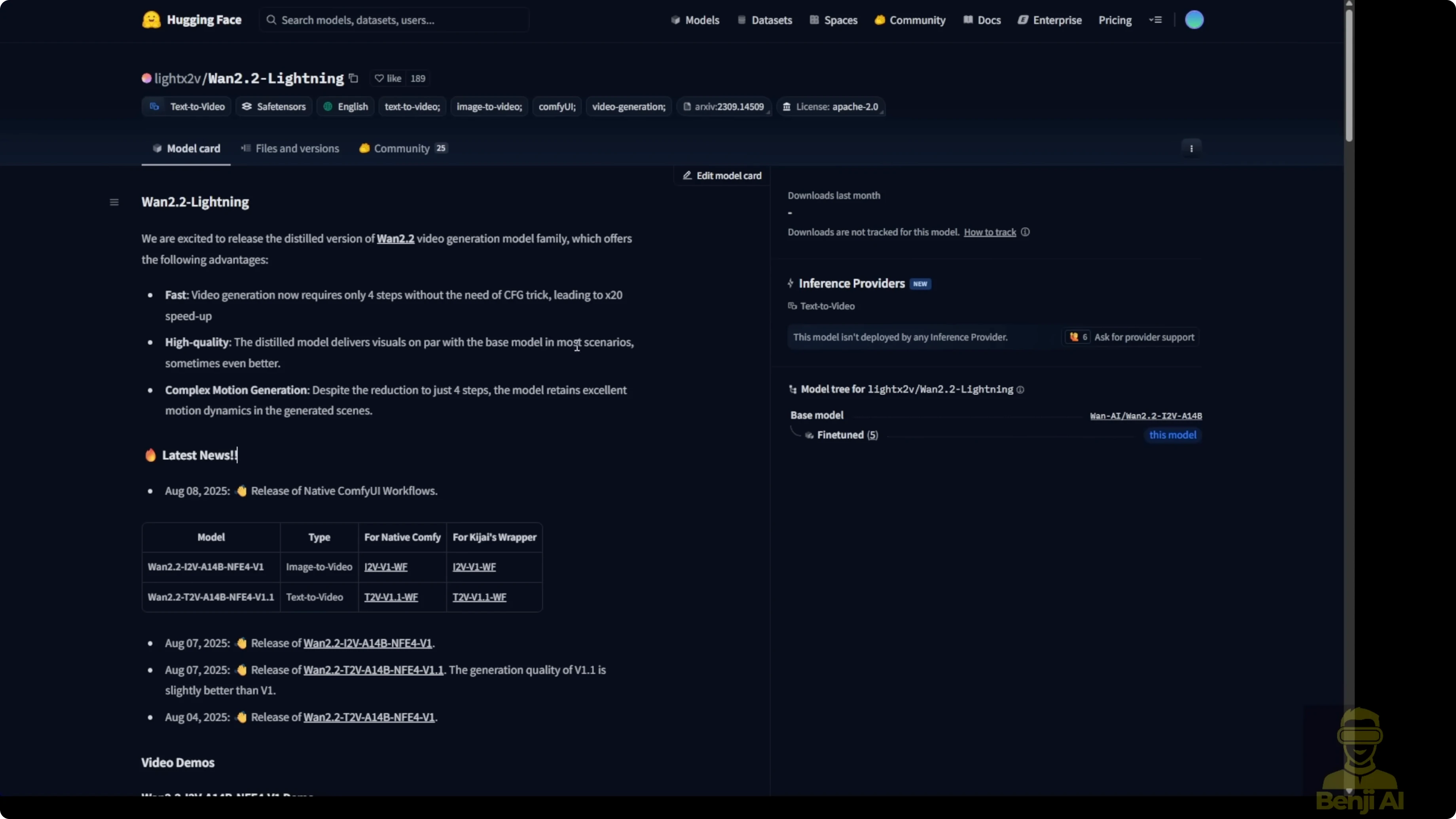
The Light X2V Hugging Face repo includes a new release called Wan 2.2 Lightning. Previously I was using the Wan 2.1 step distillations for text-to-video and image-to-video, and this new Wan 2.2 Lightning is specified as the train distillation version for the Wan 2.2 video generation model, fully compatible with Wan 2.2.
These LoRA models come in two types you need to be aware of:
- Image-to-video (I2V)
- Text-to-video (T2V)
The examples look pretty nice. Generation is able to speed up by up to 20x. The distillation model delivers with the base models and most scenarios are able to run compatibly. Motion and video quality remain the same when you're using the base model.
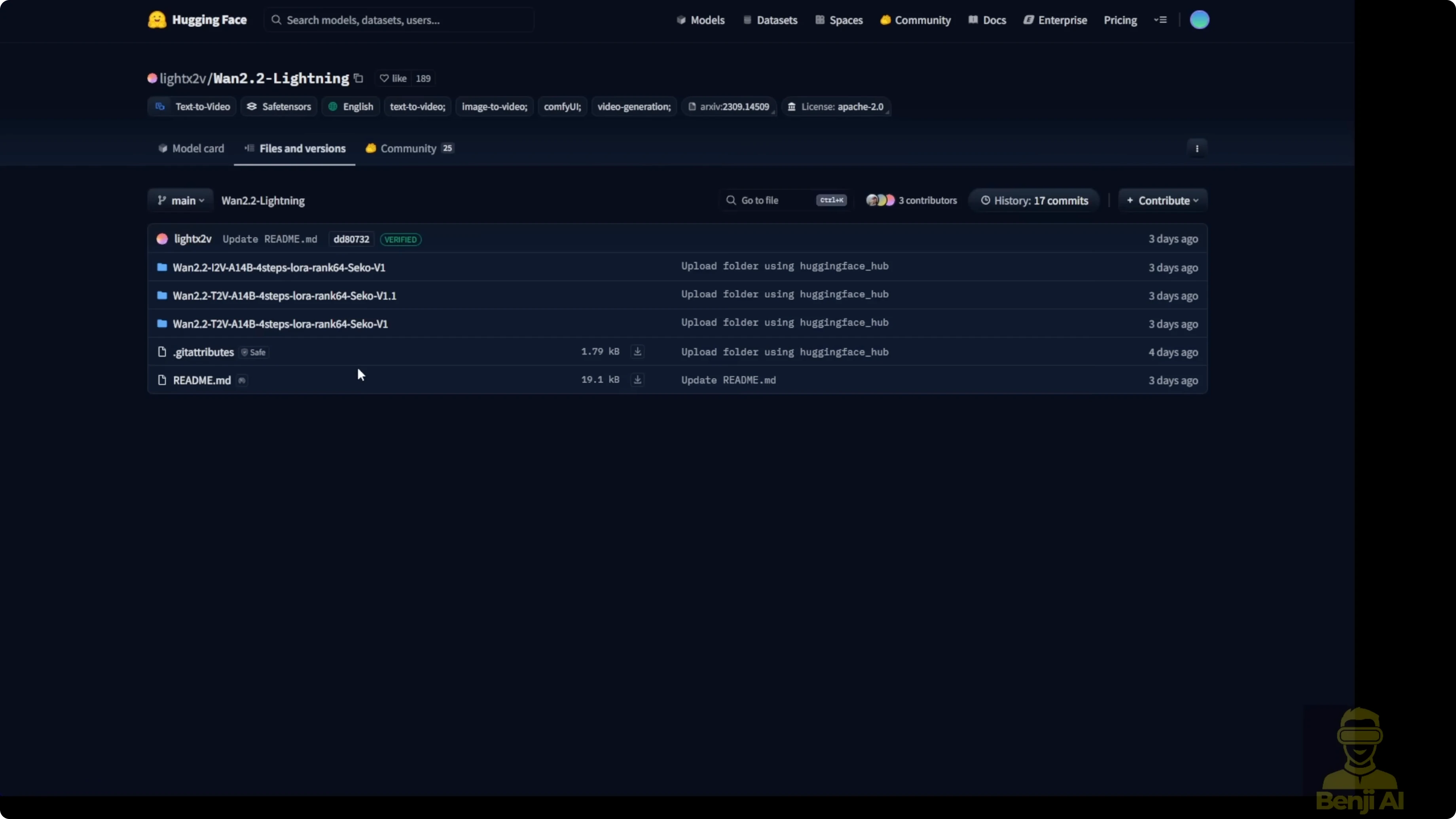
Files and versions in the repo

-
Image-to-video LoRA models:
- Wan 2.2 I2V4ep LoRA V1
- Folder contains high-noise and low-noise .safetensors for I2V
-
Text-to-video LoRA models:
- Two versions are currently available; I downloaded version 1.1
- Folder has the same structure with high-noise and low-noise .safetensors
- Additional files include JSON files for native ComfyUI custom nodes, a wrapper, and MP4 demos
Running Wan 2.2 Lightning LoRA in ComfyUI
I’m using two example workflows:
- A very simple basic image-to-video workflow
- A text-to-video workflow
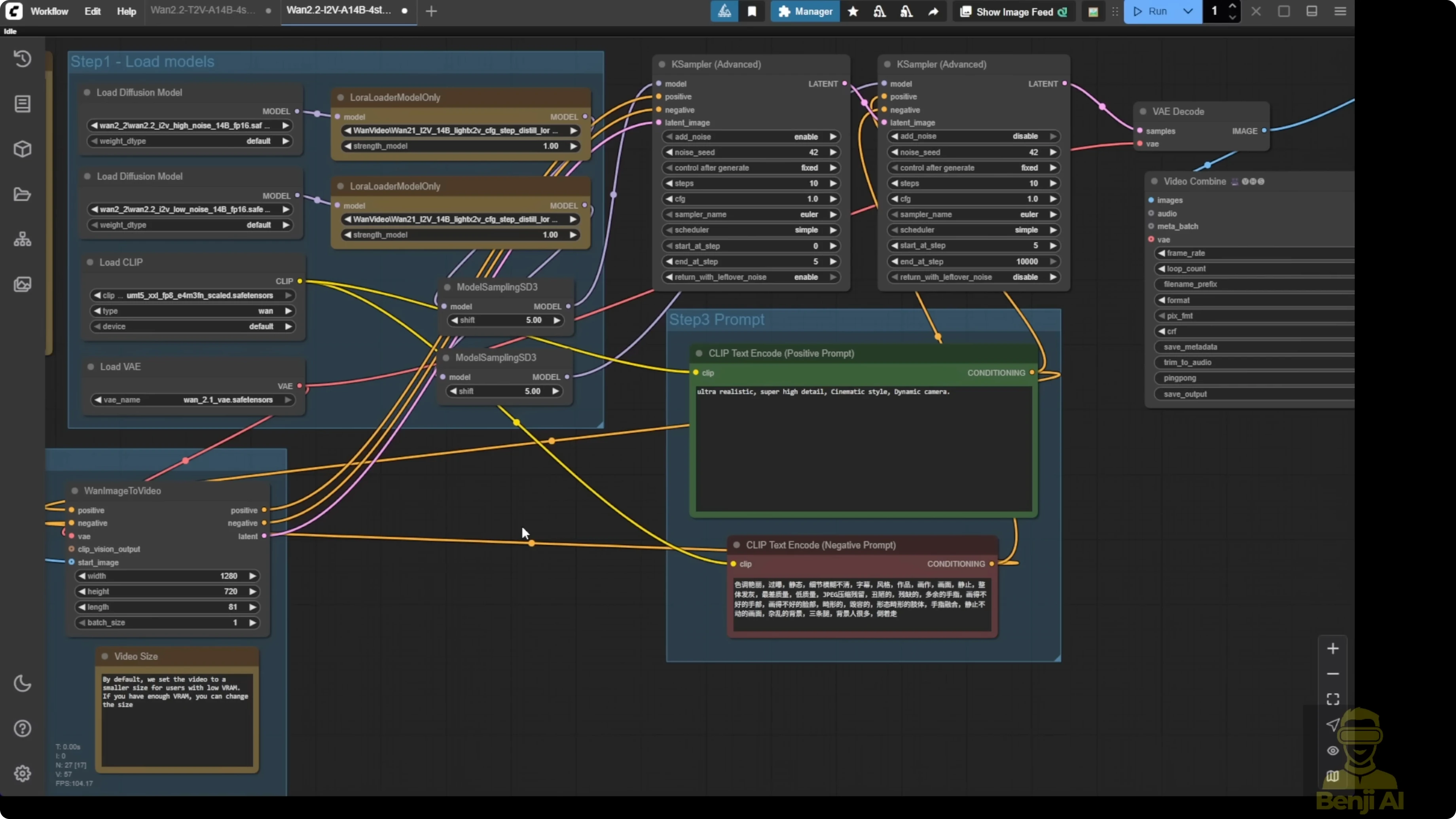
Both workflows use the Wan 2.2 14B models. This is not the 5B model.
I highlighted two LoRA loaders in each workflow. We’re using the Light X2V LoRA models with both the high-noise and low-noise variants.
For text-to-video, I tested GGUF quantization models:
- 4Q quantization
- 8Q quantization
I’m trying GGUF quantized models instead of FP16 .safetensors to help with high VRAM requirements.
Step-by-step: Prepare models and files
- Open the Wan 2.2 Lightning repo in the Light X2V Hugging Face project.
- Select the model type you need: image-to-video or text-to-video.
- Download the high-noise and low-noise .safetensors for your chosen type.
- Download the JSON files for native ComfyUI custom nodes and the wrapper if you plan to run the provided workflows.
- Optionally review the MP4 demos to see example outputs.
Step-by-step: Configure Text2Video in ComfyUI
- Load the Wan 2.2 14B base model.
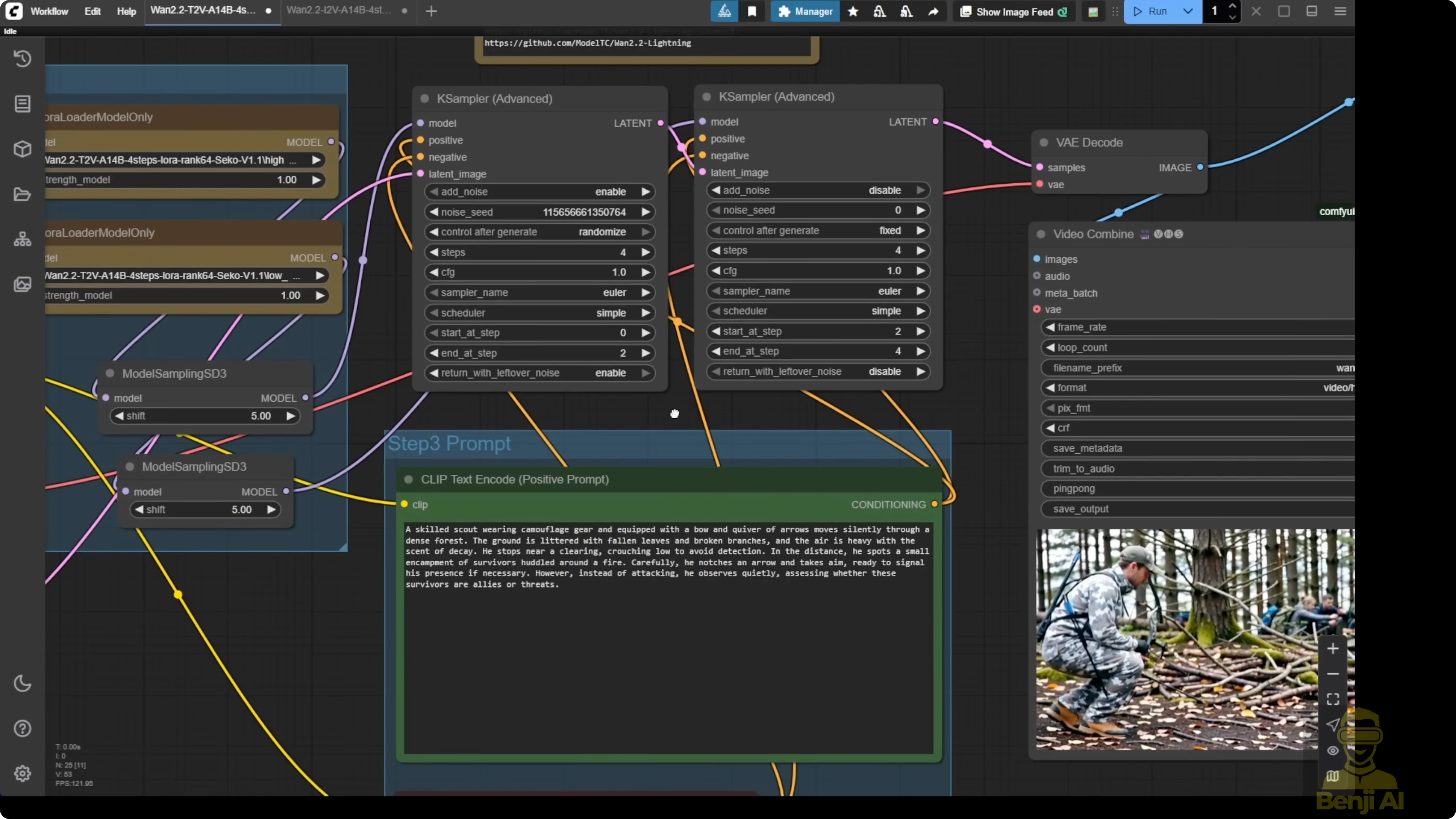
- Add two LoRA loaders for text-to-video: one for high-noise and one for low-noise.
- Select the GGUF quantized text-to-video model if you can’t run FP16. I tested 4Q and also Q8.
- Configure the model sampling to SD3 and set the shift number to 5. This is the default for using the Light X2V LoRA models. The JSON files show shift numbers set to 5 with the sampler settings.
- Set the sampling steps to 4 total. Run 2 steps with high-noise first, then 2 steps with low-noise.
- Enter your text prompt.
- Generate the video.

Notes and observations for Text2Video:
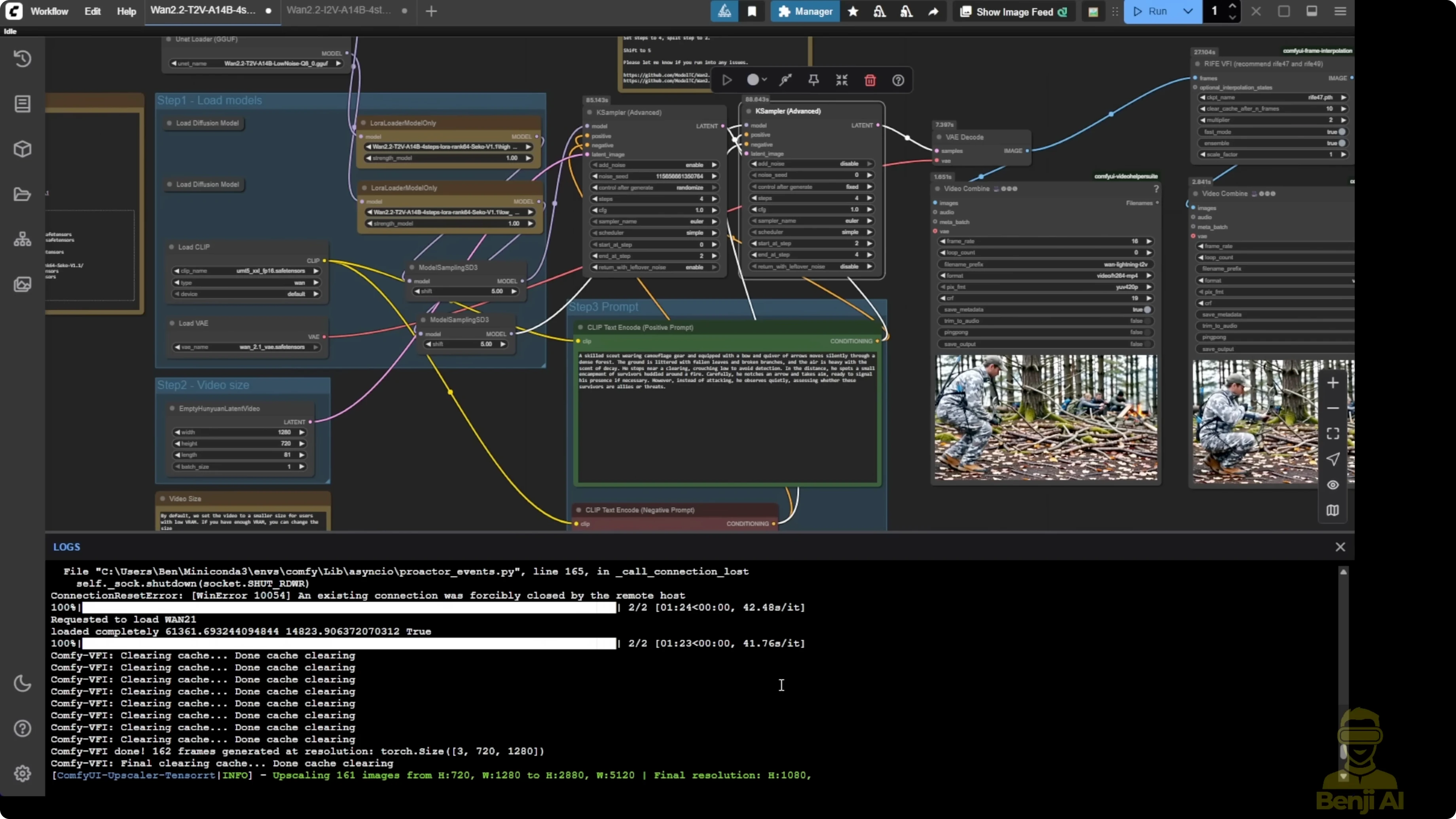
- I generated a clean first output at 16 frames per second using 4 steps and the Q8 GGUF model.
- Doubling the frame rate with frame interpolation improved motion smoothness.
- Upscaling to full HD made the final result look better.
- Using the default configuration, the video quality is okay. Not really top notch, but very stable. Objects stay the same, with better motions and object coherence than Wan 2.1.
- For one generation, the high-noise pass took 1 minute 24 seconds and the low-noise pass took 1 minute 23 seconds.
Step-by-step: Configure Image2Video in ComfyUI
- Load the Wan 2.2 14B base model.
- Add two LoRA loaders for image-to-video: one for high-noise and one for low-noise.
- Input your initial image.
- Set the output resolution. I used 720p.
- Increase the sampling steps if you’re not using detailed text prompts. I set 10 total steps: 5 steps for high-noise and 5 steps for low-noise.
- Generate the video.
Notes and observations for Image2Video:
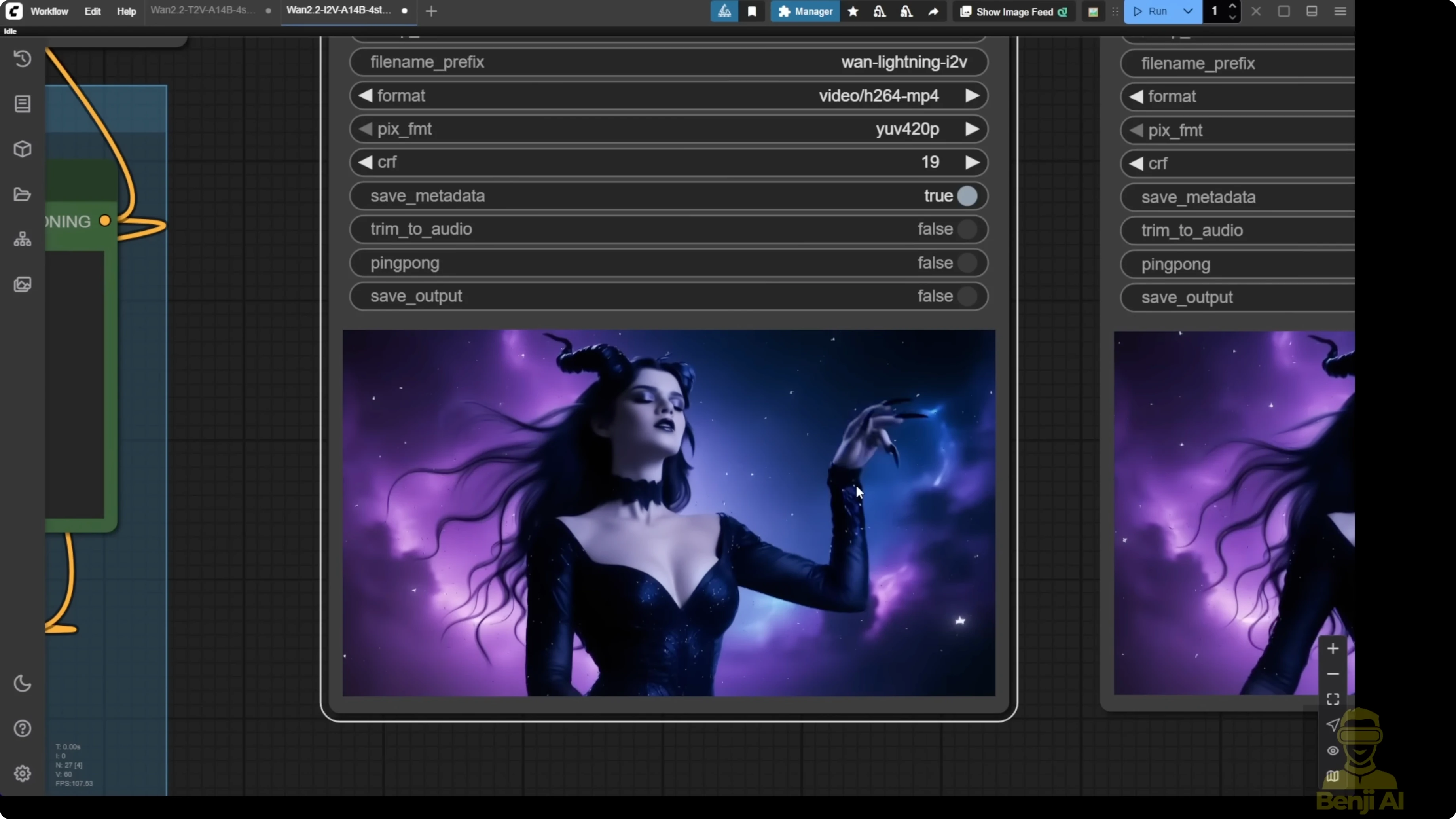
- I got smooth first-generation motion from the VAE decode. Hands looked very smooth without extra fingers or broken limbs like older AI models.
- Doubling the frame rate improved motion even more. After upscaling to full HD, resolution and clarity improved and transitions looked smoother.
- I spent about 3 minutes for each sampler at 5 steps per sampler (around 3 minutes 11 seconds each). Doubling sampling steps didn’t add much more time on my hardware.
- Default 4 sampling steps are still okay if you want quicker runs, but raising steps for image-to-video can improve motions and overall quality.
Optional adjustments and tuning
- Some people will increase sampling steps in the K Sampler.
- Some will modify the LoRA loader strength to 2.5 or 3.
- Test what’s suitable for your generations. The defaults already give stable results and maintain Wan 2.2’s quality.

Quality and motion behavior
- With lower sampling steps (like 4) using Light X2V LoRA, I still get motions of the character or objects, but there are fewer dynamic camera motions.
- Generating videos without the distillation LoRA and at higher sampling steps tends to produce more dynamic camera motions and less steady results most of the time.
- Wan 2.2 Lightning keeps quality pretty nice. After upscaling to full HD, it looks even better overall.
Final Thoughts
Wan 2.2 Lightning LoRA speeds up generation while keeping Wan 2.2 quality intact. The high-noise and low-noise two-pass setup works well for both text-to-video and image-to-video. Defaults are solid for stable, coherent motion, GGUF quantized models help on lower VRAM, and simple post-processing with frame interpolation and upscaling takes the results further.
Recent Posts
How Wan 2.2 AI Boosts Video with 14B Generation & 5B Upscaling?
How Wan 2.2 AI Boosts Video with 14B Generation & 5B Upscaling?
Can Wan 2.2 Img2Vid Handle Long-Length Video Testing?
Can Wan 2.2 Img2Vid Handle Long-Length Video Testing?
Exploring Wan 2.2’s Final Frame and Local AI Video Highlights
Exploring Wan 2.2’s Final Frame and Local AI Video Highlights