How Wan 2.2 AI Boosts Video with 14B Generation & 5B Upscaling?
I tried some other methods with WAN 2.2. Previously I checked it the first day it was supported in ComfyUI. By default in the ComfyUI template you get a video generation template for WAN 2.2, but there is a drawback. When we use the 14B model, it generally takes quite some time to generate a simple image-to-video or text-to-video. I tested methods to speed up the 14B generation and used the 5B model for a different way to upscale video.
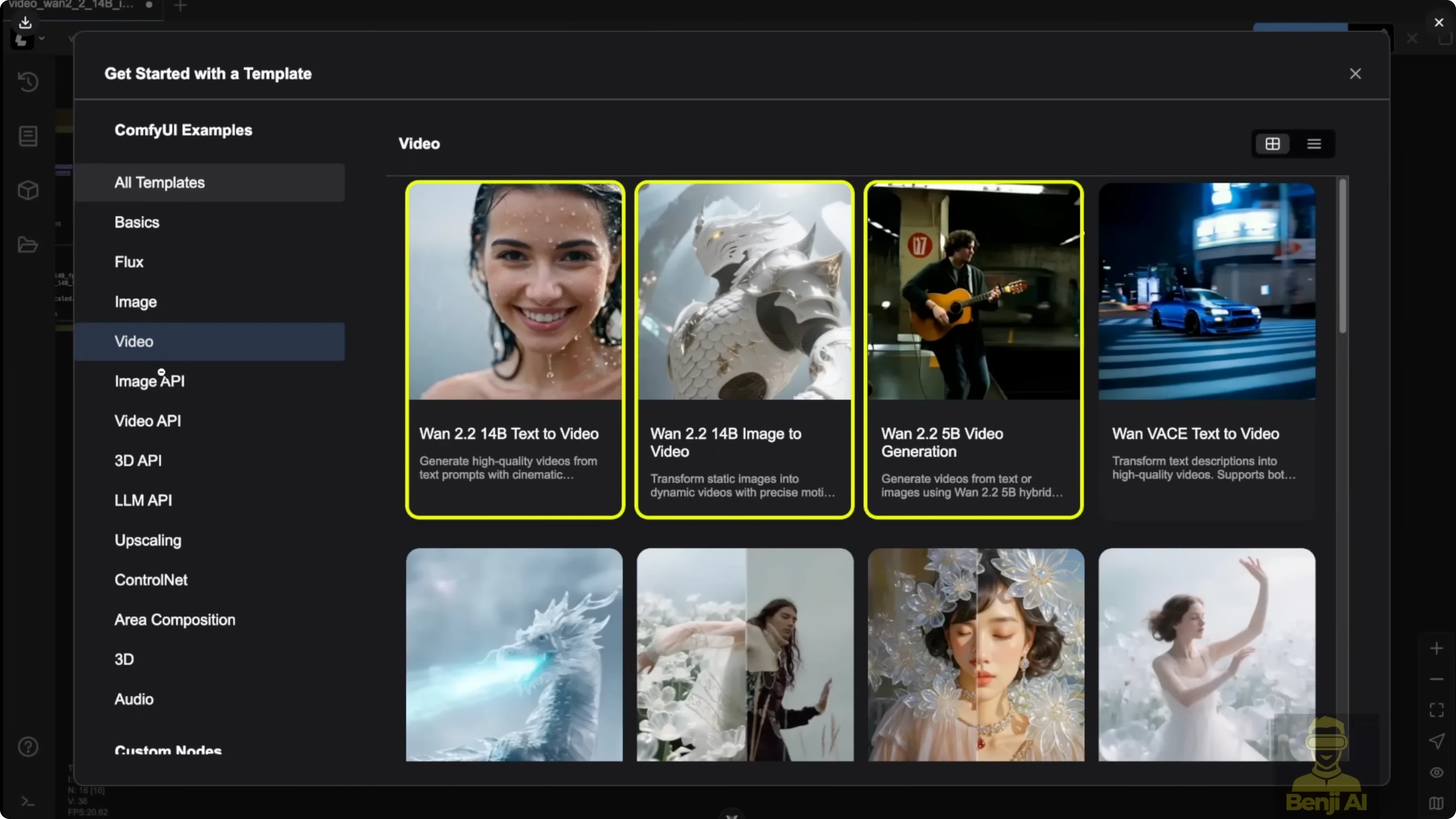
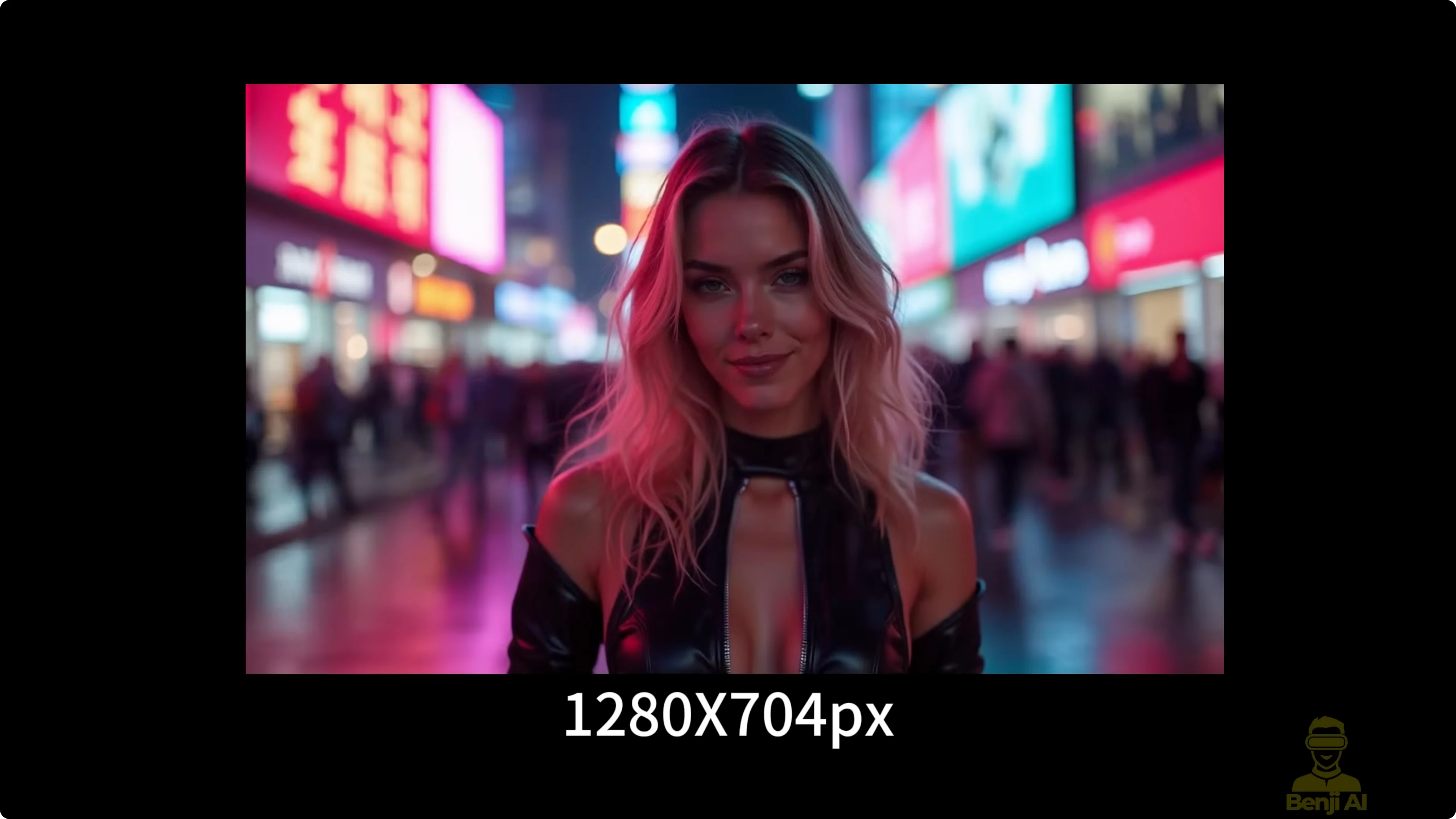
The 5B model has potential. Instead of only using it for normal text or image-to-video, it can be used to upscale your video. I took 5-second demos generated at 720p and upscaled them to something close to 1080p. With that 1080p result, you can bring it further with other upscalers such as Topaz to 2K or 4K. It tends to give better results going to 2K or 4K if your source is already 1080p rather than trying to jump straight from 480p.
How Wan 2.2 AI Boosts Video with 14B Generation & 5B Upscaling?
I modified the image-to-video workflow from the ComfyUI template. Update your ComfyUI to see the new browse template. I set up the workflow to make more settings dynamic.
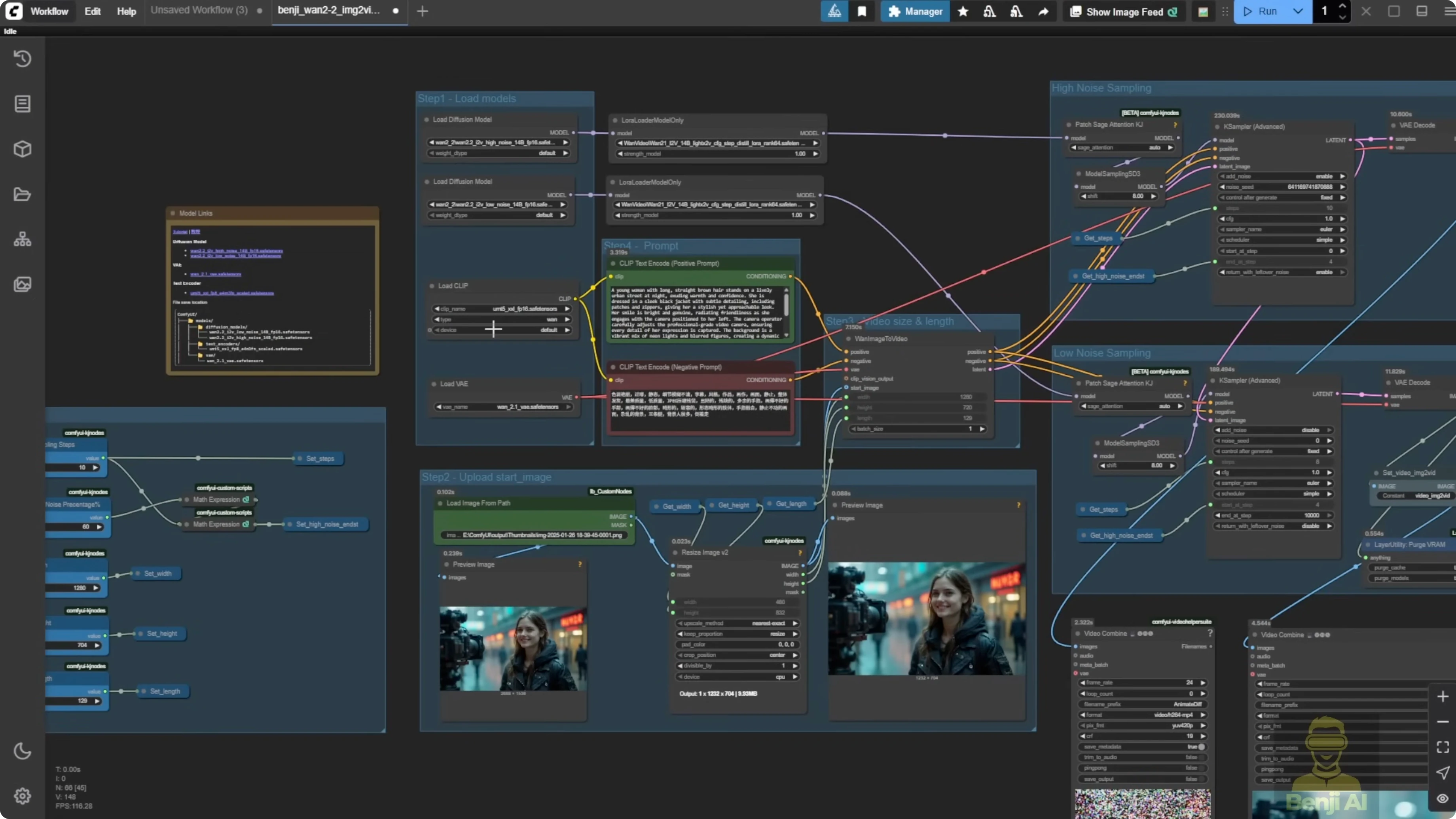
- Sampling steps set to 10 when using Light X2V.
- Light X2V works with LoRA models and WAN 2.2. You can connect the WAN 2.2 high noise and low noise pipelines and pass model data through a LoRA loader that supports Light X2V.
- I download LoRA models from the official repo. In this scenario I am using the image-to-video 14B models.
- You can also use the Fusion X LoRA. Select the right LoRA type. Here I used Fusion X image-to-video 14B LoRA. You do not have to download the whole diffusion model set. Use the Fusion X LoRA to embed into your pipeline.
- This enables WAN 2.2 to work with Fusion X or the Light X2V distilled LoRA.
I added a patch for Stage Attentions. If you installed Stage Attentions, use it. If you cannot install it, disable it and keep 10 sampling steps. In K Sampler Advanced, because total steps are 10, I calculate how many go to the first sampler. I pass a high noise percentage from a settings group to determine the high noise steps. If I set 60 percent, that means 6 of 10 steps go to high noise. Pass that value back to the high noise sampler for a dynamic setup. You can set 50 percent for 5 steps, 20 percent for 2 steps, etc.
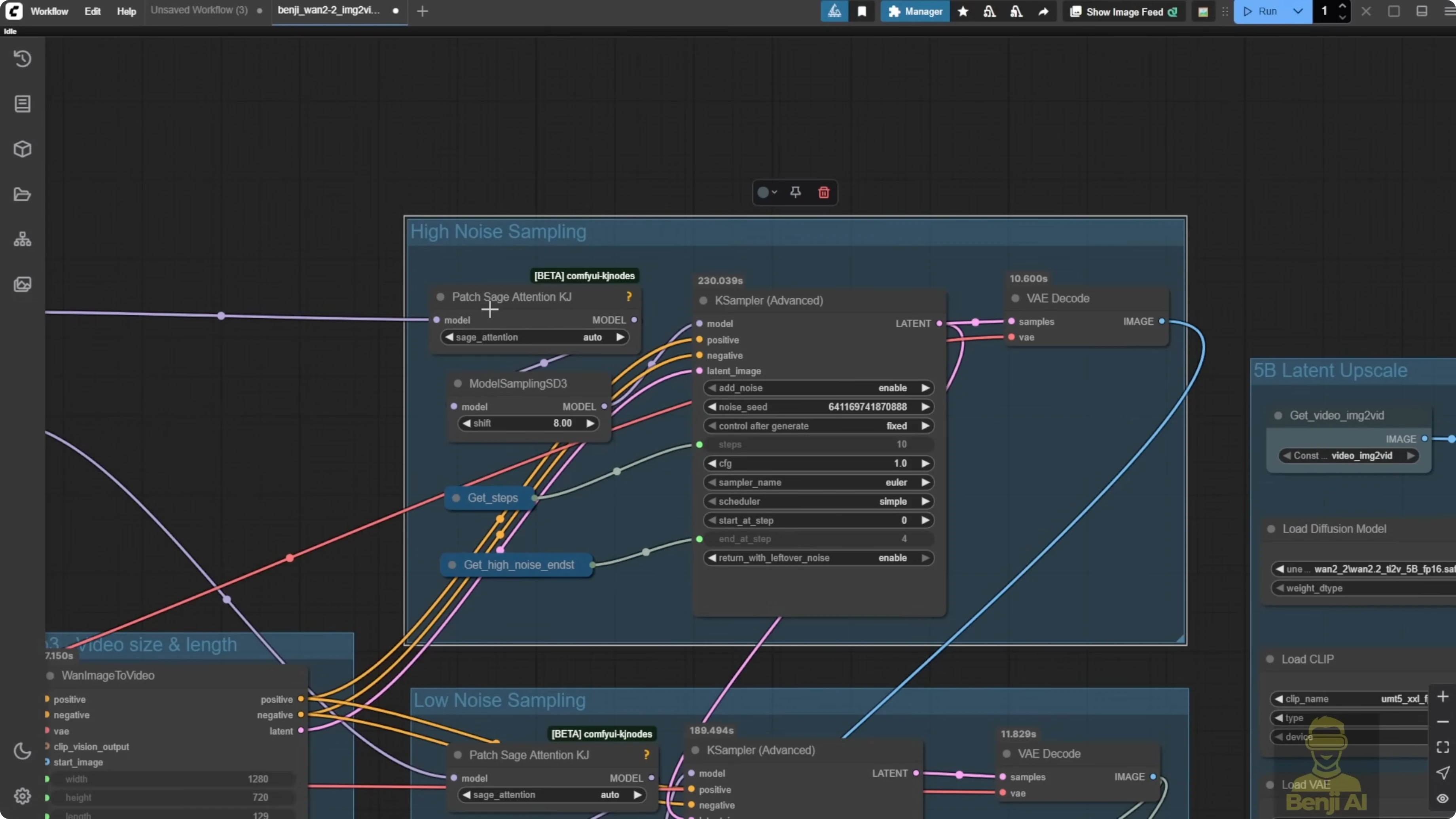
Use integer-friendly percentages. The sampler expects an integer. If you put 25 percent, it becomes 2-point-something and then 3. It is better to stick to 10, 20, 30, and so on. That makes it easier for the AI to run.
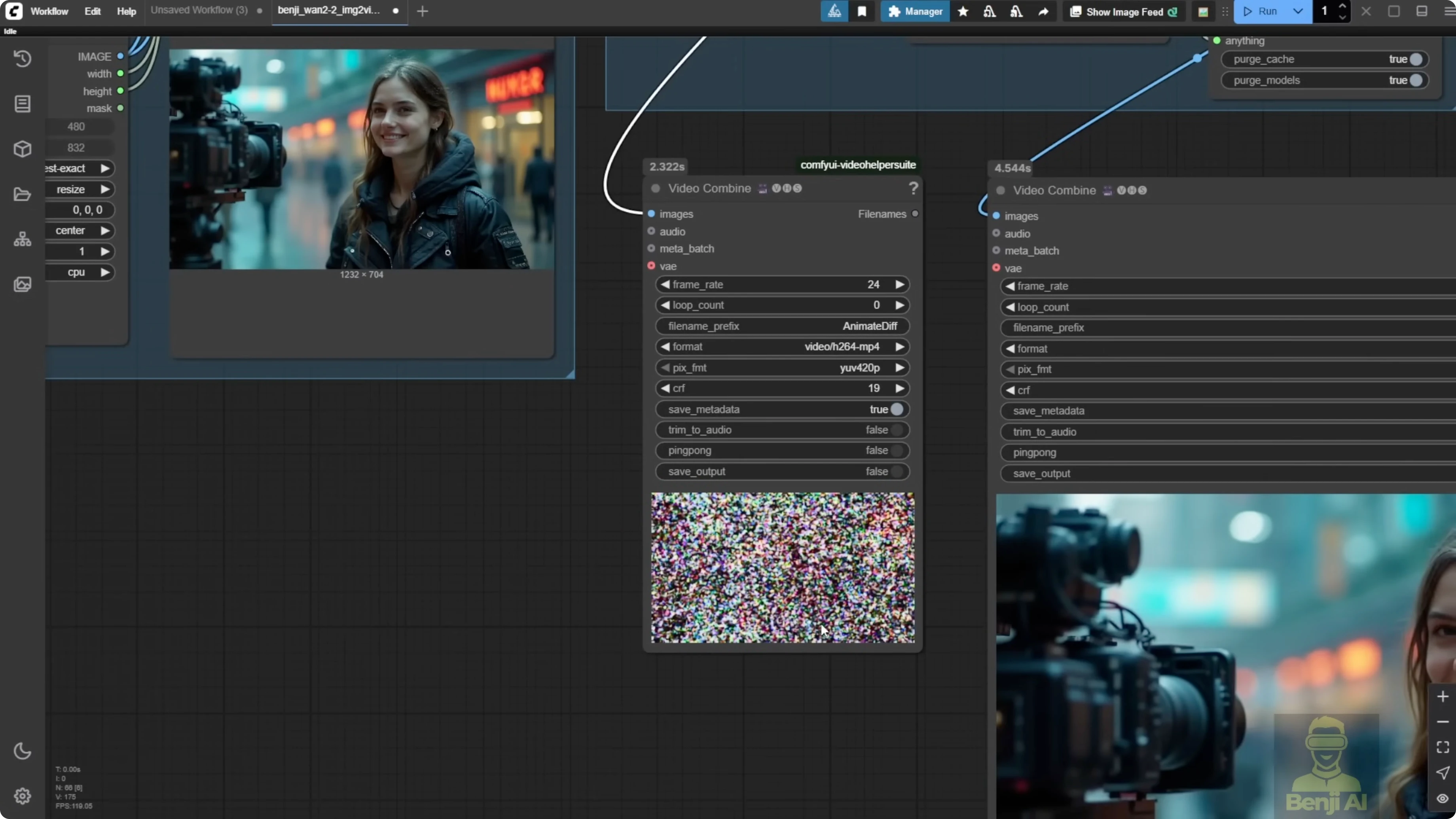
I also output the diffusion noise via VAE decode for demo purposes. The noise looks like an unrecognizable mess, but that is what the AI sees when generating the video.
Why the 5B latent upscale looks more natural
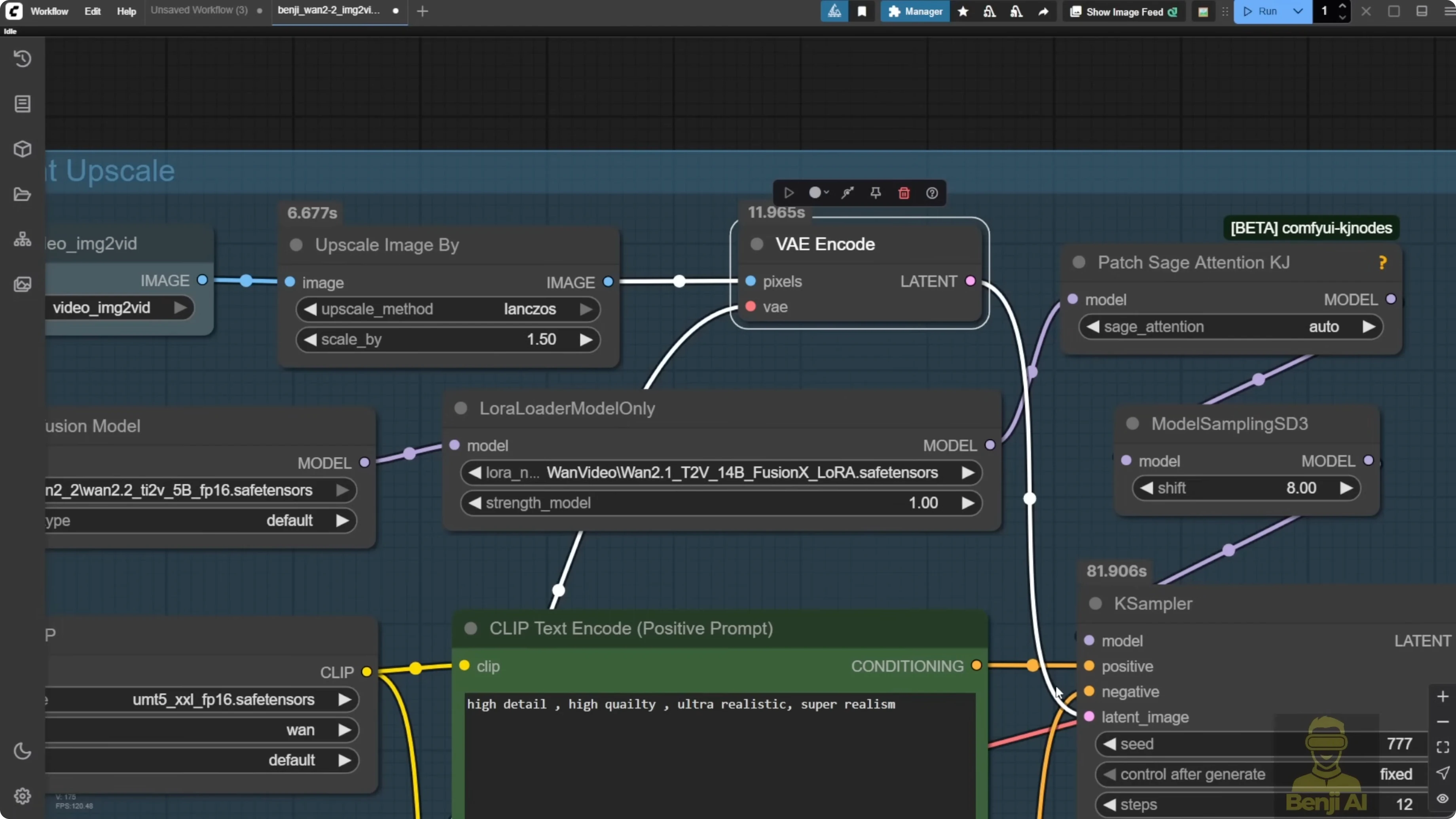
The 5B model can take an image into the latent space via a normal VAE encode and sample in a very traditional image diffusion way. I take the generated video from the first group, then pass it to a group I call 5B latent upscale. I upscale each frame by 1.5x, VAE encode, and run a sampler using the WAN 2.2 5B model. I use a very general prompt like high detail, high quality, set denoise to 0.22, and it outputs a video with the same motion but higher resolution.
I also tested a normal model upscaler for comparison using a RealESRGAN 4x-type model. The color and edges look different. The 5B latent upscale looks more natural. Faces and hair look more natural with 5B. Model upscalers tend to oversharpen hair, and eyes sometimes get a pixelated black look. Diffusion-based latent upscale keeps the color and sharpness more natural and avoids oversaturated color from model-only upscalers.
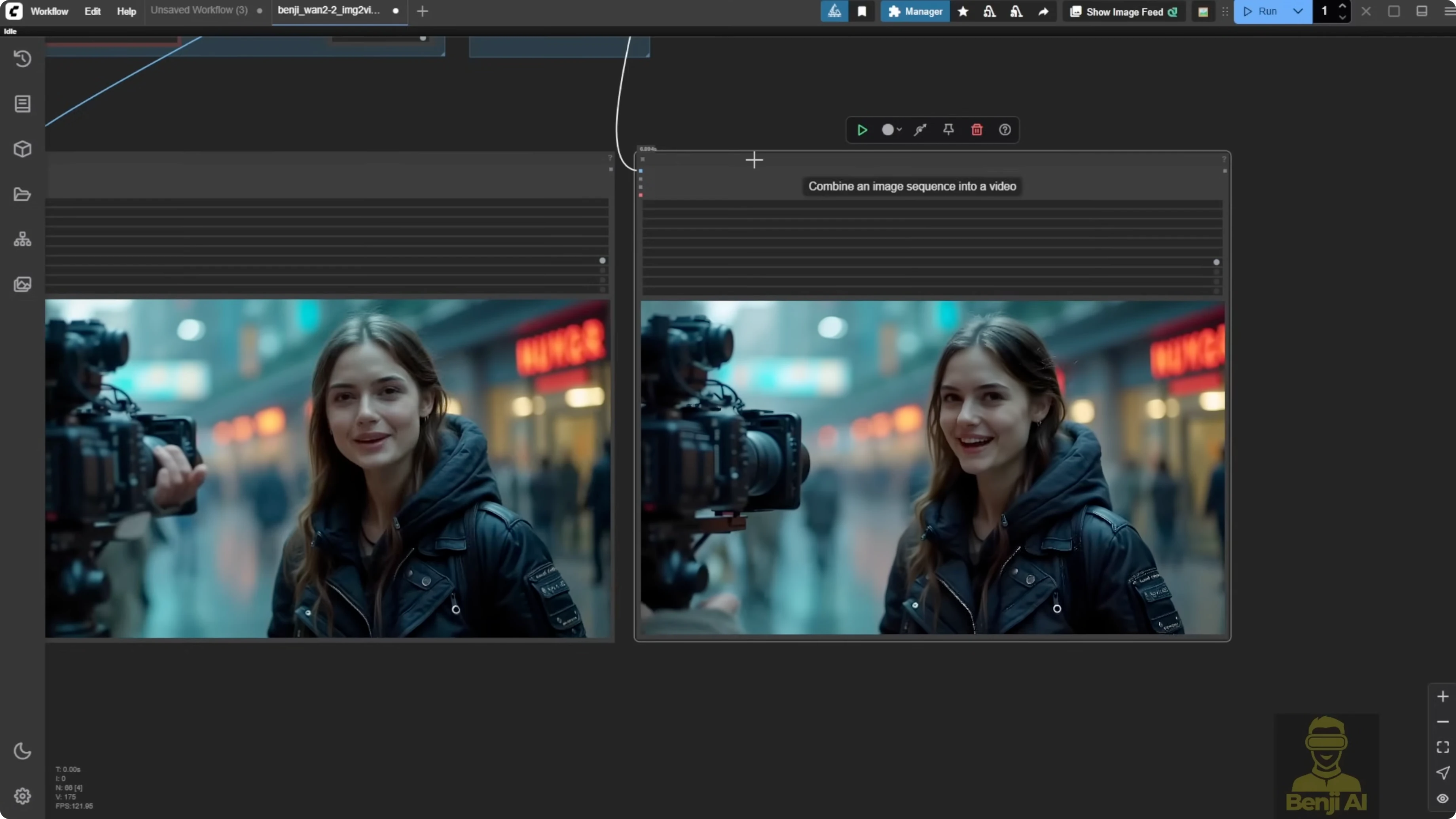
Both methods work, and both can upscale. If you want a more natural look on your generated videos, 5B latent upscale does well. If you need a much larger size quickly, model upscalers can push higher resolutions, but you may see artifacts on some frames, like oversharpened hair or odd eye artifacts. Some 4x ultrasharp models and models like foolhardy look nice for images, anime, or cartoon-style content. For video motion, they can create artifacts or oversharpen in some scenes. I prefer to keep artifacts lower and colors more natural in the video. Then I bring it to professional upscalers like Topaz for 2K or 4K.
Why I target 720p to about 1080p first
WAN 2.2 at 720p with LoRA-based speedups renders much faster than my first day tests without LoRA. With a 1080p base from the 5B latent upscale, professional tools do a better job pushing to 2K or 4K than starting from 480p or trying to jump too far with a single ComfyUI upscale.
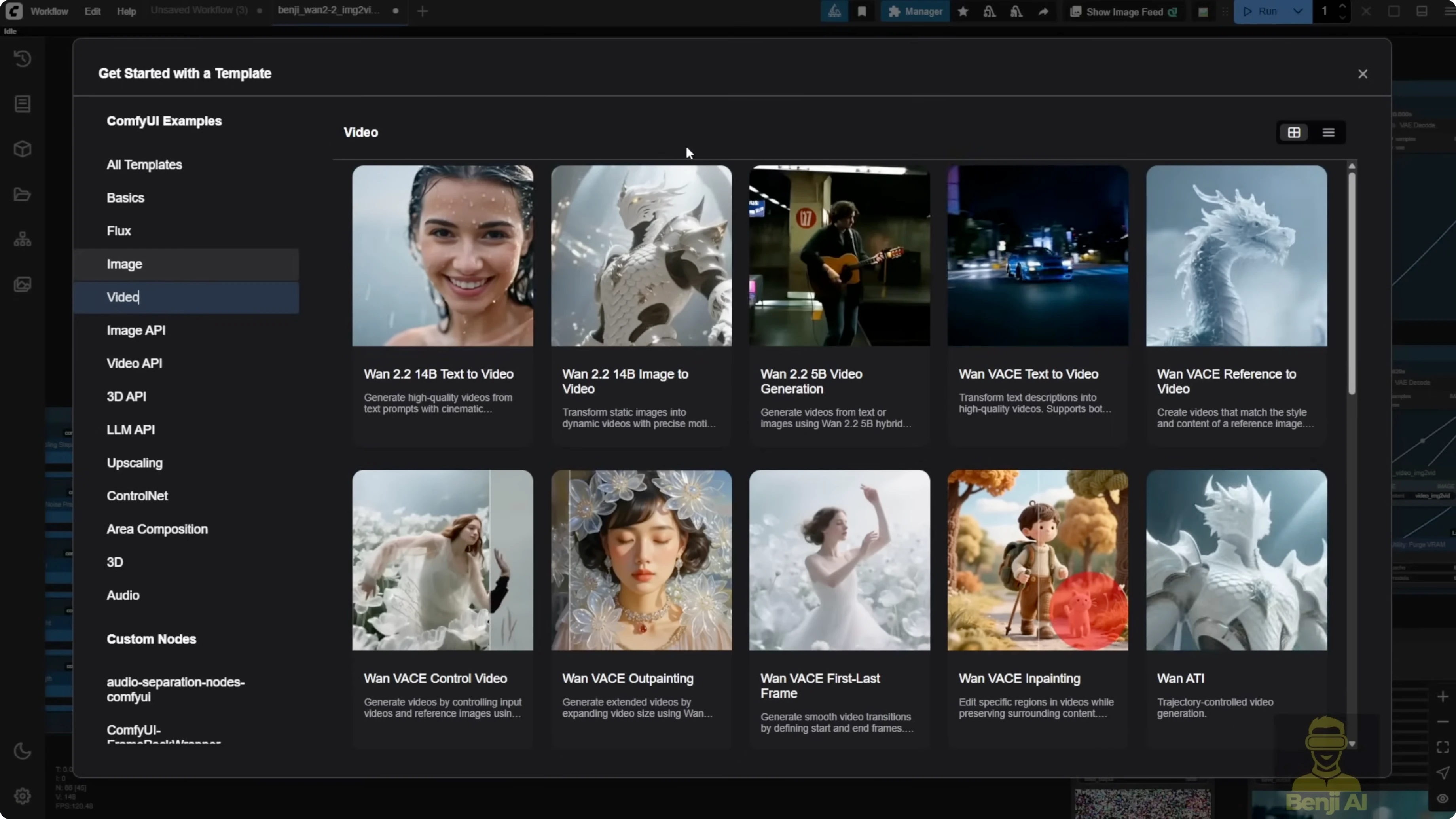
Step-by-Step Guide: Speed Up 14B Generation in ComfyUI
- Update ComfyUI to access the latest WAN 2.2 templates.
- Open the image-to-video 14B template that supports Light X2V.
- Connect the WAN 2.2 high noise and low noise pipelines to a LoRA loader that supports Light X2V distilled LoRA.
- Optionally switch to Fusion X LoRA and select the Fusion X image-to-video 14B LoRA.
- Set total sampling steps to 10 when using Light X2V.
- Optionally install Stage Attentions. If you cannot, disable it and keep 10 sampling steps.
- Configure K Sampler Advanced for high noise:
- Set a high noise percentage like 20, 50, or 60.
- Pass the integer step count to the high noise sampler via the settings group.
- Configure K Sampler Advanced for low noise:
- Pass the remaining steps dynamically based on total steps and high noise steps.
- Resize your input image to 720p for faster and more stable generation.
- Load your input via an image file path or a load image node.
- Run the workflow to generate the 720p video.
Tip: Use integer-friendly percentages like 10, 20, 30 for clean step counts.
Example calculation:
total_steps = 10
high_noise_pct = 0.6
high_noise_steps = int(total_steps * high_noise_pct)  # 6
low_noise_steps  = total_steps - high_noise_steps      # 4
Step-by-Step Guide: 5B Latent Upscale From 720p Toward 1080p
- Take the image list from the generated 720p video.
- Upscale each frame by 1.5x or 2x.
- VAE encode the upscaled frames.
- Load the WAN 2.2 5B model in a sampler.
- Enter a general instruction prompt like:
high detail, high quality
- Set denoise to 0.22.
- Run the sampler to output the upscaled video.
Step-by-Step Guide: Compare With a Model Upscaler
- Take the same 720p image list.
- Load a 4x upscaler model such as RealESRGAN 4x.
- Set a target size like 2400 width to approximate 2K.
- Run the upscaler and export the video.
Observations on Visual Quality
- 5B latent upscale preserves natural color and avoids oversharpened hair and pixelated eyes.
- Model-only upscalers can push to higher sizes but often add oversaturated color and artifacts.
- For anime or cartoon styles, some sharp upscalers or models like foolhardy may be fine. For motion videos, they can introduce artifacts.
- A practical path is 720p generation with 14B, then 5B latent upscale to around 1080p, then a professional tool like Topaz to 2K or 4K.
Practical Settings and Notes
- Sampling steps with Light X2V: 10 works well, and you can go even lower like 8 for speed tests.
- Integer steps for high noise help stability:
- 20 percent gives 2 high noise steps out of 10.
- 50 percent gives 5 steps.
- 60 percent gives 6 steps.
- Input resolution: Resize large images down to 720p before generation for faster renders.
- Denoise for 5B latent upscale: 0.22 worked well for me.
- Prompts for 5B latent upscale: keep it simple and general.
Timing and Throughput
- With Light X2V distilled LoRA and low steps, the first group high and low noise sampling at 720p took about 1 minute 46 to 1 minute 48 for 129 frames on my machine.
- The 5B latent upscale group took about 1 minute for 129 frames.
- A model-only upscale from 720p to 2400 width took about 6 minutes for 129 frames.
How Wan 2.2 AI Boosts Video with 14B Generation & 5B Upscaling? Results Recap
- 14B generation speeds up significantly with Light X2V or Fusion X LoRA plus low steps.
- 5B latent upscale increases resolution while keeping a natural look.
- Model upscalers are fine for big jumps but can add oversharpening and artifacts.
- For best overall quality, generate at 720p, latent-upscale with 5B toward 1080p, then finish with a professional upscaler.
Final Thoughts
WAN 2.2’s 14B model paired with Light X2V or Fusion X LoRA brings generation time down. The 5B latent upscale method keeps faces, hair, and color more natural than many model-only upscalers. I prefer a two-stage approach: faster 720p generation with 14B, then a 5B latent upscale toward 1080p, and finally a professional upscaler to reach 2K or 4K.
Recent Posts
Can Wan 2.2 Img2Vid Handle Long-Length Video Testing?
Can Wan 2.2 Img2Vid Handle Long-Length Video Testing?
Exploring Wan 2.2’s Final Frame and Local AI Video Highlights
Exploring Wan 2.2’s Final Frame and Local AI Video Highlights
Wan 2.2 Fun Control vs Wan 2.1 VACE: Which Suits Video Creation?
Wan 2.2 Fun Control vs Wan 2.1 VACE: Which Suits Video Creation?