Exploring Wan 2.2 and Qwen Image Models in Alibaba AI Pipeline
There are a lot of AI model coming out lately, and there are also new updates to the WAN video model and the Qwen image generation model. This is a quick recap of everything we’ve seen this month. Since it’s the end of September, it’s a good time to look back and see how we can use these AI model together, building a whole ecosystem based around one AI video and the Qwen image generation model.
There are so many new AI model popping up and constant updates to AI video tools. A monthly recap of what we’ve got, how each model can be used practically, and how we can apply them to create AI content is helpful.
Exploring Wan 2.2 and Qwen Image Models in Alibaba AI Pipeline: What I’m Using
- WAN 2.2 AI model
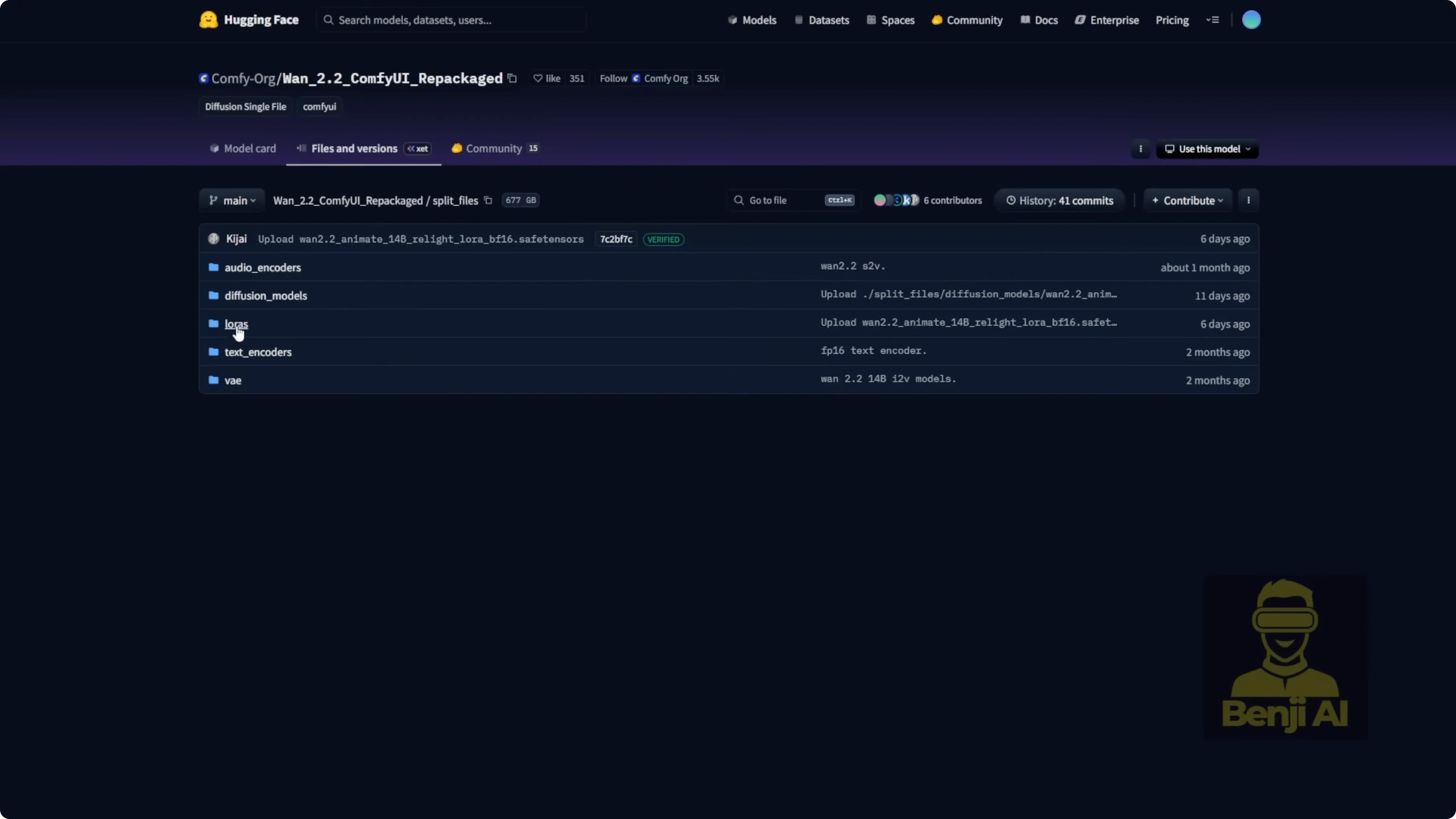
- Files: diffusion model, text encoder, VAE, LORA in the ComfyUI Hugging Face repo.
- Qwen ImageEdit 259
- Improved image editing that preserves parts you don’t want to change.
- Qwen image ControlNet
- Instant X ControlNet union files cover most ControlNet types in a single file.
- Base Qwen image model
- I’m using the FP8 version to generate basic stuff in ComfyUI like a character or random objects.
Exploring Wan 2.2 and Qwen Image Models in Alibaba AI Pipeline: Set Up the Workflow in ComfyUI
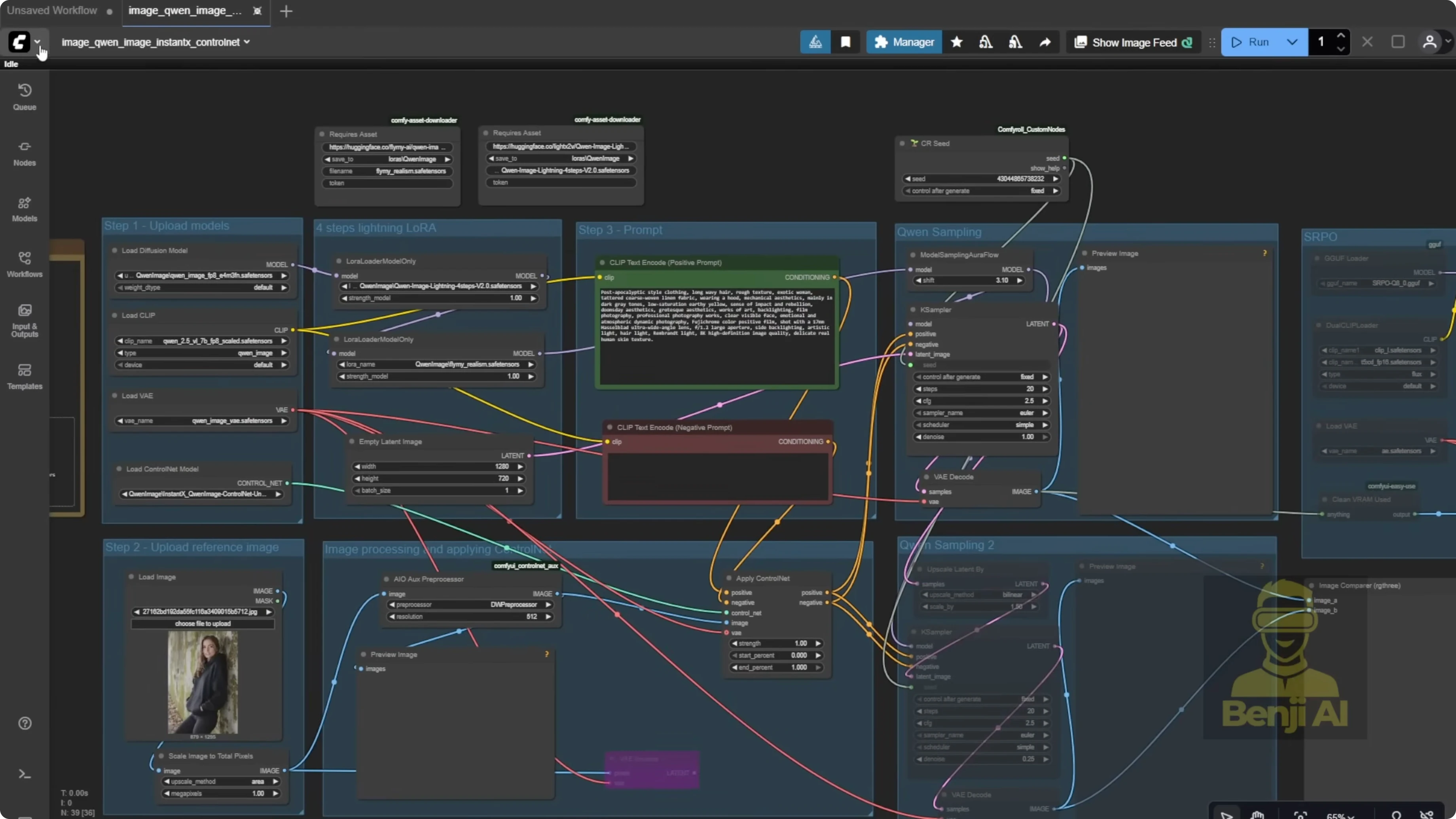
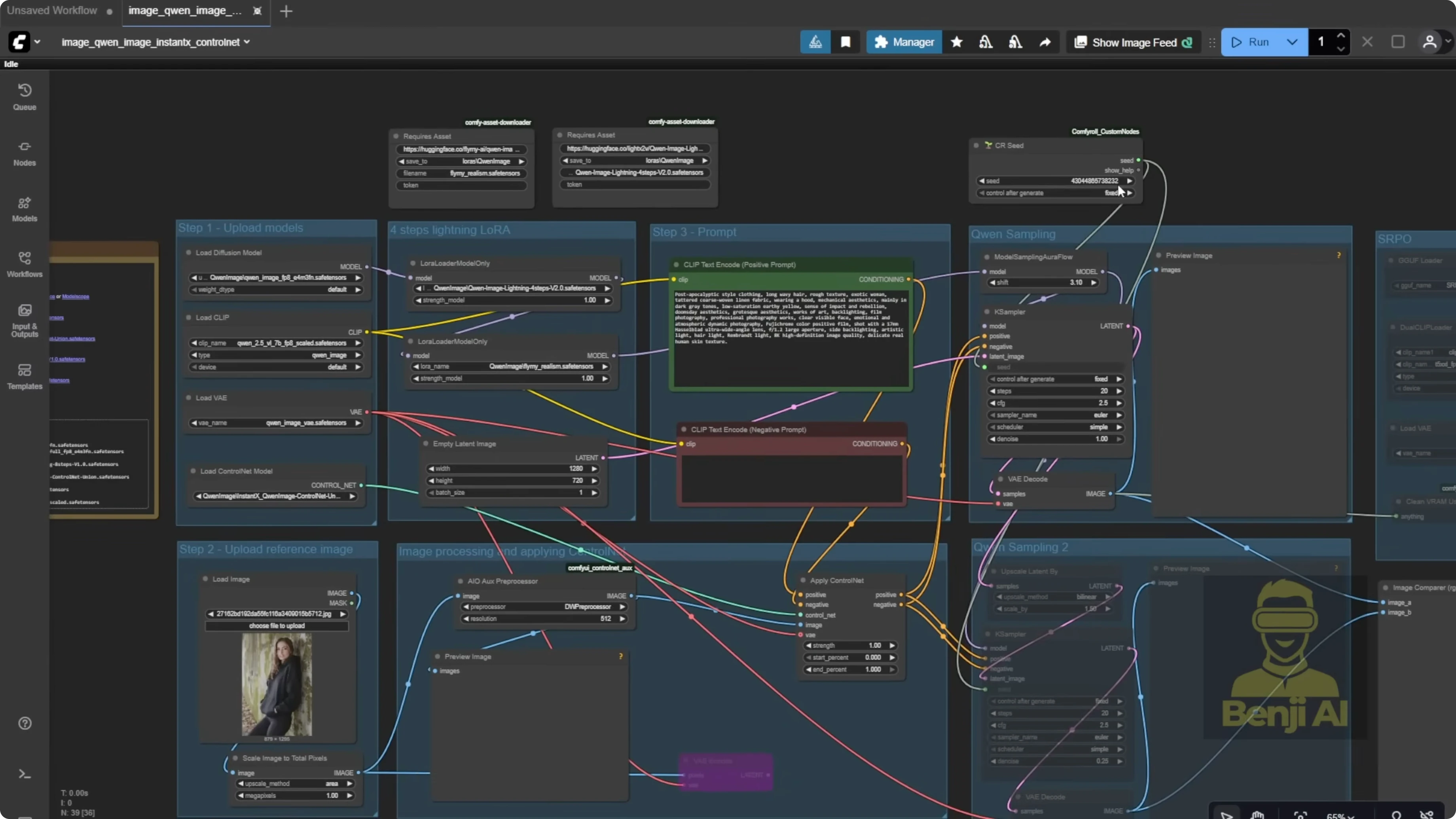
- I’m using the Qwen image workflow you can find in Browse Templates. Go to the image tab and look for Qwen image with Instant X Union control net. I tweaked it a little to boost image quality, but otherwise it’s the standard setup. It uses Qwen image plus ControlNet for guidance.
Step-by-step: Prepare the models and template
- Download the WAN 2.2 files and place them in the appropriate ComfyUI model folders.
- Download the Qwen image base model (FP8) for generation.
- Download the Qwen ImageEdit 259 model.
- Download the Instant X ControlNet union files.
- Drop the ControlNet union files into your ComfyUI control net folder.
- Open Browse Templates in ComfyUI.
- Select the image tab.
- Choose Qwen image with Instant X Union control net.
ControlNet for image generation has been around since stable diffusion blew up a couple years ago, so I won’t go too deep into how it works. This is a quick walkthrough of how we can practically use these model like Qwen image for content creation.
Exploring Wan 2.2 and Qwen Image Models in Alibaba AI Pipeline: Generate the Base Image
I’ve got a reference image for the character pose that I generated earlier. I’m only using it as a ControlNet reference, not for anything else. Instead of using DW pose or open pose, I’m going with a depth map because I want to keep some of the background shapes in the final image. I’m using the exact same text prompt from the template, a post-apocalyptic style prompt.
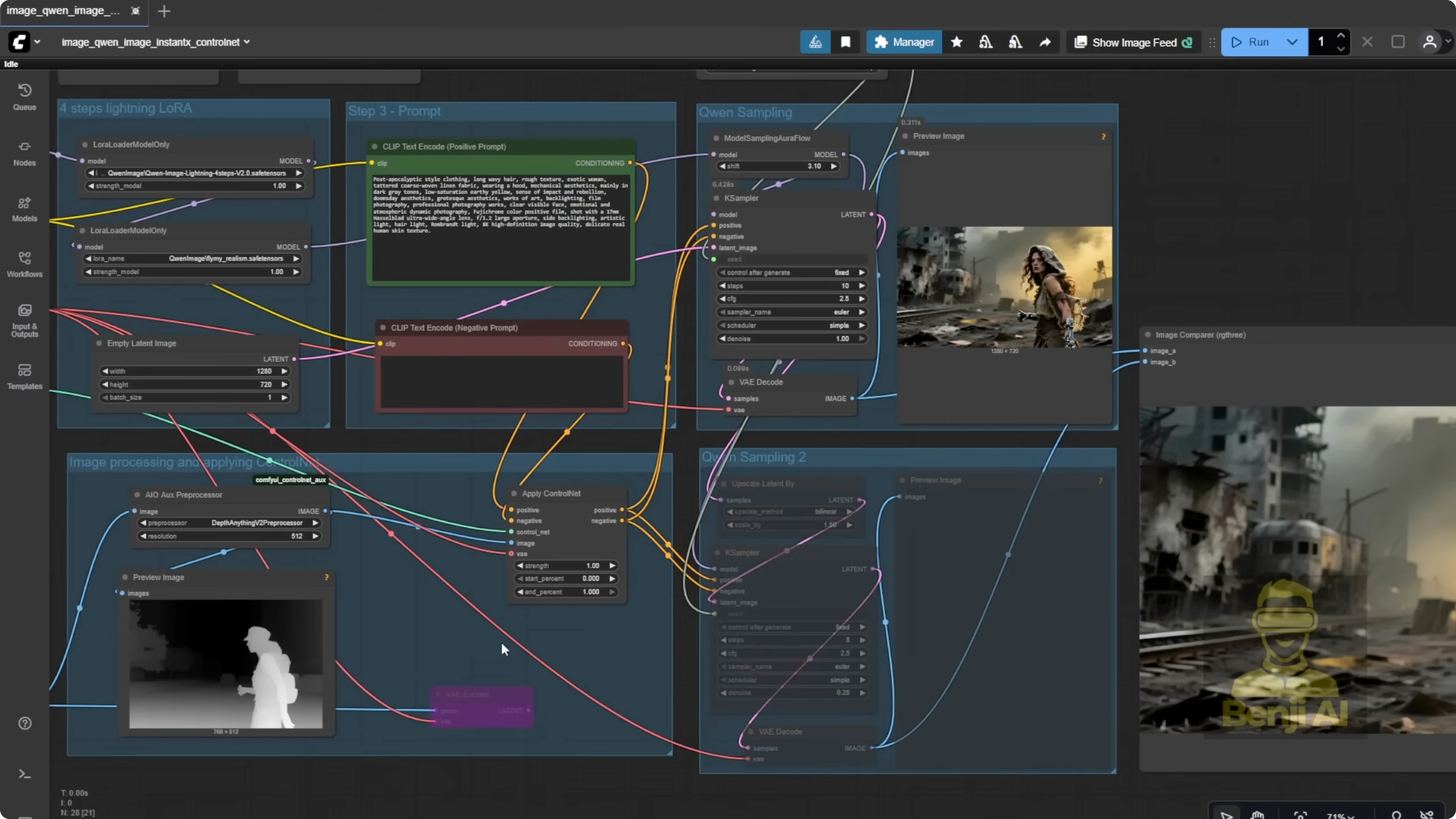
You’ll see the character in different poses, standing, sitting, even a close-up shot.
Step-by-step: Guide Qwen image with ControlNet
- Load your reference image and set it as the ControlNet reference.
- Choose a depth map as the ControlNet type to preserve some background shapes.
- Keep the template’s default text prompt or use a similar post-apocalyptic prompt.
- Generate the image.
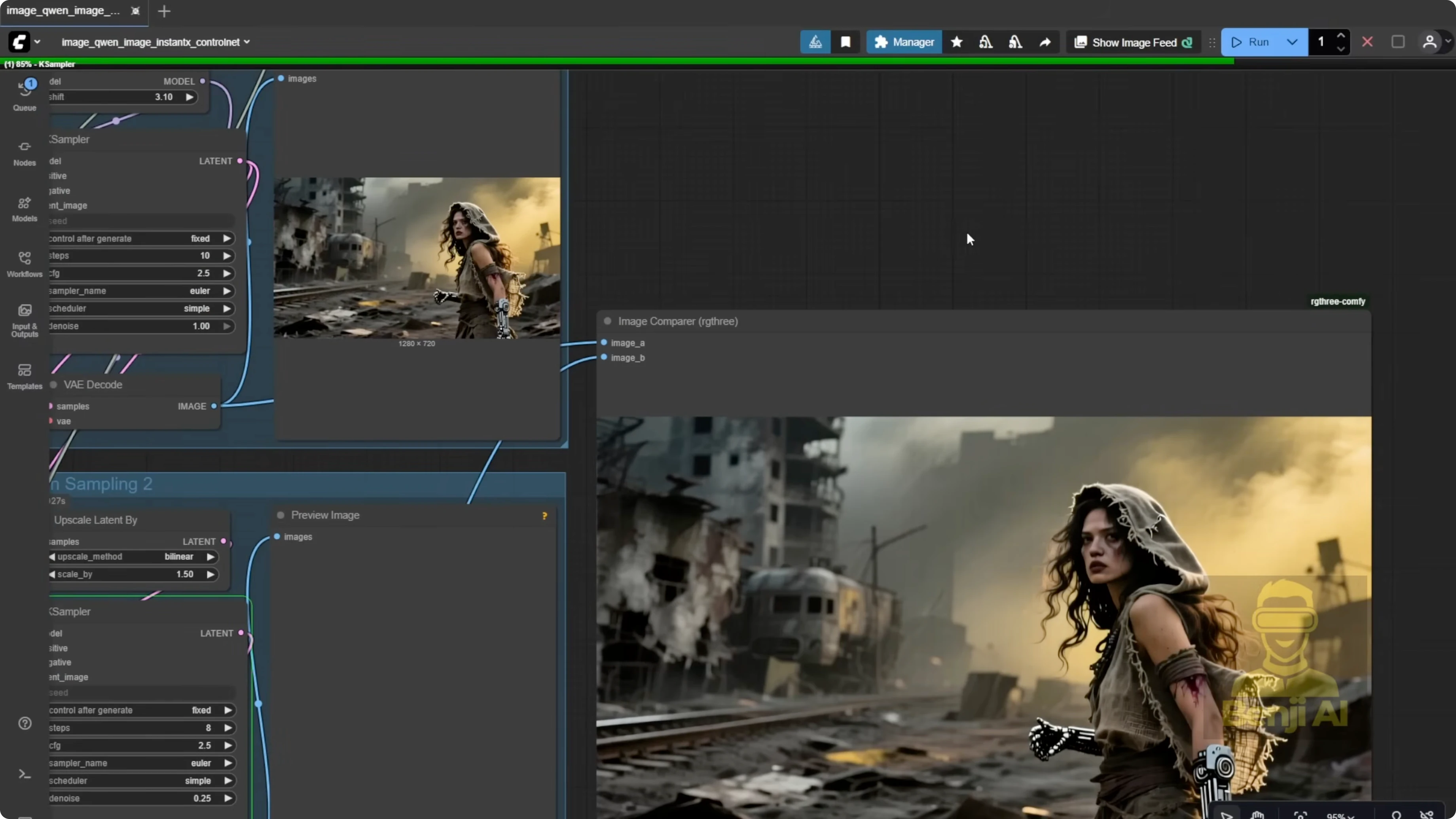
Improve Image Quality With a Second Sampler
I added a second sampler to improve image quality, upsampling the latent data and running an extra pass to get things sharper and clearer. After that second sampling step, we end up with a higher resolution image, 1,920x1080 instead of the original 720p. The textures and details look cleaner. That’s pretty standard for basic image generation workflows: two sampling passes to refine the output.
Step-by-step: Add a second sampling pass
- Insert a second sampler node in your workflow.
- Configure it to upsample the latent data.
- Run an extra pass to sharpen and clean details.
- Export at 1,920x1080.
Exploring Wan 2.2 and Qwen Image Models in Alibaba AI Pipeline: Edit the Image With Qwen ImageEdit 259
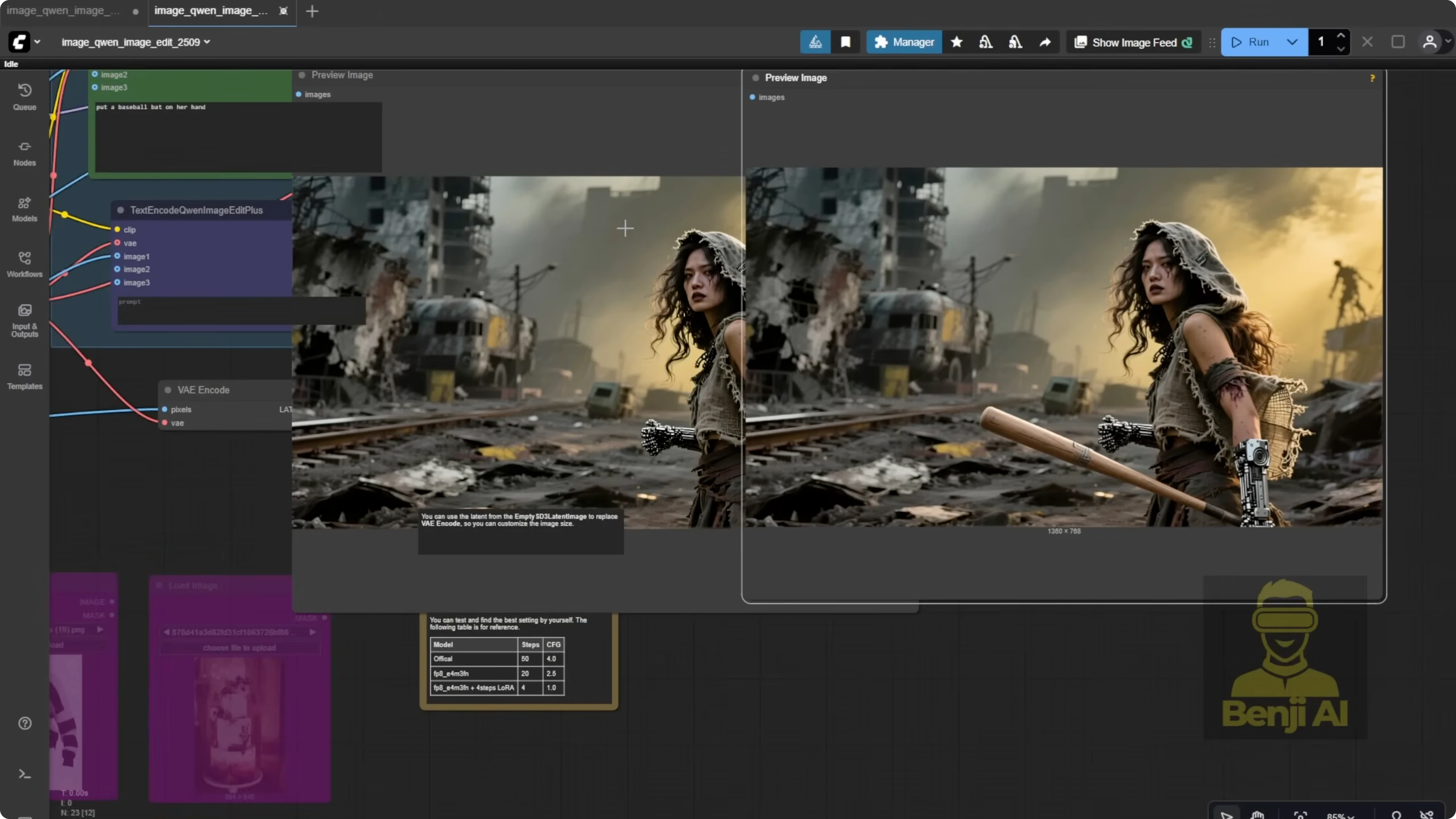
The latest Qwen ImageEdit 259 has been improved for image editing and does a good job preserving the parts of the image you don’t want to change. For this post-apocalyptic scene, maybe the character is trying to escape from danger and needs to grab a tool like a baseball bat. I gave the model a simple instruction: Add a baseball bat to her hand. It worked. It kept all the original details intact, like the robotic arms, the hoodie texture, the torn clothing, even the little gears on her arms.
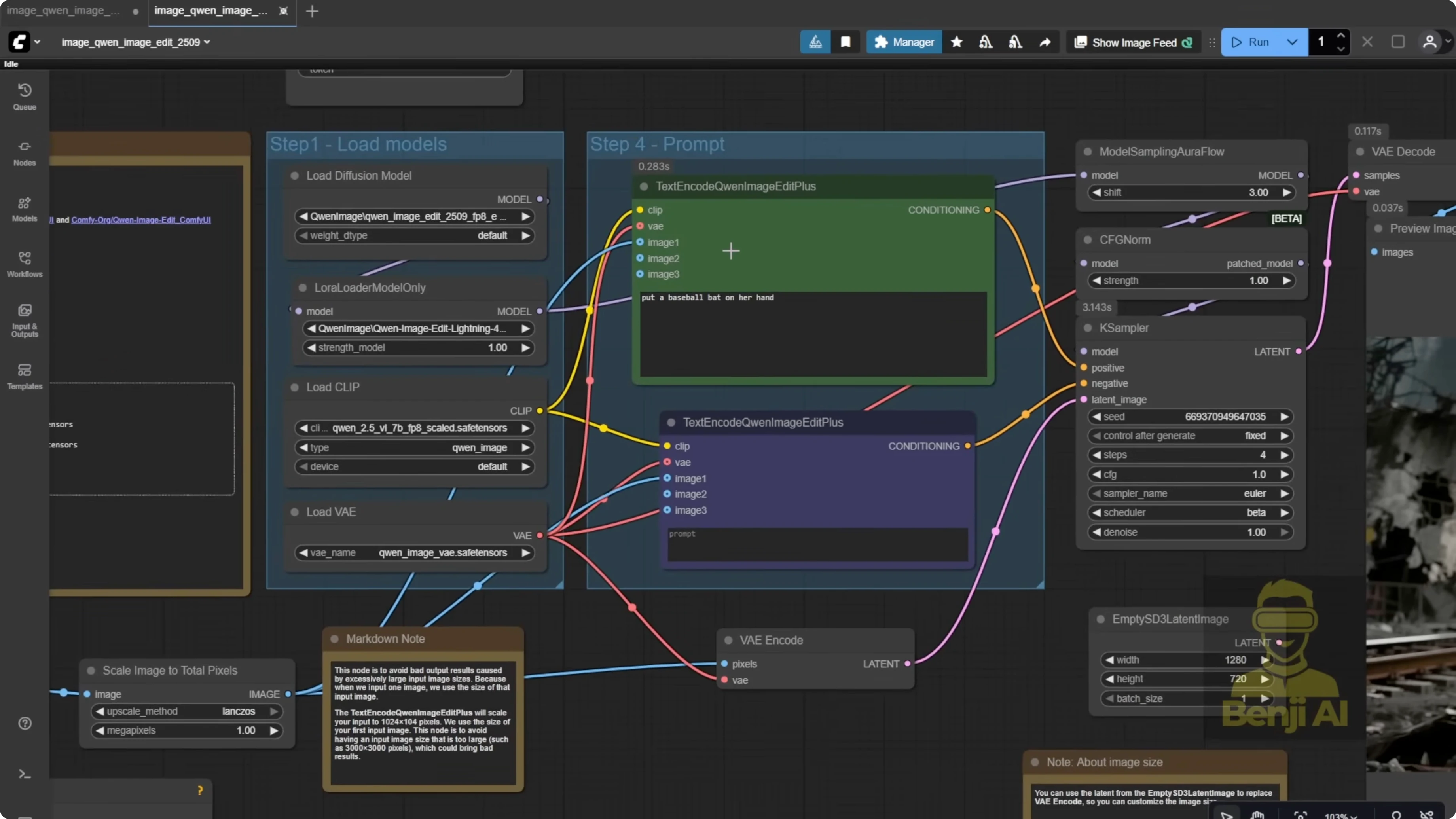
Some people say Qwen image edit doesn’t preserve existing elements well, but that might be because they’re using quantized model that lose detail. I’m using the FP8 version and it’s keeping everything consistent. For this demo, I’m keeping it simple. Less is more.
Step-by-step: Make a macro edit with Qwen ImageEdit 259
- Switch to the Qwen ImageEdit 259 model in ComfyUI.
- Load the generated image as the edit source.
- Enter a simple instruction, for example: Add a baseball bat to her hand.
- Use the FP8 version if you want better detail preservation.
- Generate the edited image and verify that key elements are preserved.
Exploring Wan 2.2 and Qwen Image Models in Alibaba AI Pipeline: Animate With WAN 2.2 Anime
This is the fun part, animating the image into a video. I’m using WAN 2.2 anime. I drop in the edited image, hit play to preview it, and once it looks good, I move on to the WAN 2.2 animation workflow.
Motion reference and output settings
I need a motion reference that matches the scene. In this case, I want the character running across a collapsed street, so I grabbed a stock footage clip of a woman running, the same one I used earlier for the ControlNet pose reference. Using the same video ensures the motion lines up well.
The system extracts the DW pose and face crops from the reference. This time, I don’t need the background or character mask from the reference video because I want to keep my own apocalyptic background from the generated image. I turned off background and mask outputs and skipped the extended video generation for those two. That also saves a ton of memory.
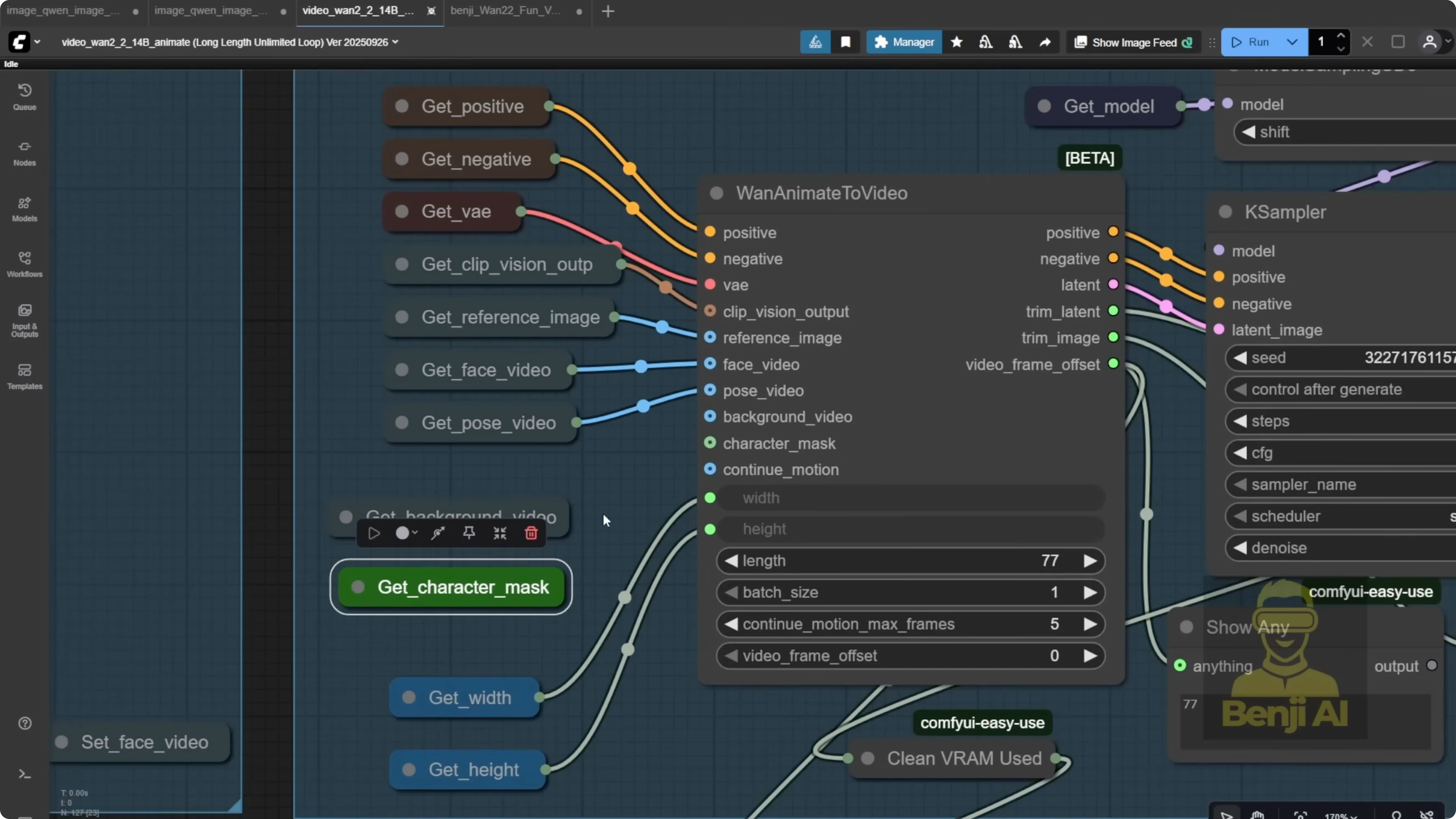
As for the text prompt in WAN animate, it doesn’t need to be super detailed. I wrote: The character is running across the street.
Step-by-step: Animate the edited image with WAN 2.2 anime
- Open the WAN 2.2 anime workflow.
- Drop in the edited image and preview it.
- Load a motion reference video that matches the desired movement.
- Use the same reference video you used for the pose if you want the motion to line up.
- Let the system extract DW pose and face crops from the reference.
- Turn off background and mask outputs to keep your generated background.
- Skip extended video generation for background and mask to save memory.
- Enter a short prompt, for example: The character is running across the street.
- Run the workflow to generate the animation.
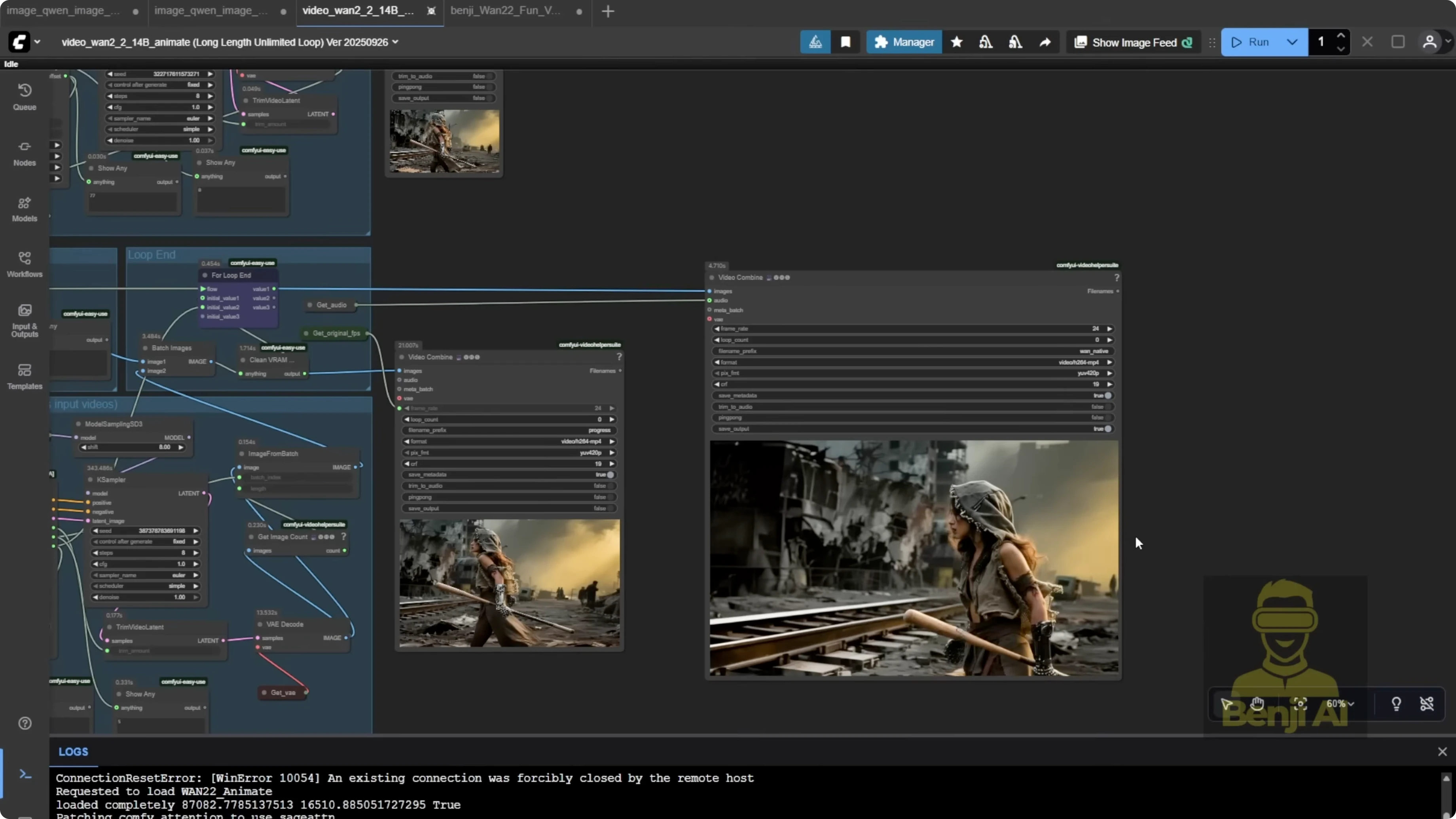
Here’s the result: a character sprinting down a ruined street like she’s escaping from someone. All the motion comes from the reference video, and since the direction matches, she’s running left to right just like in the image. It blends cleanly. This is an 18-second AI generated video built entirely from local model: Qwen image for generation, Qwen image edit for object insertion, and WAN 2.2 for animation. It shows how these Alibaba model WAN and Qwen can work together as a full ecosystem. If you’re making full AI video stories, you could even throw in a language model to generate scripts or dialogue. It’s not hard to get started with LLM these days.
Exploring Wan 2.2 and Qwen Image Models in Alibaba AI Pipeline: Alternatives
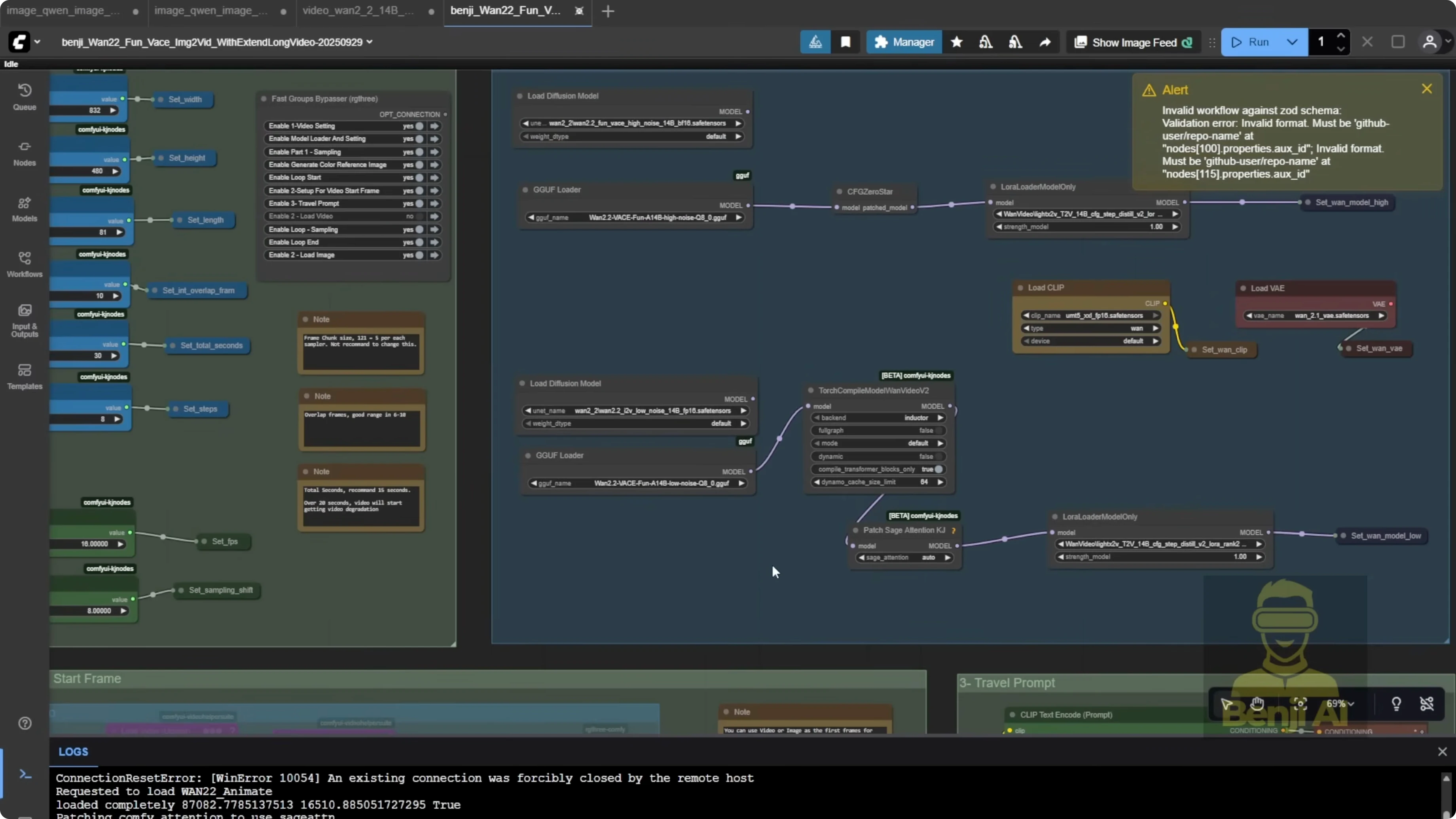
As an alternative, you could also use WAN vase fun from Alibaba’s pal. It lets you animate using just the first and last frames, which you could generate with Qwen image. Or you can still use ControlNet the same way WAN animate does to guide motion. It depends on the kind of movement you want. For something like this, simple running motion, a reference video works great.
Final Thoughts
September brought some solid new AI model that actually run well locally, not just prototypes. This workflow shows a practical way to chain Qwen image, Qwen ImageEdit 259, and WAN 2.2 anime into a single pipeline for content creation, from pose-guided image generation to clean object insertion to motion-matched animation.
Recent Posts
How Wan 2.2 AI Boosts Video with 14B Generation & 5B Upscaling?
How Wan 2.2 AI Boosts Video with 14B Generation & 5B Upscaling?
Can Wan 2.2 Img2Vid Handle Long-Length Video Testing?
Can Wan 2.2 Img2Vid Handle Long-Length Video Testing?
Exploring Wan 2.2’s Final Frame and Local AI Video Highlights
Exploring Wan 2.2’s Final Frame and Local AI Video Highlights