How Wan 2.2 Animate V2 Fixes Blurry Hands and Faces?
WAN 2.2 Animate just got a V2 update with better motion and more accurate facial expression detection. I’m swapping a piano-playing character into a DJ reference video and transferring those facial expressions into WAN 2.2 Animate. The character mimics them really well. Coloration looks more solid too, especially with mass edits that keep the source video background. Earlier versions sometimes produced slightly blurry or pixelated characters. With V2 running in the One Video wrapper, overall performance is noticeably better.
The model file is available from the same Hugging Face repo. In One Video’s Comfy FP8 repo, there’s a 2.2 Animate folder. We were using the FP8 scale model before. Now there’s a V2 model, and the file size is even smaller. It’s fully compatible with the One Video wrapper. I haven’t tested it in the native node yet, but it should work in native ComfyUI nodes too.
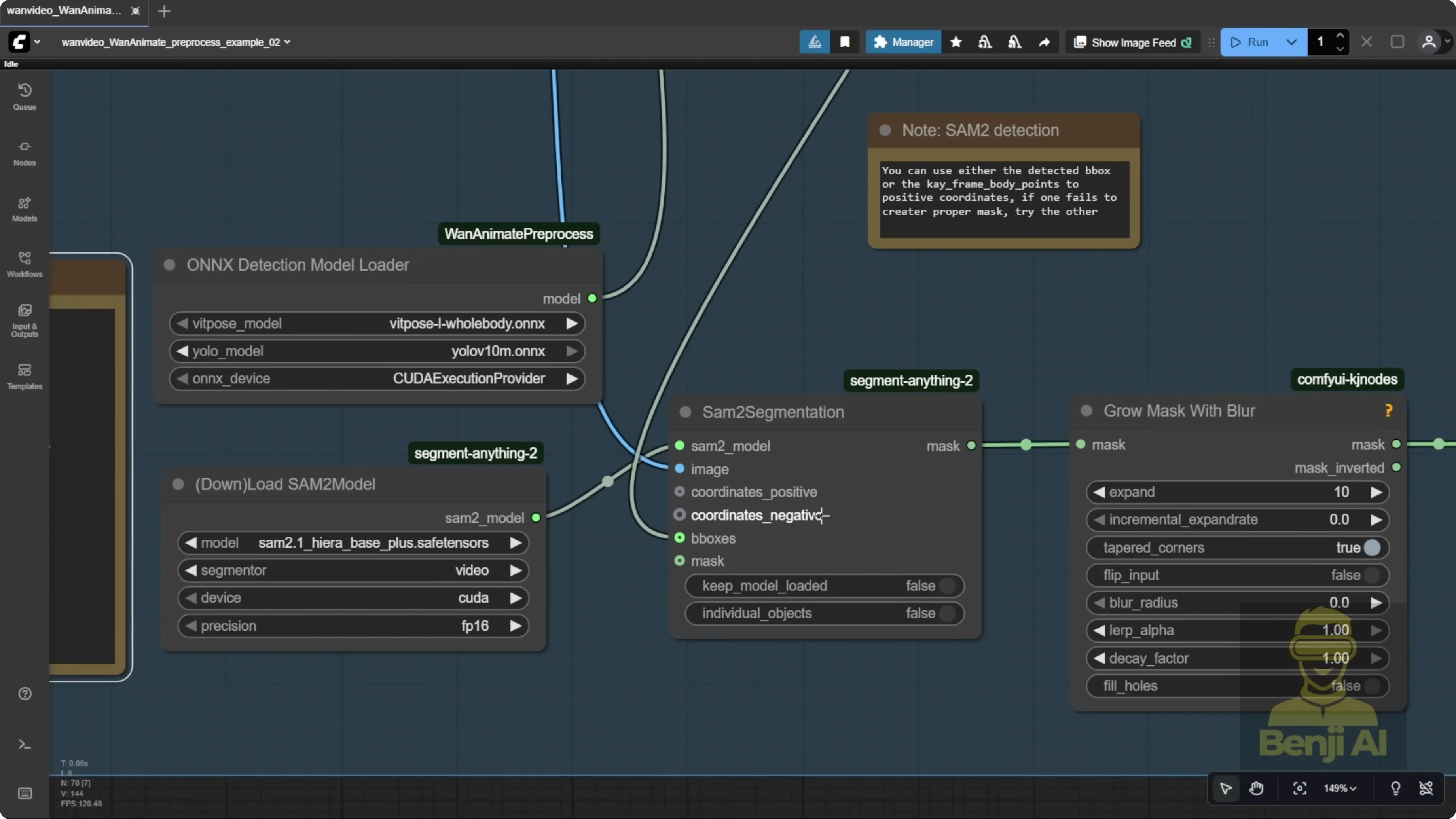
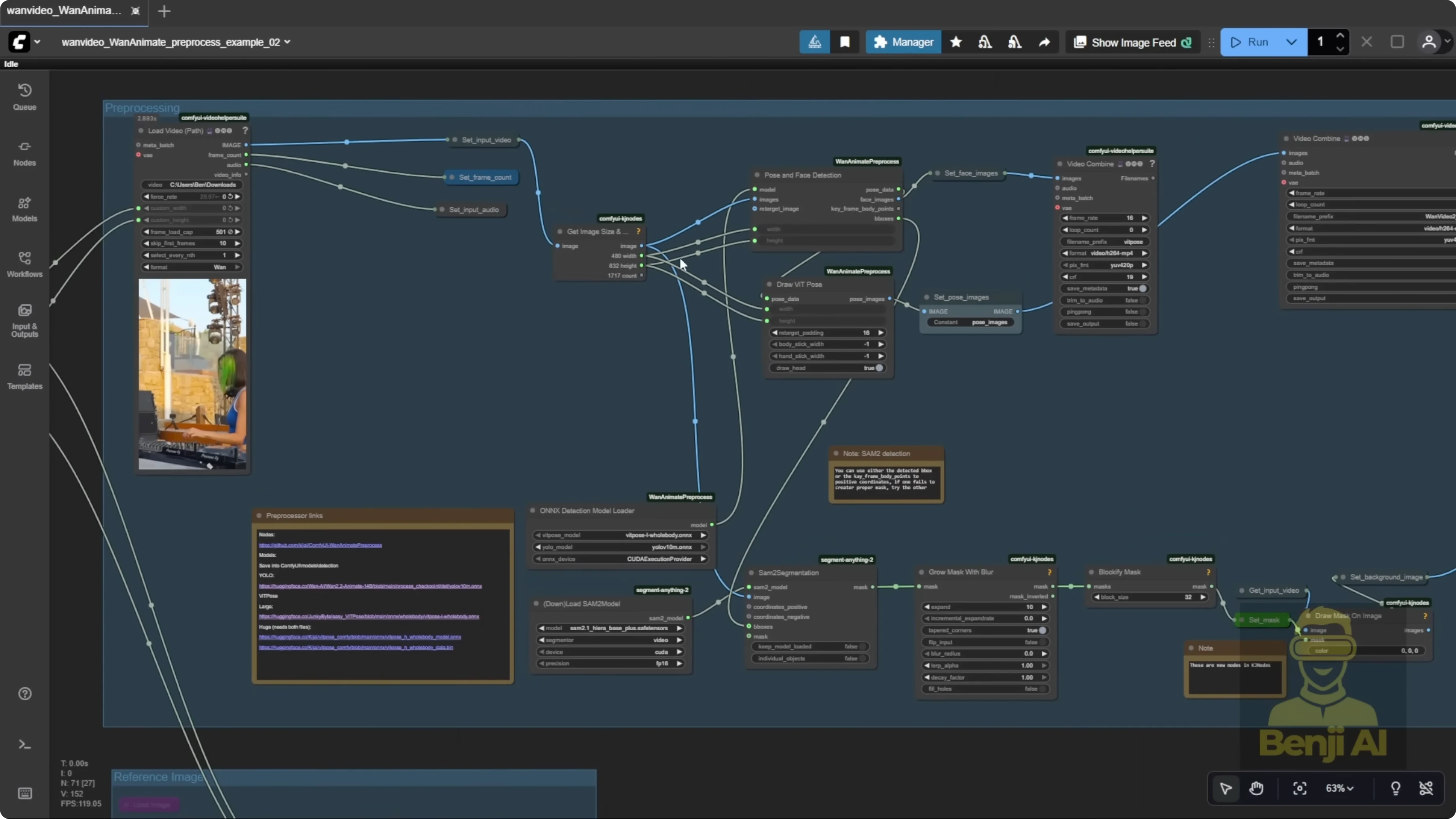
Pre-processing is way easier now. In the example workflows for the One Video wrapper, segmentation is simpler. There’s no need to manually input object coordinates with a point editor. We’re using BBox that almost autodetects the character, draws a bounding box, and then uses ViT Pose for body pose and a face detector for expressions. Those nodes, combined with the OXY Detections Model Loader, come from a WAN Animate pre-processing custom node for ComfyUI. You can grab it from its repo and it’s searchable in ComfyUI Manager. The same author who made the One Video wrapper created this pre-processor as a separate tool. You can use these WAN Animate pre-processing nodes alongside the native WAN 2.2 Animate node if you want. I’m walking through the original example workflow here because the performance is clearly improved over previous versions.
How Wan 2.2 Animate V2 Fixes Blurry Hands and Faces?
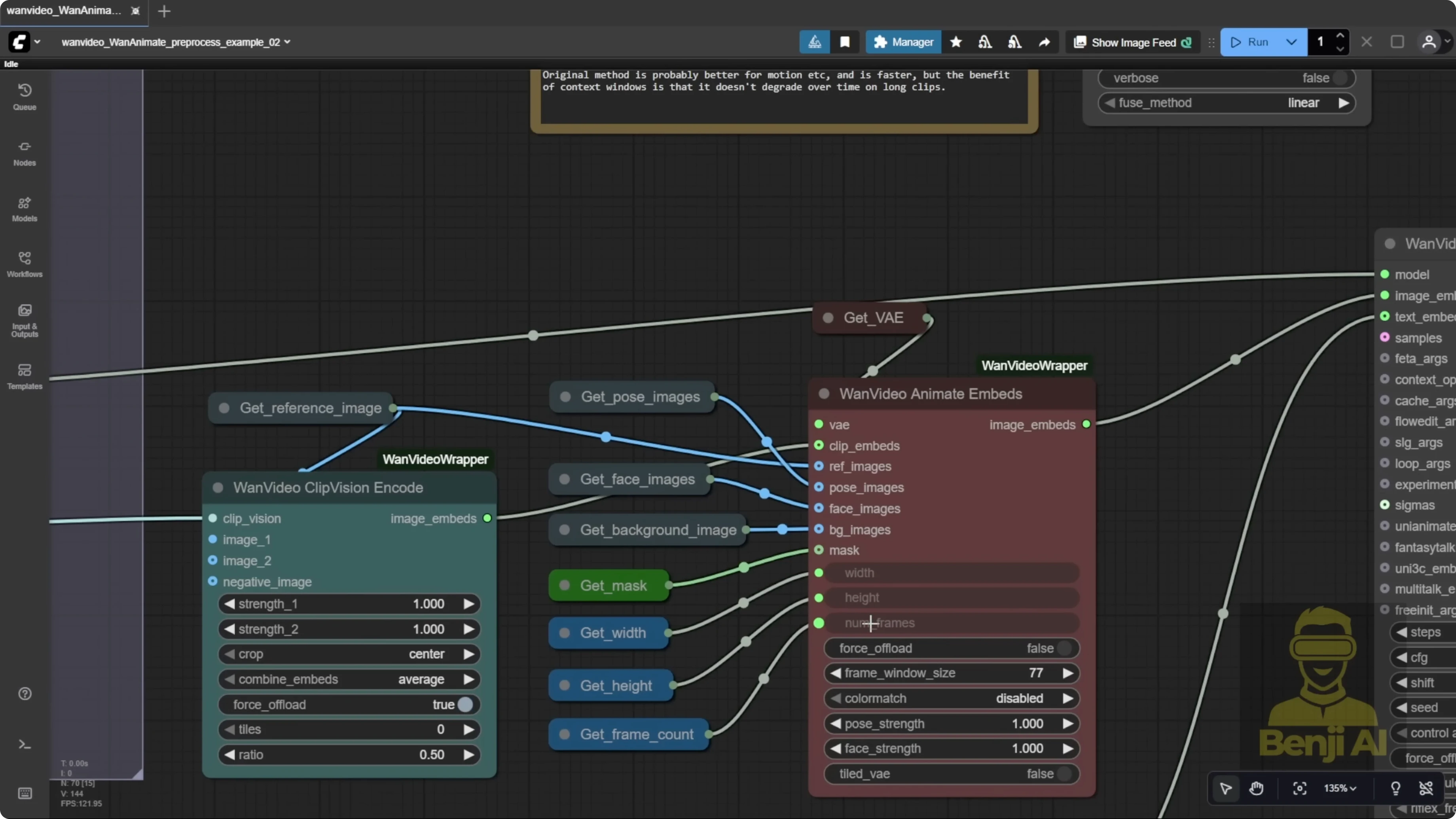
I used a DJ reference video set to 500 frames to produce a longer output. If the total number of frames is larger than the frame window size, it automatically triggers long-length video generation. Another option is the One Video Context Options node. Connect it and input two parameters, total frames and frame window size. Set them to the same number, then feed that node into the One Video Sampler. This method runs more stably, but the quality is not as good as running the default way with frame window size directly in One Video Animate. I stick with the default frame window size because it just looks better than using the context options node.
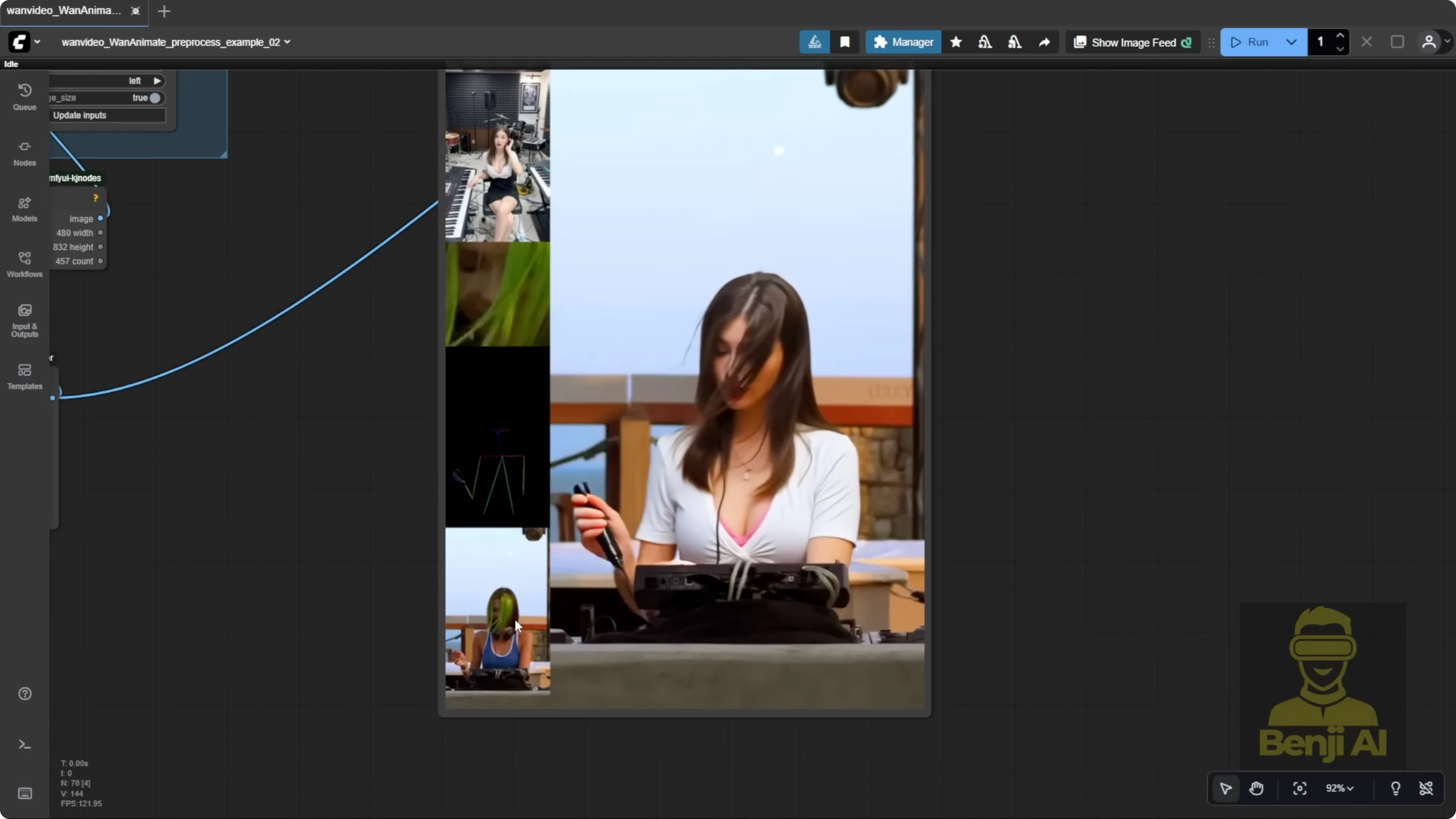
I tested another character as the DJ operator to compare results. With a new reference image, I swapped that character into the same source video. There’s no point editor step anymore. No need to run for an initial frame or place dots on key points before pose generation. It autodetects everything, which is far more convenient. Once I set frame count, resolution, and audio, it auto-generates. It uses the YOLO models for segmentation, detects face and body pose, and runs accurate, smooth pre-processing the whole way through.
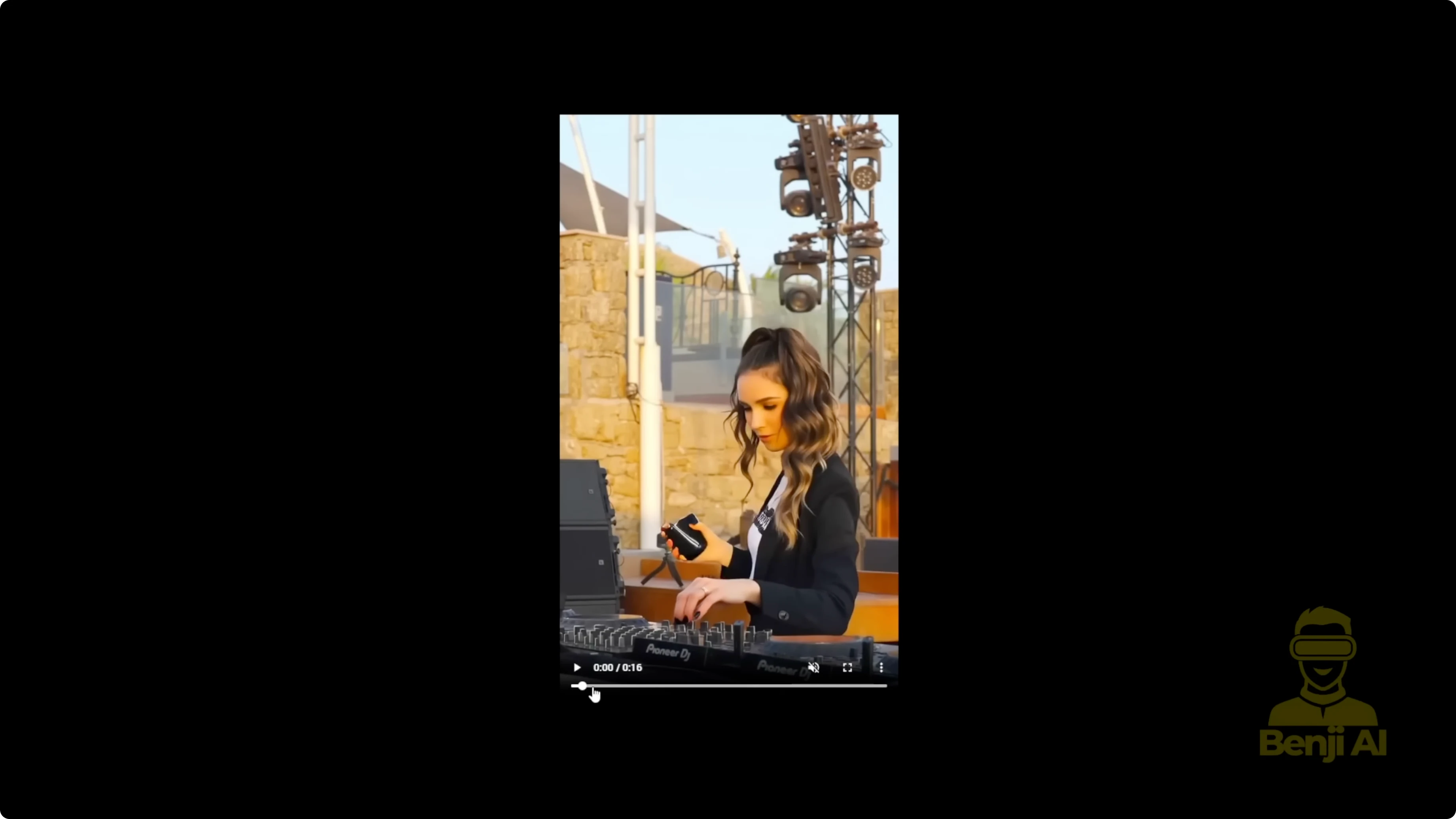
The generated result is much better than the earlier 2.2 Animate model. The character replicates hairstyle, t-shirt, and jacket details accurately. It didn’t get influenced by headphones from the reference video’s outfit, which older versions struggled with. Across different camera shots, WAN 2.2 Animate recognizes the character from different angles and maintains a coherent style throughout. Many other models fail on these kinds of edits.
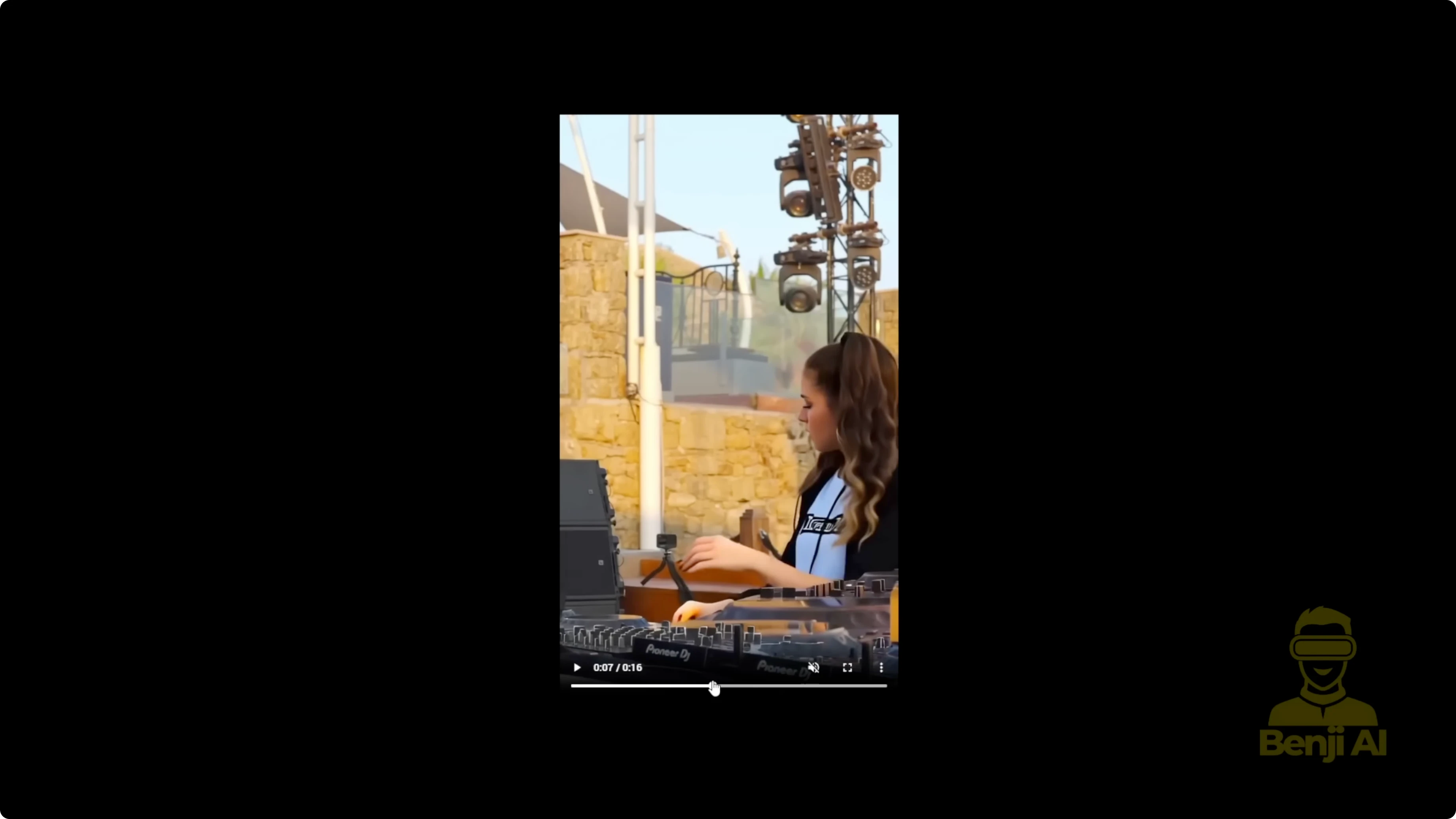
There’s still a spot that needs enhancement. Around the 7-second mark during a transition, a dark shadow appears as the subject steps back. That’s a masking region issue. In the pre-processing preview, you’ll notice that sometimes WAN 2.2 Animate doesn’t perfectly handle every part of the mask. If you’re using a low sampling step count, like 4 steps, issues like this shadow or unclear areas in masked regions can appear.
Setup Guide: Models, Folders, and Pre-processing
- Get the WAN 2.2 Animate V2 model from the official Hugging Face repo you already use for FP8.
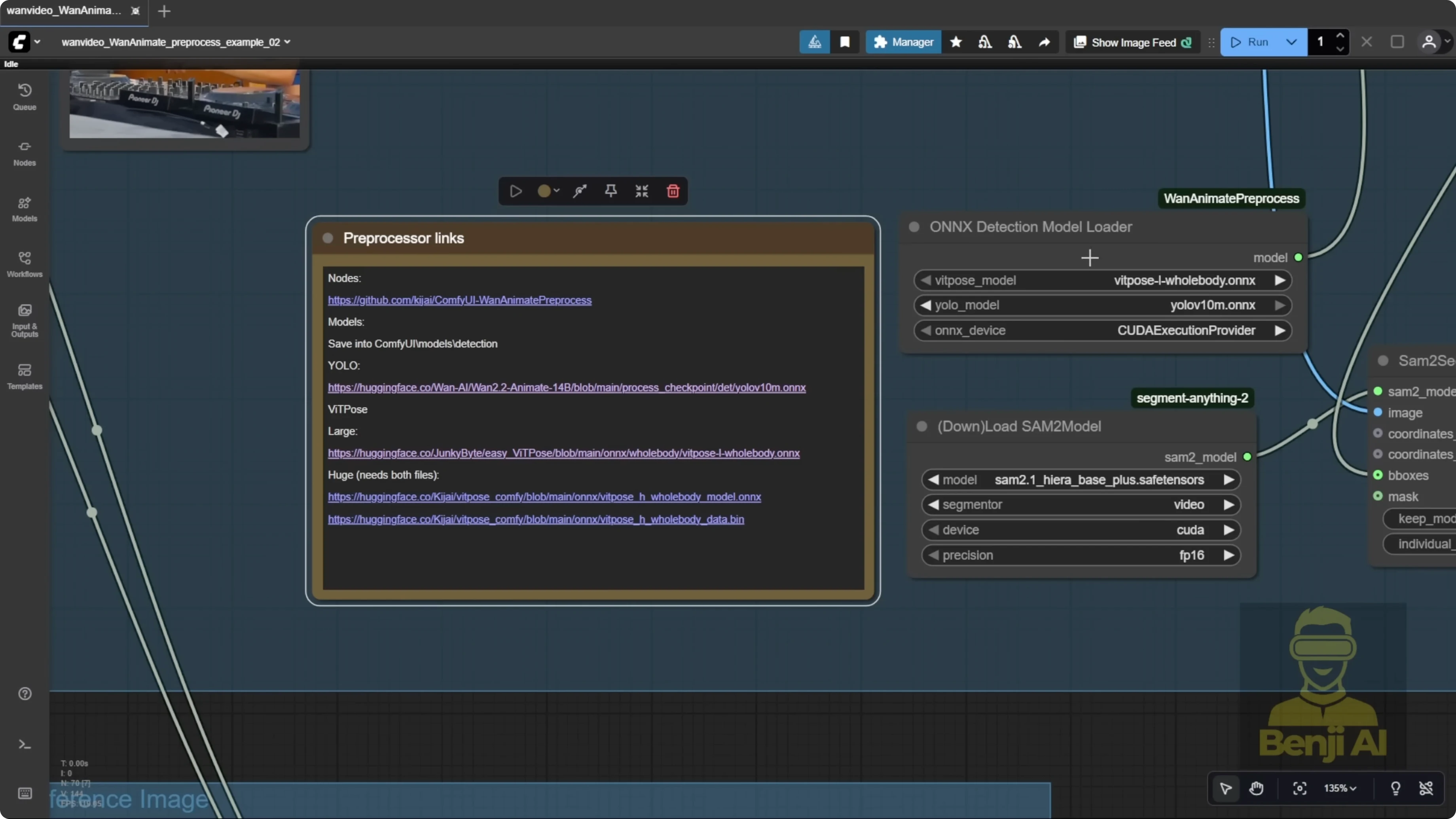
- You’ll need body and face detection models:
- ViT Pose Comfy repo: download the pose detection model and the face detection model from Files and Versions.
- YOLO 10 AM Oxy model files from the official WAN 2.2 Animate repo.
- Place models in your ComfyUI models folder:
- Create a subfolder called detections.
- Store ViT Pose models and YOLO models for face and pose detection there.
- The WAN Animate pre-processing custom nodes and OXY Detections Model Loader are available as a separate ComfyUI custom node. Install via repo or ComfyUI Manager search.
Frame Settings and Long Video Generation
- Set your total frames and frame window size in One Video Animate.
- For long videos:
- Default: rely on frame window size. Best image quality in my tests.
- Alternative: One Video Context Options node with total frames and frame window size set equal. More stable, but quality is lower.
Real-World Results and the Masking Shadow
- Version 2 improves motion, facial expression transfer, and color solidity.
- Identity is preserved across different camera angles and cuts.
- Edge case: low-step sampling combined with imperfect masks can produce dark shadows or soft regions during transitions.
How Wan 2.2 Animate V2 Fixes Blurry Hands and Faces? With a Second-Pass Video Enhancer
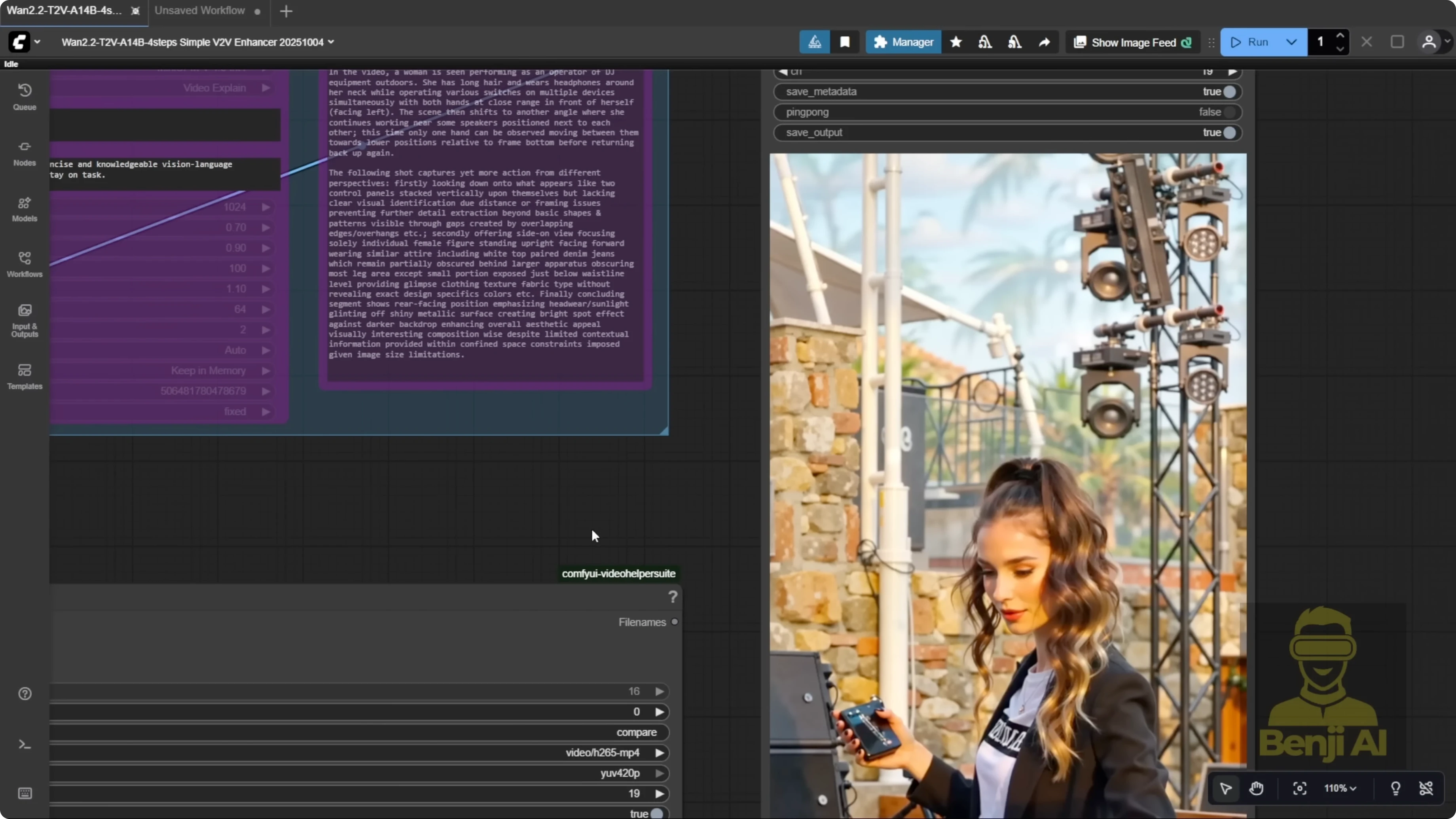
I ran the clip through another workflow I built, a V2V enhancer. It’s a text-to-video model used as a second pass. You input the video into a VAE encoder and run a light re-sampling pass. This approach is not limited to WAN 2.2 Animate. It helps other AI-generated videos too. Think of it as a second sampling pass that cleans things up.
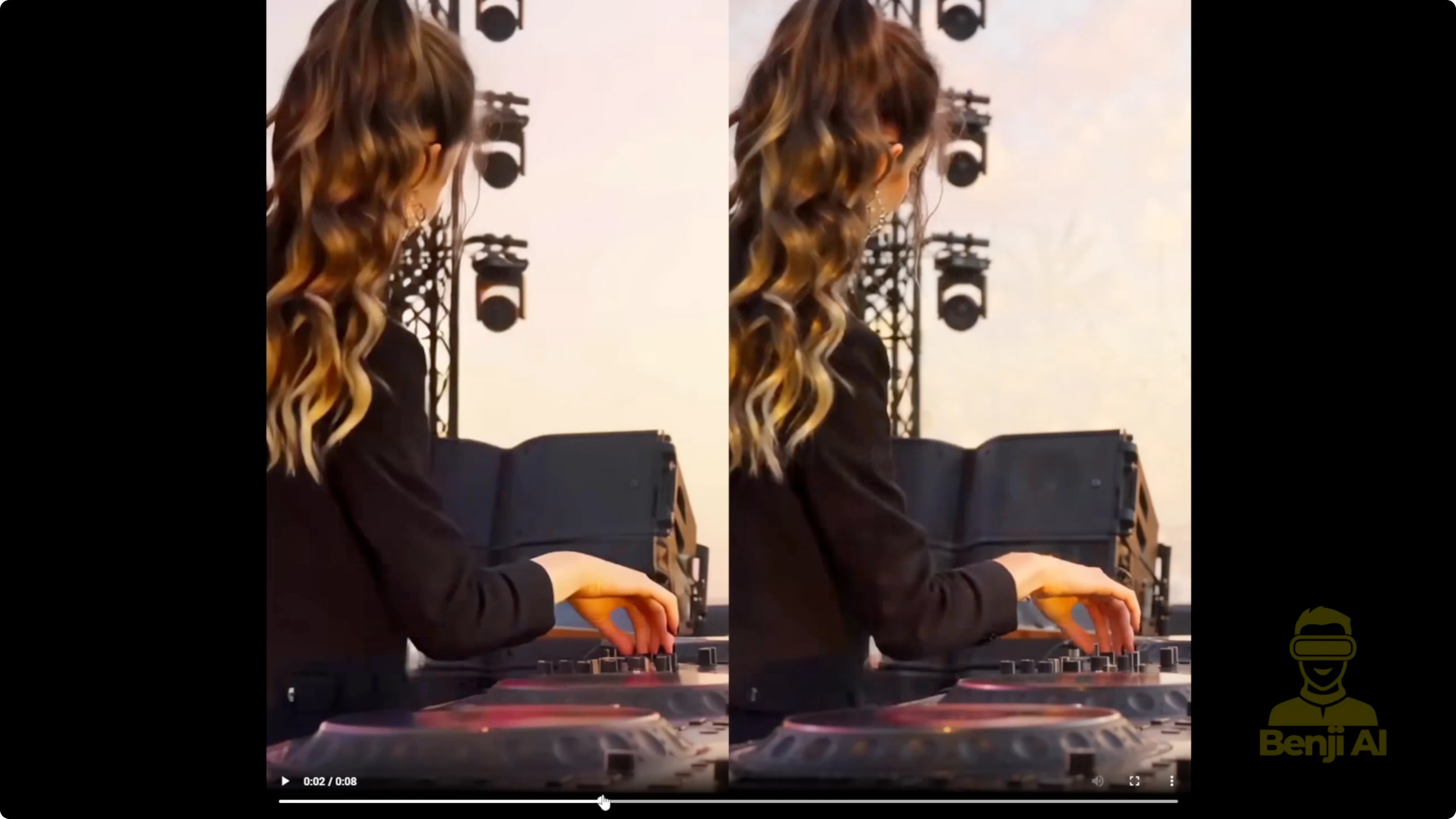
What the Second Pass Fixes
- Scene details: equipment, buttons, stage elements, and lighting become much clearer.
- Background texture: walls and surface detail improve after re-sampling.
- Face clarity: facial recognition and identity pop more.
- Hands and fingers: knuckles and finger shapes render more clearly.
- Mask artifacts: the 7-second transition shadow disappears after the second pass.
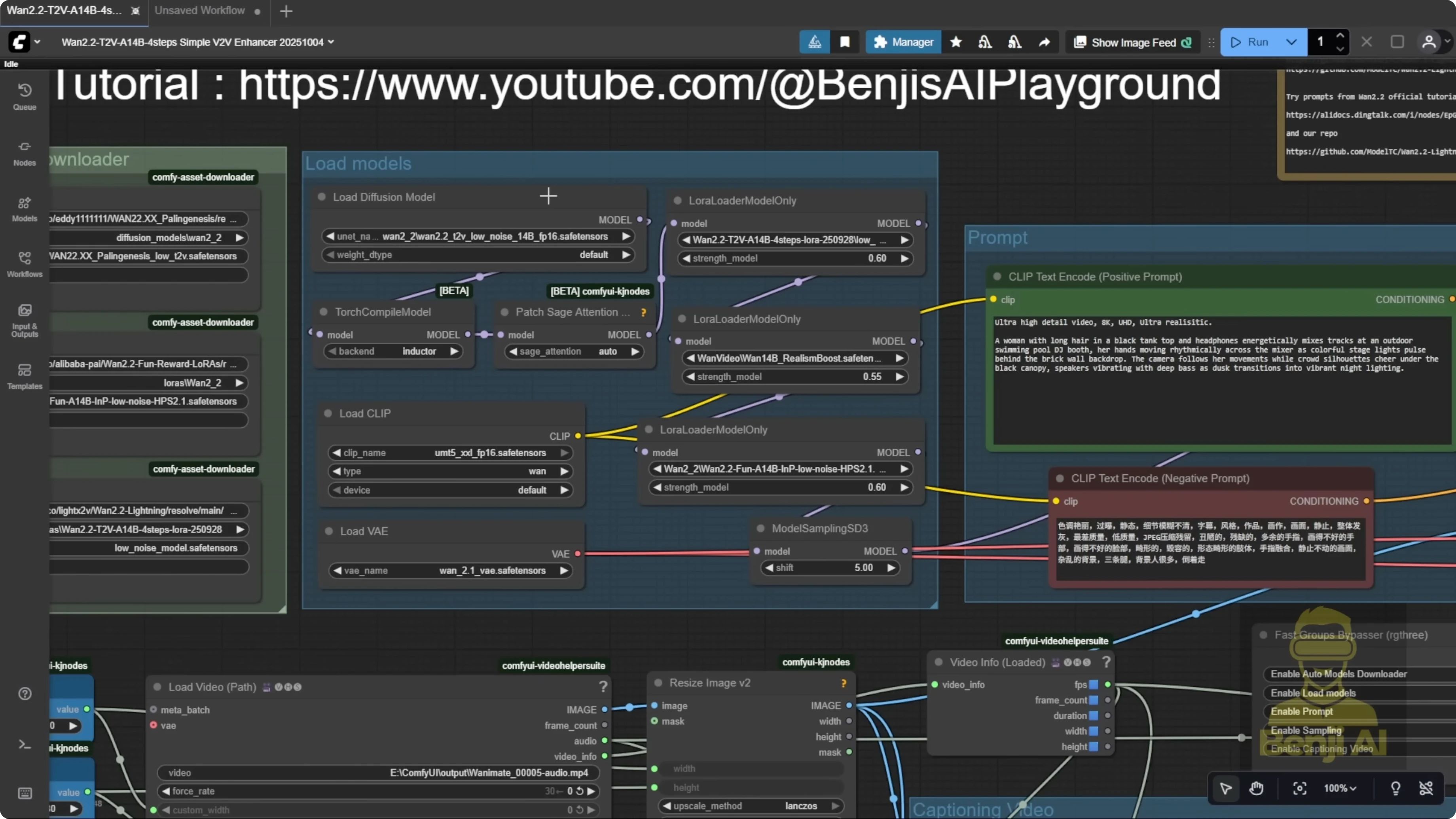
The Enhancer Workflow Components
- LoRAs I used:
- WAN 2.2 Low-Noise model for fine detail.
- Light X2V LoRA, latest version 1 2.2250928.
- WAN 2.1 realism boost LoRA from the Fusion X Hugging Face repo. Optional. You can swap in your own character LoRA.
- A reward model LoRA related to HPS and MPS. Optional but helpful.
- I also connect the low-noise model to the sampling steps group.
Step-by-Step: Build the V2V Enhancer Pass
- Load your generated video and pass frames through the correct VAE encoder for your model.
- Add latent noise and feed frames into a KSampler.
- Configure denoise strength:
- If the first video looks low quality, blurry, or has shadows, set denoise around 0.5.
- If the first video is solid and you just want refinement, go lower. I used 0.2 to fix shadows and add facial detail without causing deformations.
- Optional: connect the context window node for longer outputs, but be realistic about hardware limits.
- Prompts:
- Write your own positive prompt, or
- Use video captioning with MiniCPMV. Connect caption strength output to the positive prompt node to override manual text. The vision-language model writes the prompt from your input video.
- Resolution:
- Light X2V LoRA models handle 720p well. I set width and height to 720p by default.
- If your source video is portrait or widescreen, swap width and height accordingly.
- 480p works but does not bring meaningful quality gains in the final output. Staying at 720p across both passes is fine, and you can apply the classic two-pass idea of refine and upscale for better quality.
Tips and Hardware Realities
- Don’t expect ultra-long videos on modest GPUs. 500 to 600 frames is usually fine for me.
- This enhancer block is modular. You can remove Load Video and plug the resize/refine section into other workflows, but it will make those heavier by loading extra models and doing a second pass.
- I recommend keeping this as a dedicated video enhancer workflow for clearer faces, sharper hands, and higher scene detail.
Final Thoughts: How Wan 2.2 Animate V2 Fixes Blurry Hands and Faces?
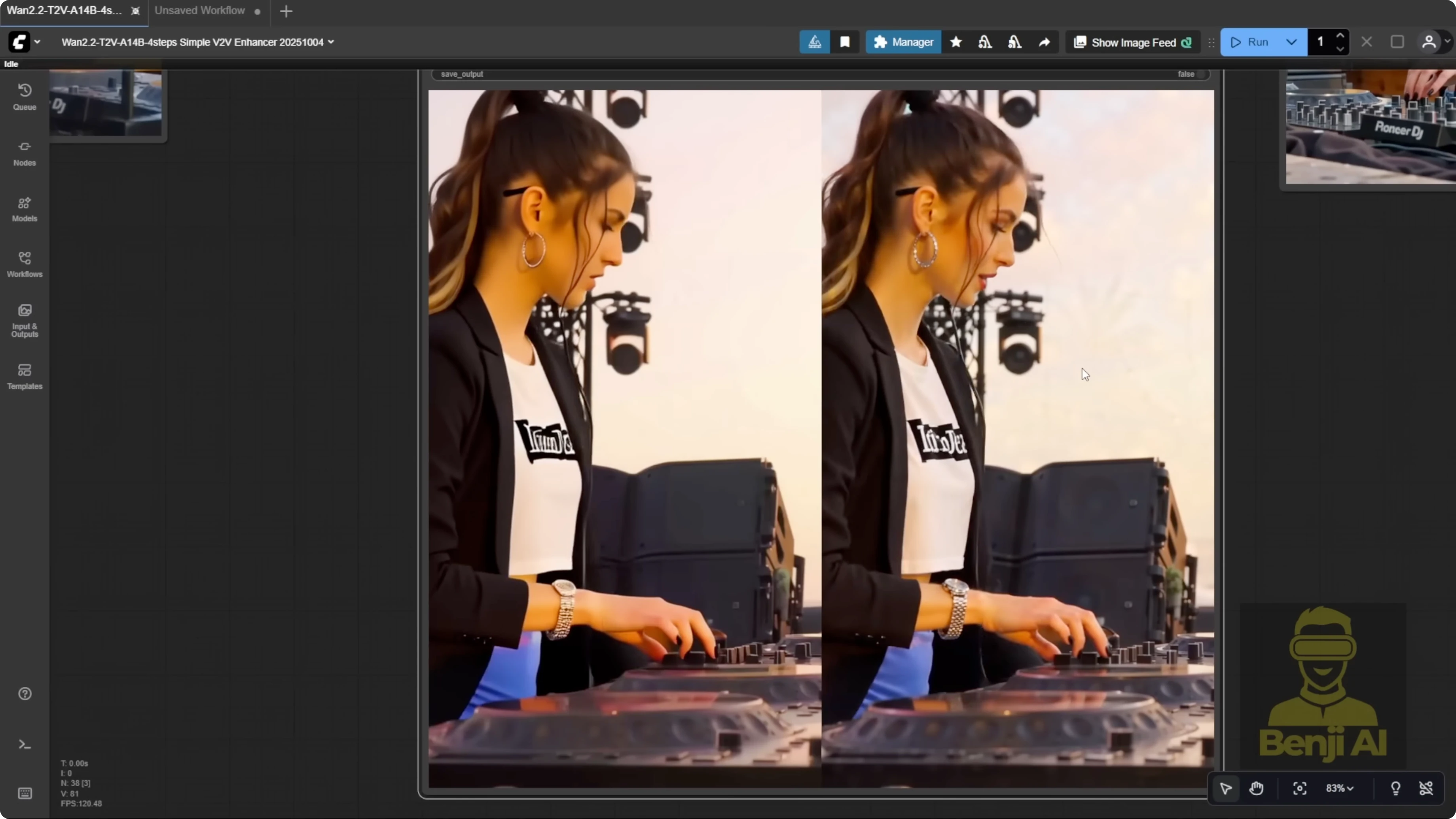
WAN 2.2 Animate V2 improves motion, facial expression transfer, color solidity, and identity consistency across camera angles. Pre-processing is simpler and automatic without point editing. For rare mask artifacts or low-step softness, a second V2V pass with VAE encoding, a KSampler, and a few targeted LoRAs removes shadows, sharpens hands and faces, and boosts scene detail. I stick with the default frame window method for the best quality, keep resolution at 720p for real gains, and treat the enhancer as a focused second pass to clean up and refine the final video.
Recent Posts
How Wan 2.2 AI Boosts Video with 14B Generation & 5B Upscaling?
How Wan 2.2 AI Boosts Video with 14B Generation & 5B Upscaling?
Can Wan 2.2 Img2Vid Handle Long-Length Video Testing?
Can Wan 2.2 Img2Vid Handle Long-Length Video Testing?
Exploring Wan 2.2’s Final Frame and Local AI Video Highlights
Exploring Wan 2.2’s Final Frame and Local AI Video Highlights