How Wan 2.2 Animate Enhances ComfyUI for TikTok Dance Videos?
Today we’re getting WAN 2.2 Animate running natively in ComfyUI. WAN 2.2 Animate uses the WAN video wrapper logic under the hood, and the updated ComfyUI workflow mirrors what you’d expect from that setup.
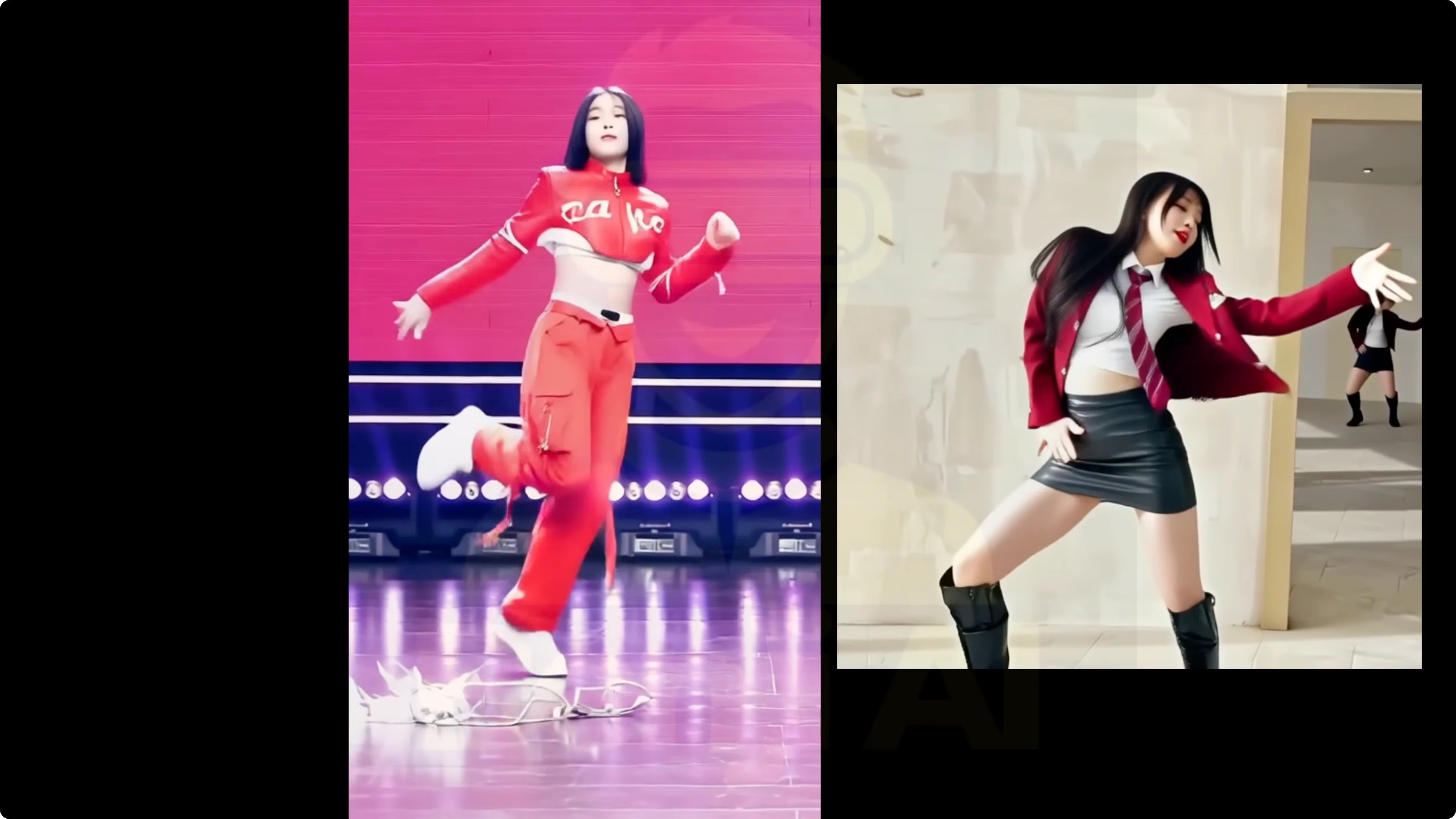
You’ll see the updated ComfyUI workflow featuring WAN 2.2 Animate as well as Qwen Image Edit version 25509. That’s a solid image gen and image editing model we’ll check out later. The workflow basically does what the WAN video wrapper does for character swap and pose transfer.
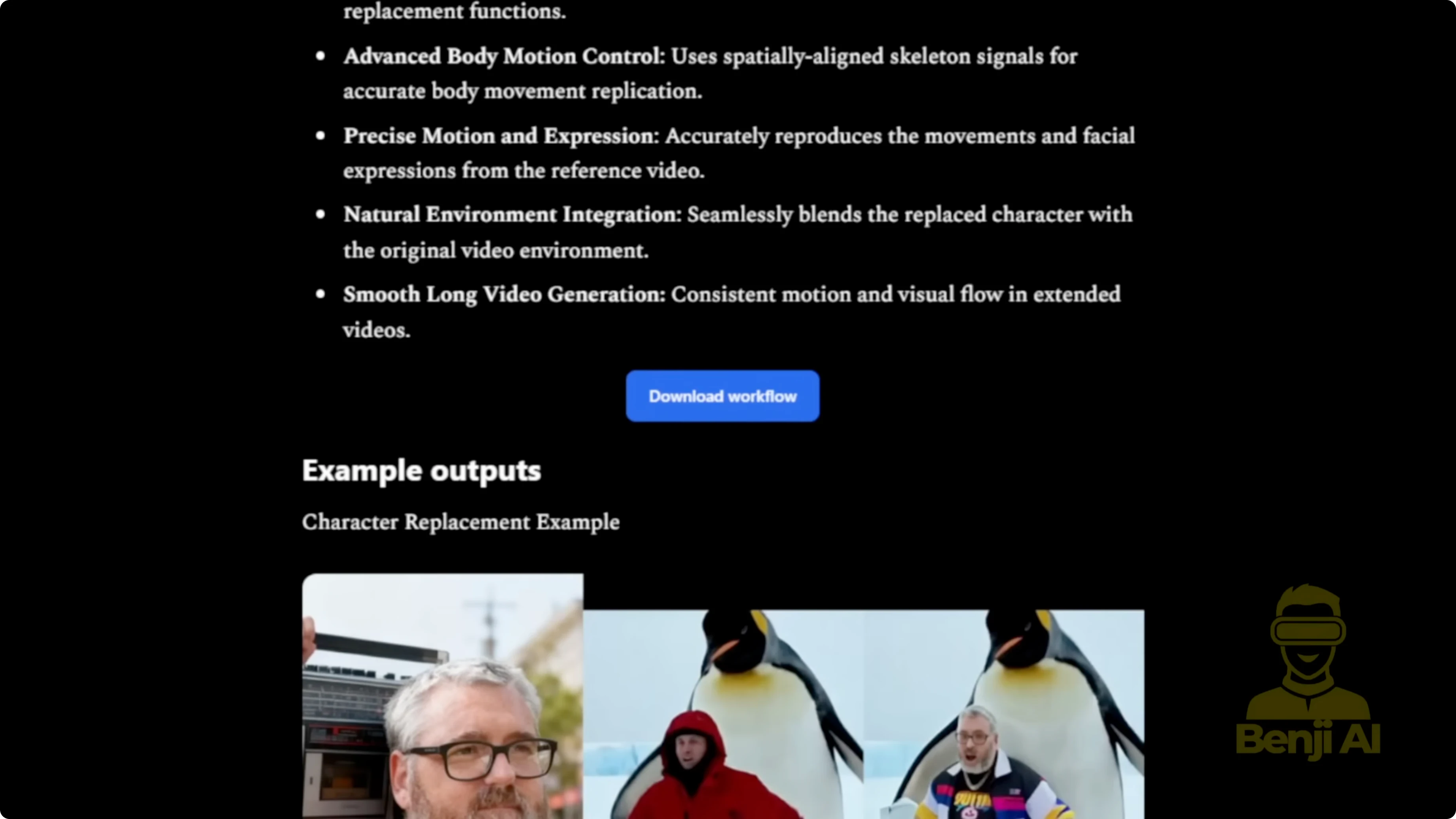
Using WAN 2.2 Animate, you can take a reference image and swap it into footage of another person, replacing them while keeping the original motion. It also handles pose transfer. You don’t need to remove the video background or manually create a character mask. Apply your reference image and it follows the pose and motion from the source video. Everything runs directly in ComfyUI and can generate animations at this level.
How Wan 2.2 Animate Enhances ComfyUI for TikTok Dance Videos?
What WAN 2.2 Animate Does
- Reference-based character swap on existing footage while keeping the original motion.
- Pure pose transfer from a source video to your reference image.
- No manual background removal needed when you provide background and masks.
- Runs entirely with native ComfyUI nodes.
ComfyUI Workflow and Node Changes
Once you load the workflow in ComfyUI and drop it in, it appears fully set up with native nodes. You’ll see model loaders, VAE, and a vision CLIP loader for the image.
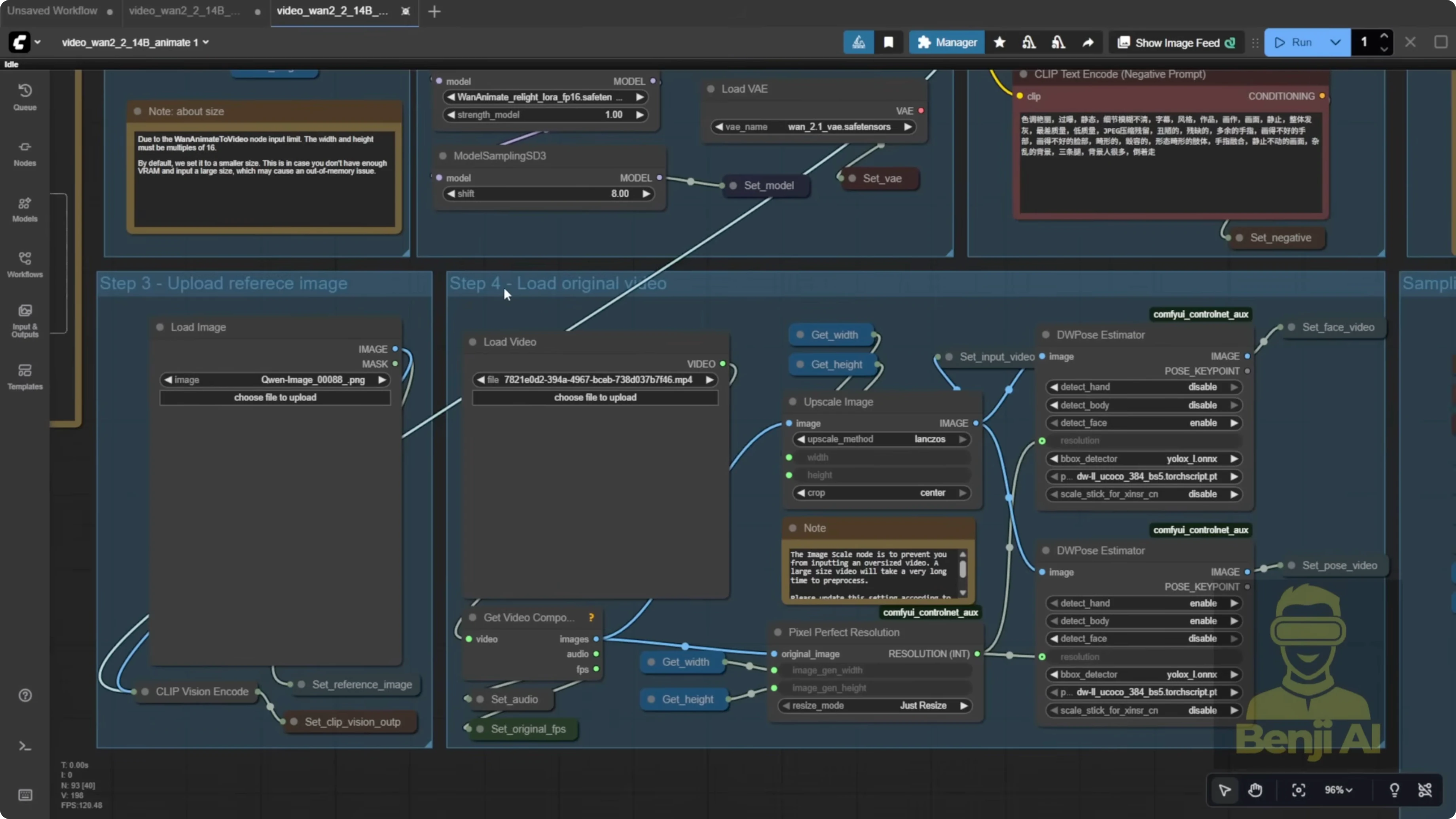
The default ComfyUI template has shifted to get and set nodes from the KJ nodes pack. Before, everything was spaghetti wires. This cleans it up a lot, although some background video and character mask parts are still wired directly.
You’ll also notice a new node in newer ComfyUI versions called one animate to video. It behaves like a normal sampler. You provide your prompts, clip vision output, reference image, face video, and pose video, typically coming from the load video group.
By default, the template uses two DW Pose estimators, one for the face and one for the body. That doubles resource usage. In my opinion, running DW Pose twice like this is overkill.
Set Up and Run the Default Workflow
Step-by-Step - Load and Prepare the Workflow
- Load the workflow in ComfyUI.
- Drag and drop it into the interface so all native nodes appear.
- Load your reference image.
- Load your pose reference video.
- To keep the original video background, use the load video node for the background source.
- Review the sampler setup in one animate to video and confirm the connections for clip vision output, reference image, face video, and pose video.
Quick note on assets in the default workflow: you might see sample PNGs. It looks like the author used Qwen Image Edit, likely with ControlNet, to create a reference image that closely matches the video pose. You can do that too if you want the starting pose to match more closely.
Background and Mask Handling
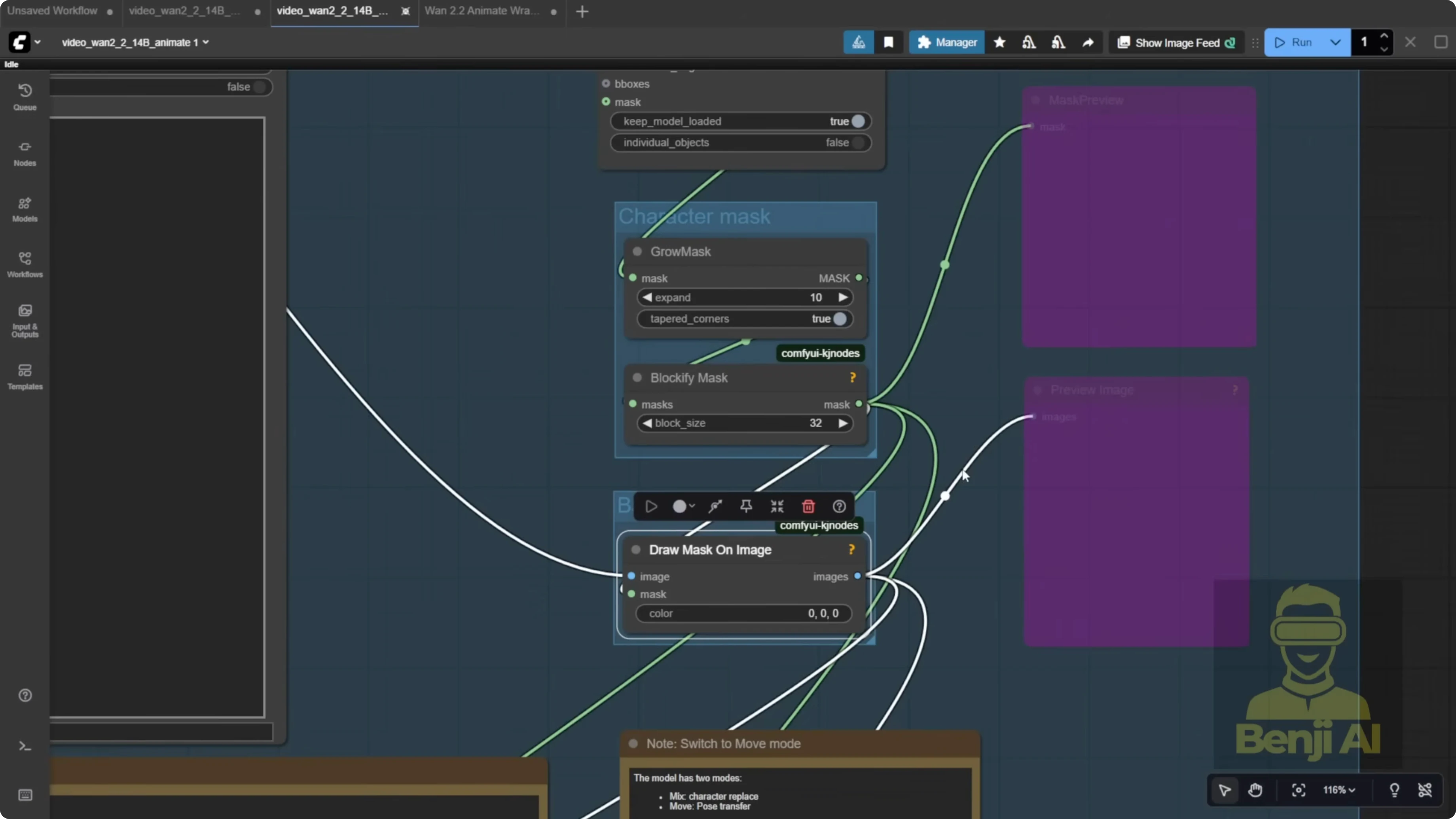
They provide character masks and background handling across the full video. You’ll see a grow mask setup. Expanding the mask gives your character more room and avoids a tiny margin. The masked region is filled with black using the provided node.
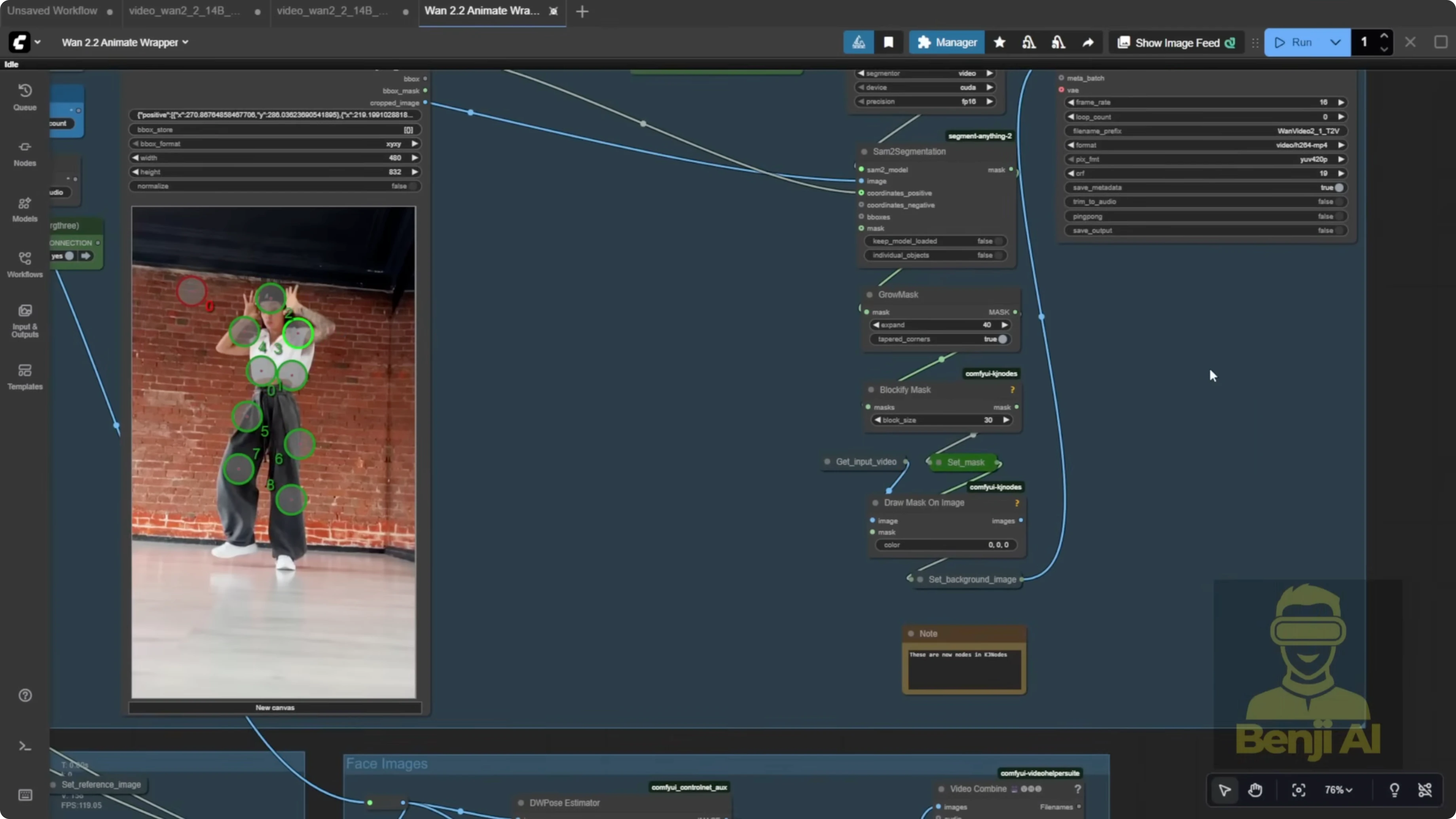
If you’re doing character swapping on an existing video, connect the background video and character mask inputs. If you just want pose transfer, disconnect the background and mask, and your reference image will follow the source video motion alone.
Generate Longer Videos With Batch Chaining
Batch Chaining Concept
The WAN video wrapper includes video frame offset and continue motion max frame. These let you chain batches to build longer continuous clips, which matters because most of us have limited VRAM and memory. Even a 1 minute video can be tough in one pass. Instead, process a batch of frames, then continue where you left off.
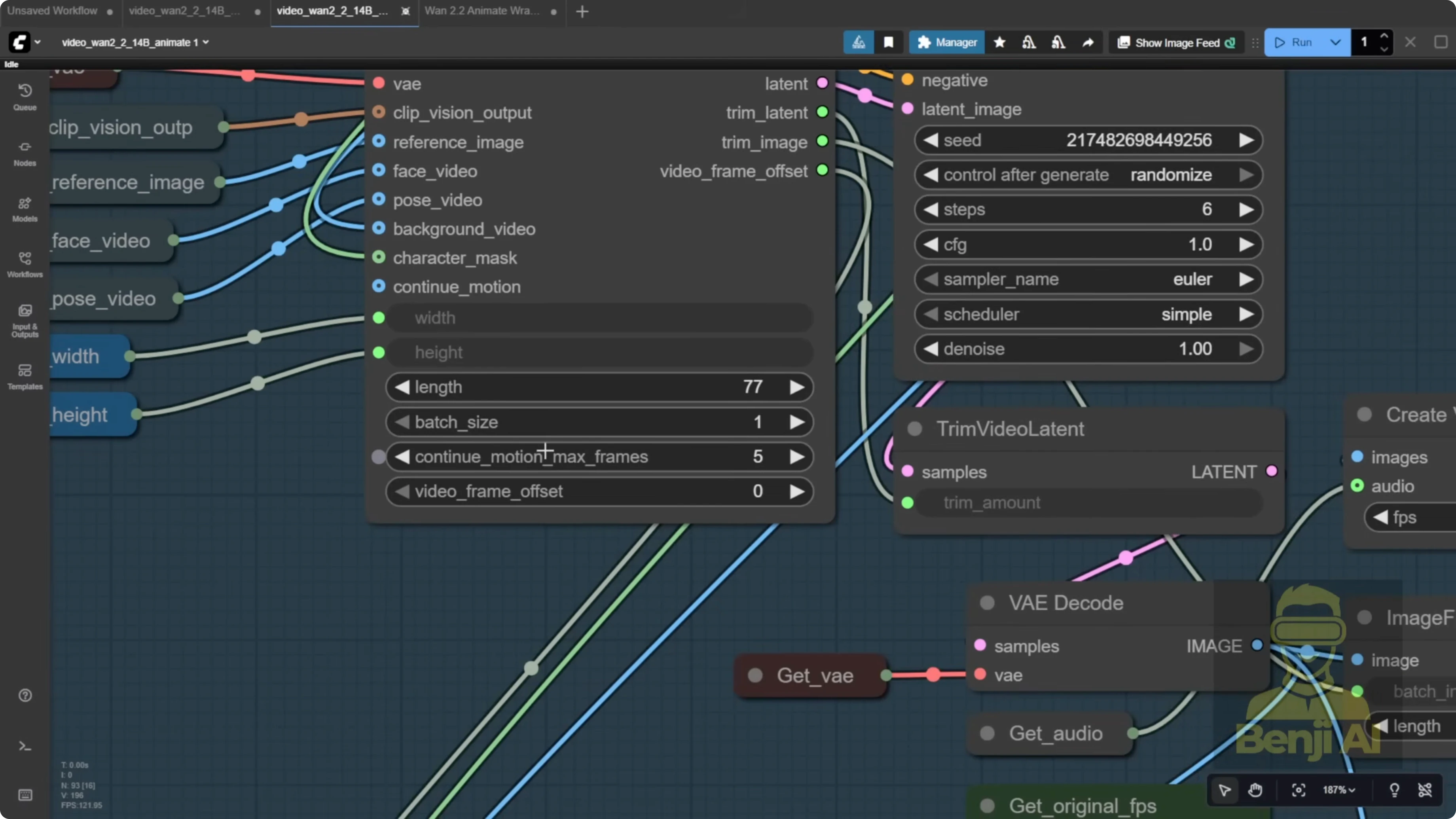
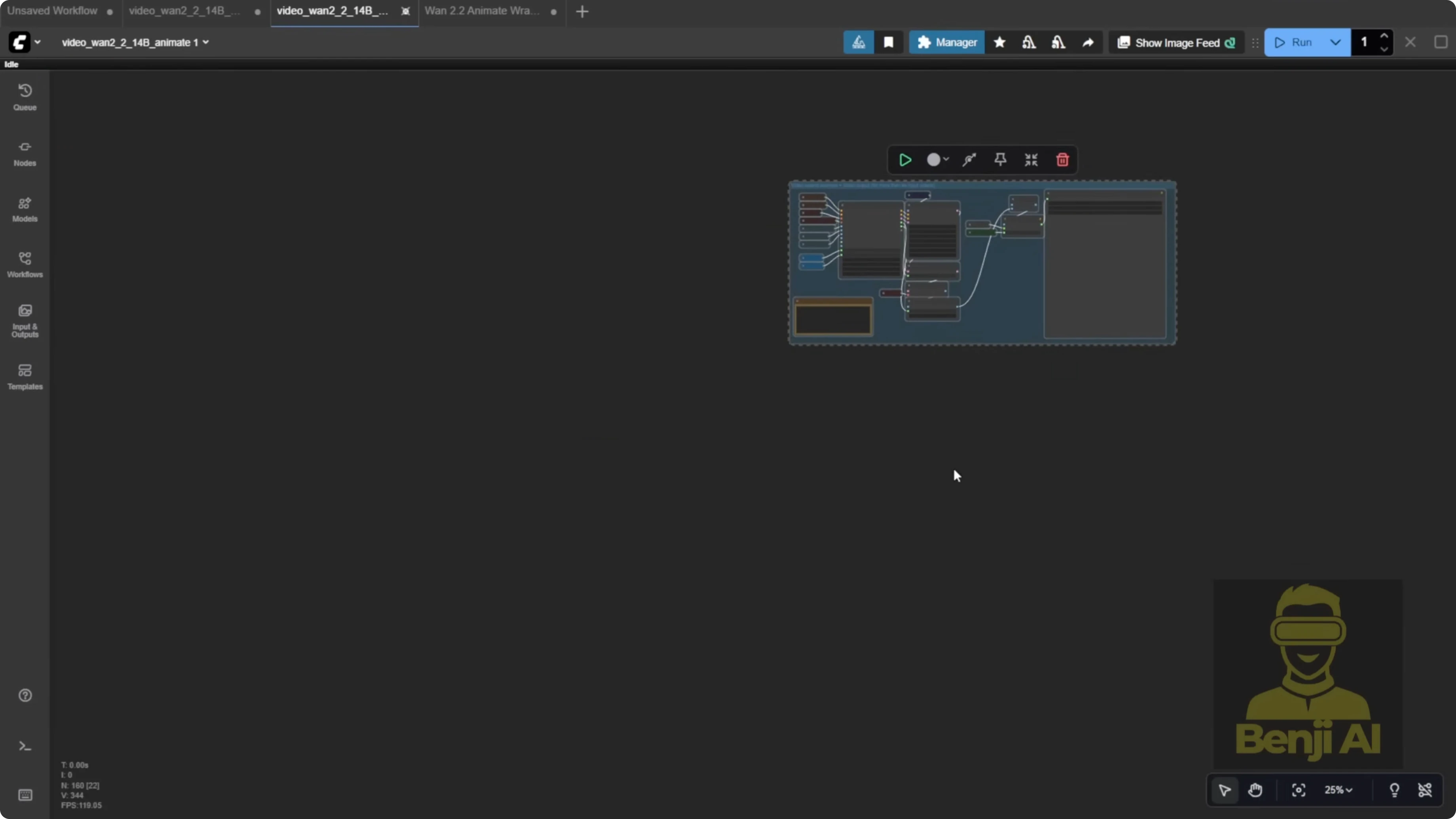
In this workflow, that logic appears in a bypass node group for extended videos. You’re meant to duplicate that group, update outputs, and link offsets so generation continues over multiple batches. The explanation can be confusing at first, so here’s the practical flow.
Step-by-Step - Chain Batches With Offset and Trim
- Process your first batch of N frames in one animate to video.
- Pass the video frame offset from batch 1 only into the video frame offset input of the next one animate to video node.
- Read the trim image node output. It is an integer that tells you how many frames to trim from the start of the next batch to avoid duplicates.
- Feed that trim count into image from batch so the next batch trims out those initial frames.
- If needed, pass the trim latent value into trim latent to drop the initial frames in latent space as well.
- Repeat this for as many batches as you need to reach your total frame count.
Think of your batches like meatballs on a stick. The offset is the counter that tells the next batch where to pick up. For example, if you process 77 frames in batch 1, set the next offset to start at frame 78. If continue motion max frames is 5, trim 5 frames from the start of each new batch for smooth continuity.
Fix the Image From Batch Count
Step-by-Step - Correct the Frame Count Using a Counter
- Replace the static image from batch frame count with a proper counter.
- Use an image count node from the Video Helper Suite.
- Connect your image batch to this counter.
- Feed the resulting frame count into image from batch so it reflects the actual generated frames.
The default 4096 frame value is not realistic on most consumer PCs. Even if you set 77 frames, the actual output can vary slightly, so let the computer count for you.
Control Frames and FPS With VHS Nodes
Step-by-Step - Use VHS Load Video for Better Control
- Swap the default load video node for the load video node from the VHS custom nodes.
- Set the exact number of frames to process so DW Pose only runs on what you need.
- Connect audio and original FPS using VHS loaded info, or stick with 16 FPS to match model training.
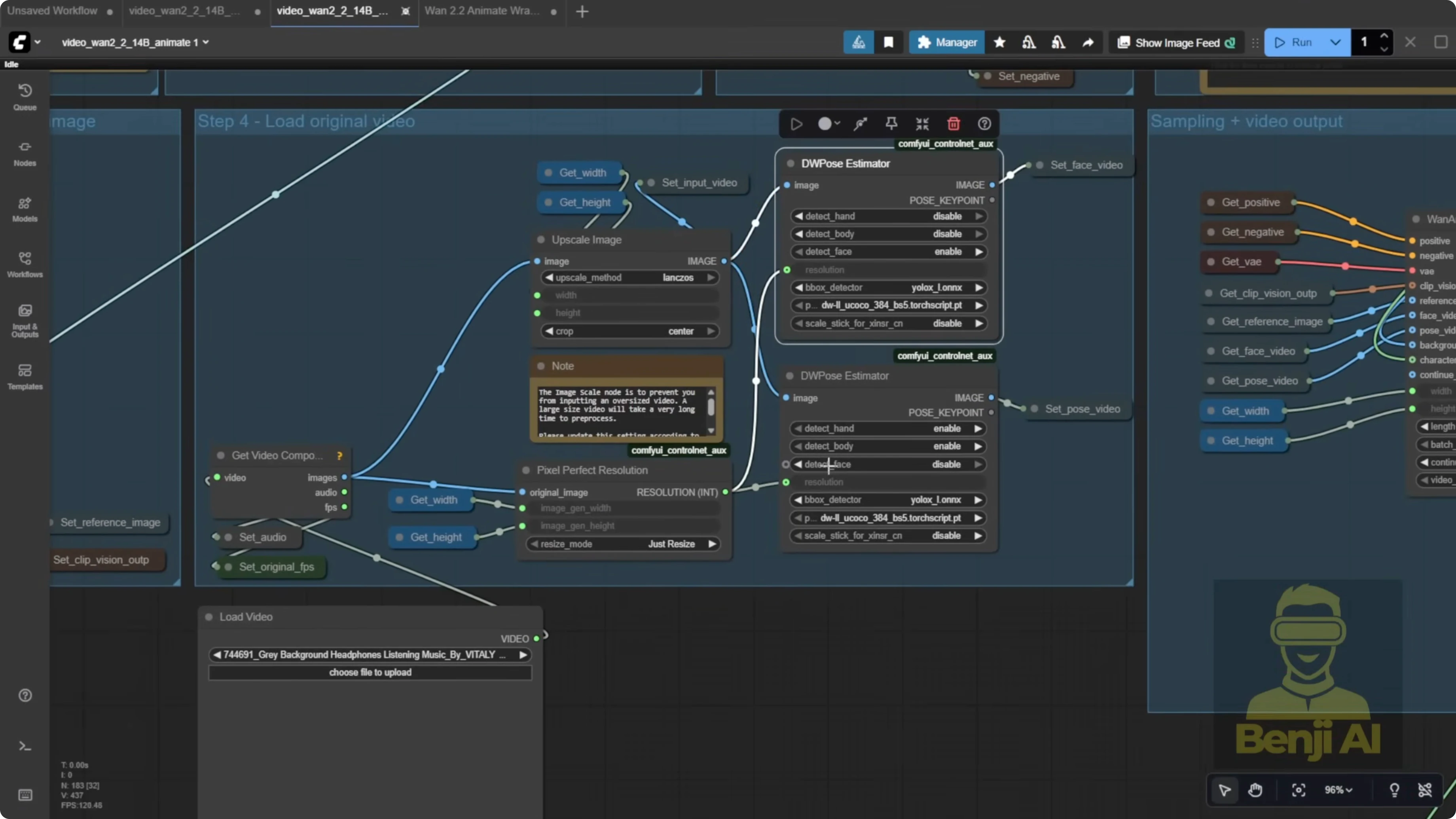
DW Pose or OpenPose runs painfully slow compared to depth maps or line art. It processes frame by frame, so limiting it to your needed frames saves a lot of time.
Model and Settings Checklist
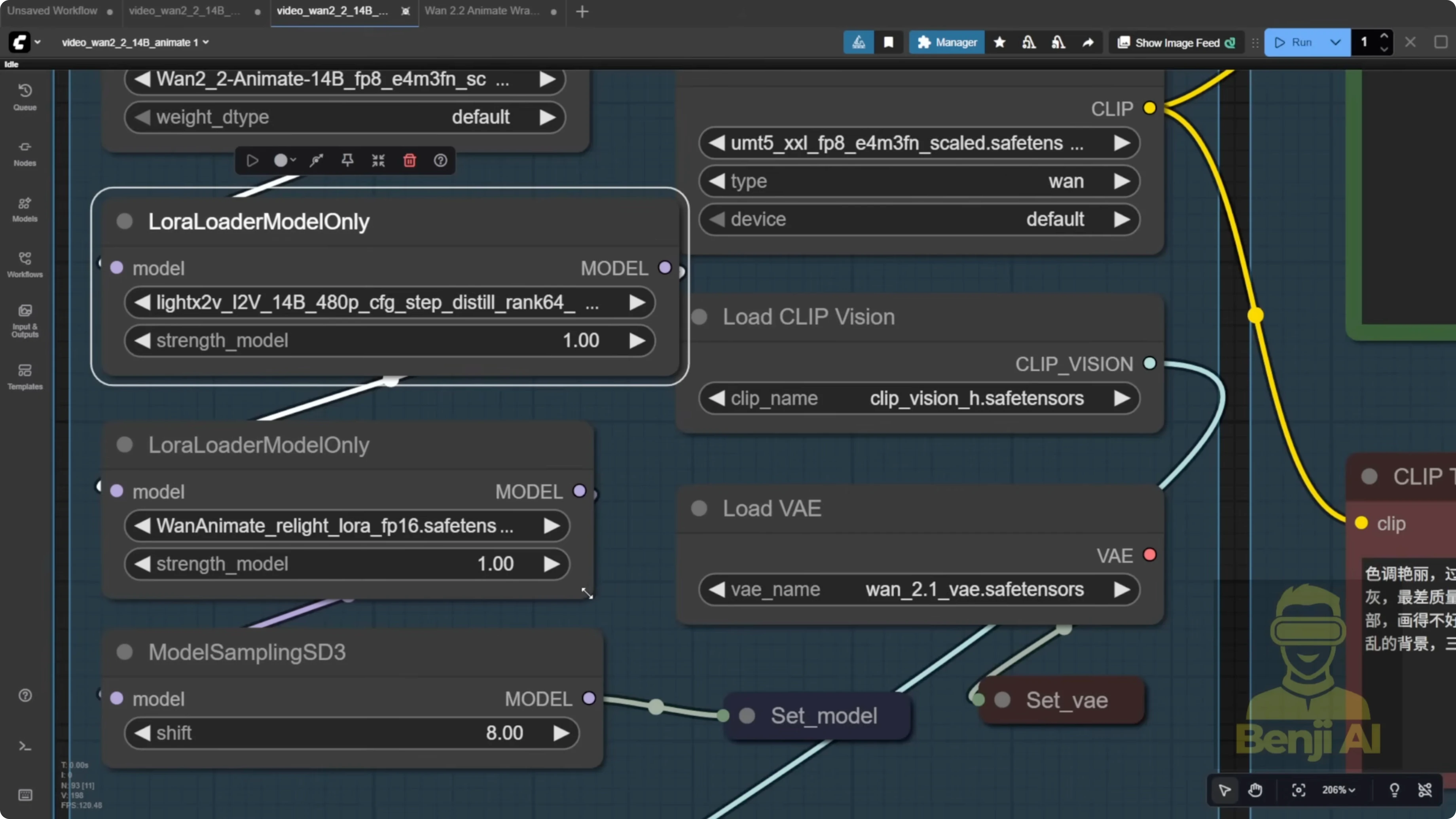
- Reselect and confirm all required models.
- Use the light X2V image to video LORA, not the text to video one.
- Load the animate relight.
- Ensure the template includes the UMT for the text CLIP encoder.
- Enable FP16 if your setup supports it.
Avoid Double DW Pose With a Single Pass
Two DW Pose nodes - one for face and one for body - double memory and processing. For longer runs like 700 or 1400 frames, that wait becomes huge. I recommend running a single DW Pose pass and extracting facial motion from the same pose data.
Step-by-Step - Single DW Pose With Face Extraction
- Run one DW Pose over your chosen frame count.
- Extract face key points from the resulting pose output.
- Use image crop by mask and resize to isolate the face region for facial motion.
- Feed those face key points and the cropped face region into your animate inputs as needed for lip sync or expressions.
You get what you need for face motion without a second DW Pose eating time and memory.
Use a For Loop for Clean Long Runs
Copy-pasting node groups works, but it gets messy fast. A for loop is cleaner and does the same job while handling offsets and trims automatically.
Step-by-Step - Loop a Long Video
- Decide your per-batch frame count, like 77 or 81.
- Compute the loop count to cover the total frames. For example, 700 frames across 77-frame batches takes 8 loops plus the initial batch - 9 K Sampler runs total.
- Initialize the video frame offset at 0 for the first batch.
- After each batch, add the batch size to the offset, then feed that updated offset back into the next loop iteration.
- Set continue motion max frames to a small value like 5 so the trim image node outputs 5 and trims duplicates at each new batch.
- Wire image from batch to an actual image counter so the node always shows the real frame count.
You’ll see the offset accumulate like 0, 77, 154, 231, and so on. It’s a clean counter system.
Point Editor - Use With Caution
The point editor looks cool but requires manual intervention.
Step-by-Step - Point Editor Workflow
- Start a run to generate the first frame so segmentation appears.
- Manually stop ComfyUI.
- Place green dots on the character - arms, hands, body - not just one dot.
- Preview the mask and confirm the character is cleanly cut out against a black background.
- Resume the full process to generate the output.
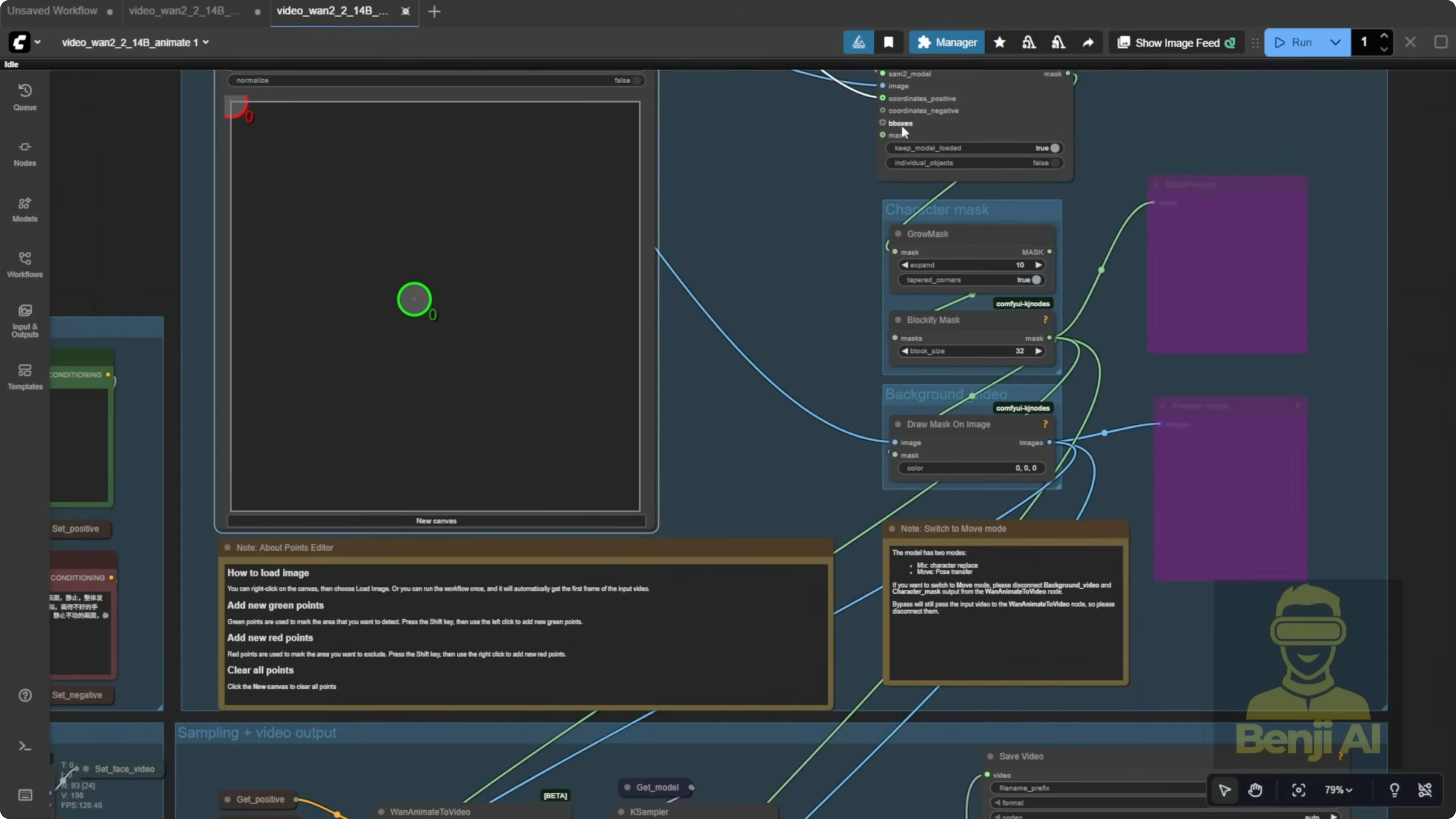
I’m not a big fan of the point editor because it feels like manual rotoscoping. If you want visual feedback, it works. I prefer automated segmentation.
Results and Practical Notes
- The default workflow can produce solid pose transfer. You’ll see headwear, limbs, and overall motion track the source video.
- If you want chained batches like meatball skewers, you can connect them with offsets and trims, or use a for loop to avoid spaghetti wiring.
- WAN 2.2 Animate is really meant for single character motion like a short dance clip or a quick action scene. There’s usually no need to swap LORAs mid video for a 77-frame clip.
- The light X2V image to video LORA helps a bit with color consistency across batches to reduce shifts or artifacts between frames.
Masking and Character Isolation With DOSAM
For masking and isolation, DOSAM segmentation is very convenient here. WAN 2.2 Animate works best with a single character. Type a prompt like dancer, dog, cat, or boy.
Final Thoughts
WAN 2.2 Animate running natively in ComfyUI brings reference-based character swap and pose transfer into a tidy, node-native workflow. The one animate to video sampler integrates with clip vision, reference image, and pose inputs, and you can choose to keep or drop the original background. For longer videos, chain batches using video frame offset and trim counts, or switch to a for loop so offsets and trims stay organized. Replace the static image from batch count with an image counter, use VHS load video to control frames and FPS, and skip the double DW Pose setup. A single DW Pose with face key points and a cropped face region is enough for facial motion while saving time and memory.
Recent Posts
How Wan 2.2 AI Boosts Video with 14B Generation & 5B Upscaling?
How Wan 2.2 AI Boosts Video with 14B Generation & 5B Upscaling?
Can Wan 2.2 Img2Vid Handle Long-Length Video Testing?
Can Wan 2.2 Img2Vid Handle Long-Length Video Testing?
Exploring Wan 2.2’s Final Frame and Local AI Video Highlights
Exploring Wan 2.2’s Final Frame and Local AI Video Highlights