How Qwen Image Edit & Wan 2.2 Enhance AI Video Scenes?
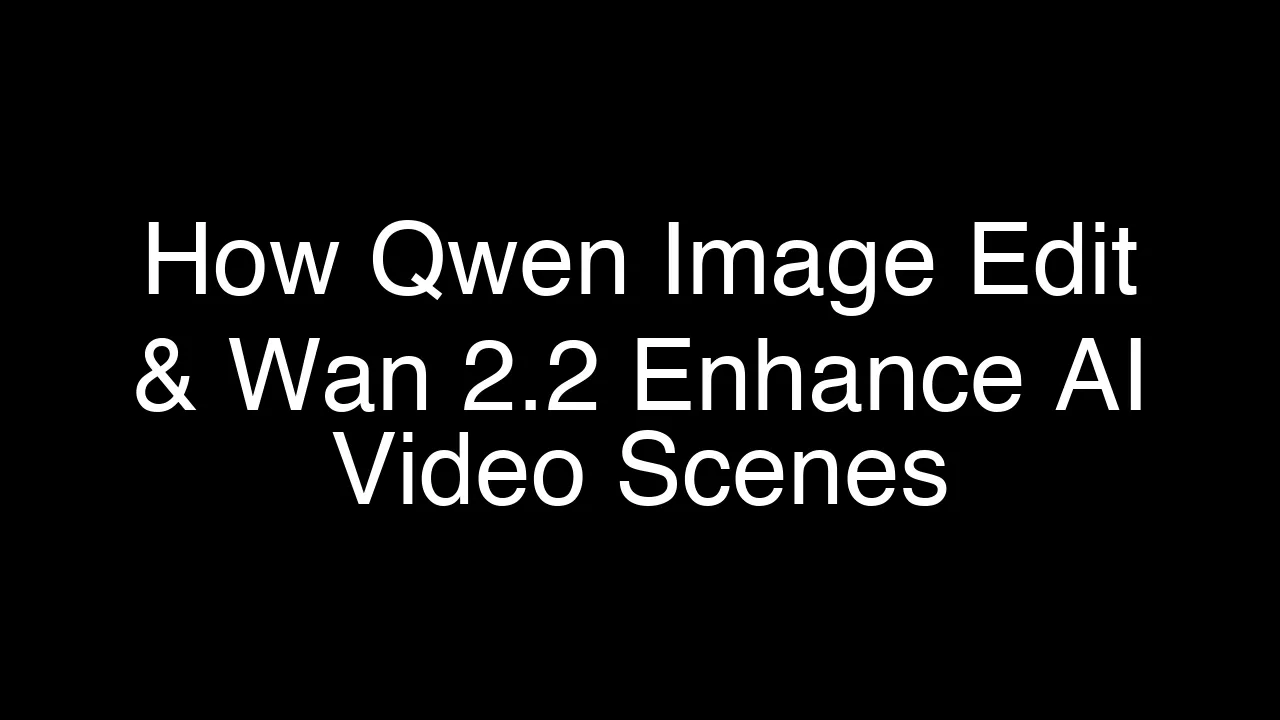
I tried two new LoRA models focused on creating coherent scenes. The first is for scene-by-scene image generation, built on Qwen Image Edit, specifically version 259. It strengthens Qwen Image Edit so new images keep the style and environment of a reference image, with cinematic storytelling in mind. It is trending on Hugging Face right now and sitting in the top four on the model ranking chart. I picked it based on the data and current trends and built a few workflows to test different use cases.
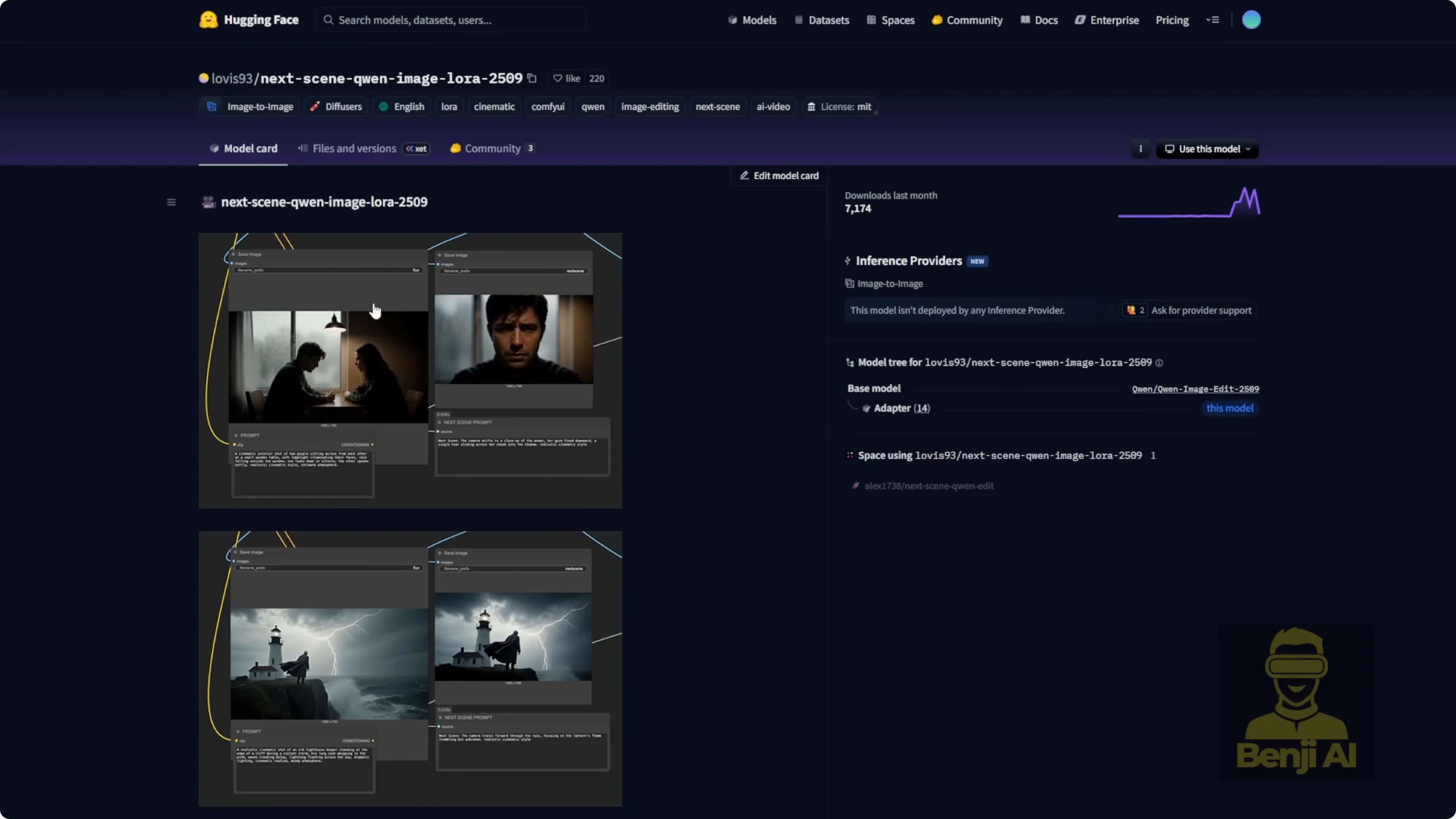
After building image scenes, I move to image-to-video to generate the final video content. The latest Light X2V tools released new versions of image-to-video LoRAs and MOE-distilled models for WAN 2.2. They provide both distilled models and LoRA files. I downloaded the LoRA models and tested both the high-noise and low-noise variants to generate clips. You can also use the distilled models, which come as two files - a high-noise model around 28 GB and a low-noise model also around 28 GB. For this tutorial, I use the LoRA models and connect them directly to the WAN 2.2 image-to-video model, embedding the LoRA into the workflow.
How Qwen Image Edit & Wan 2.2 Enhance AI Video Scenes?
This setup creates coherent stills with Qwen Image Edit and the Next Scenes LoRA, then animates each scene with WAN 2.2 using Light X2V. The result is a scene-by-scene storytelling pipeline that keeps character and environment consistency, then turns those images into a 30-second video with optional sound design.
Tools and models I use
- Qwen Image Edit v259
- Qwen Image Edit Lightning 4 steps
- Next Scenes LoRA for Qwen Image Edit
- Consistent Edit V2 LoRA
- Flux 1 Dev for the initial text-to-image
- SRPO LoRA for realistic aesthetic
- Qwen 3 Max for prompt generation
- WAN 2.2 image-to-video model
- Light X2V LoRA for WAN 2.2
- MOE Distilled Light X2V models - high-noise and low-noise
- Huan Video Foley for audio
- MiniCPMV for scene description
Building scene-by-scene images with Qwen Image Edit and Next Scenes LoRA
I created six scenes with Qwen Image Edit for a tight 30-second short. Six images work well as six 5-second beats.
Step-by-step setup
-
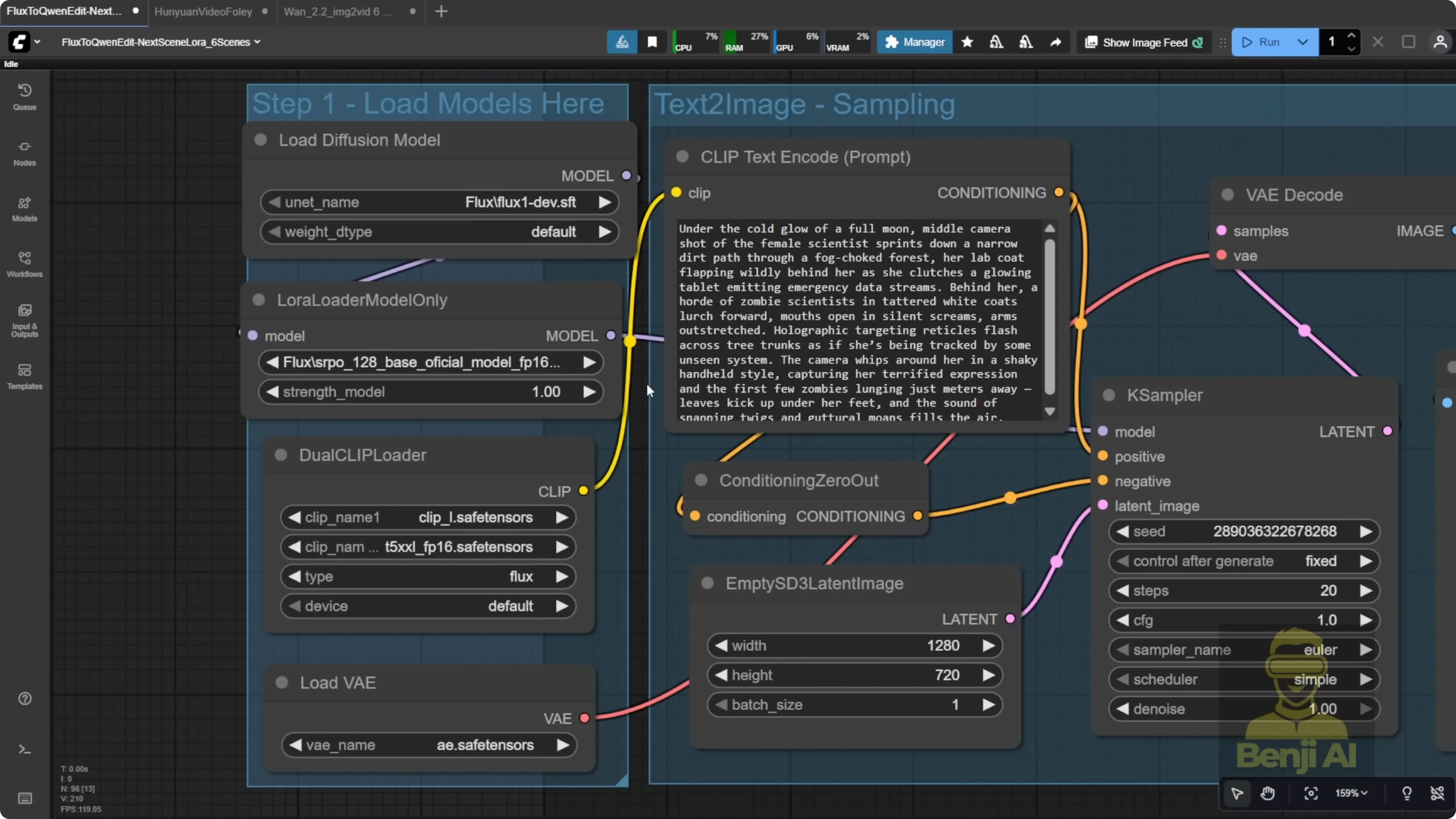
Generate the first image
- Use Flux 1 Dev with the SRPO LoRA for a stable and realistic starting point.
- This becomes scene 1 - the opening moment of the story.
- Make the first shot a clear close-up of the character to anchor face, outfit, and overall look for future scenes.
- Example environment choice: a modern commercial building with tall glass windows and sunshine - high-tech and clean for a consistent tone.
-
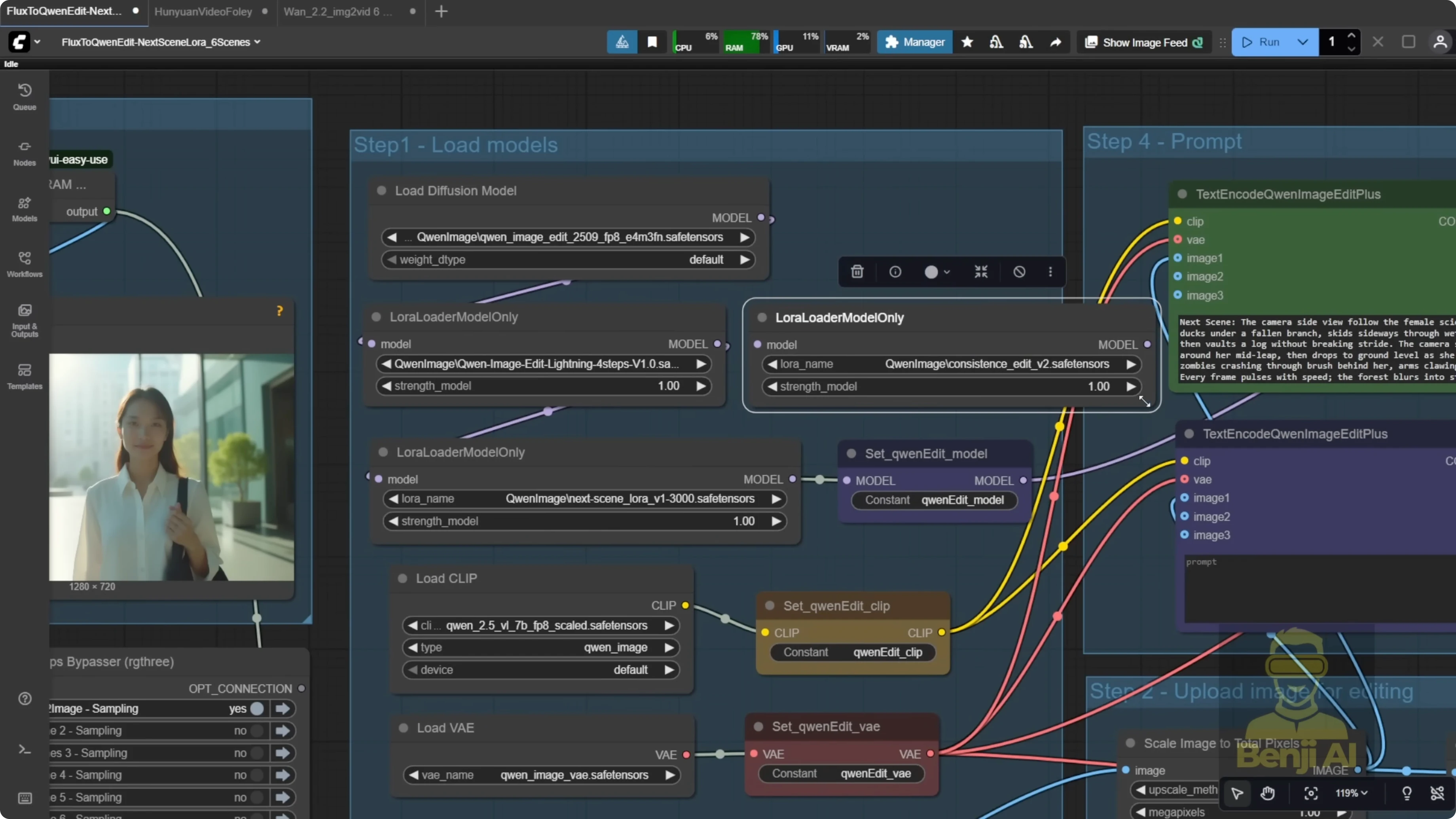
Configure Qwen Image Edit
- Connect Qwen Image Edit Lightning 4 steps to reduce sampling steps.
- Add the Next Scenes LoRA.
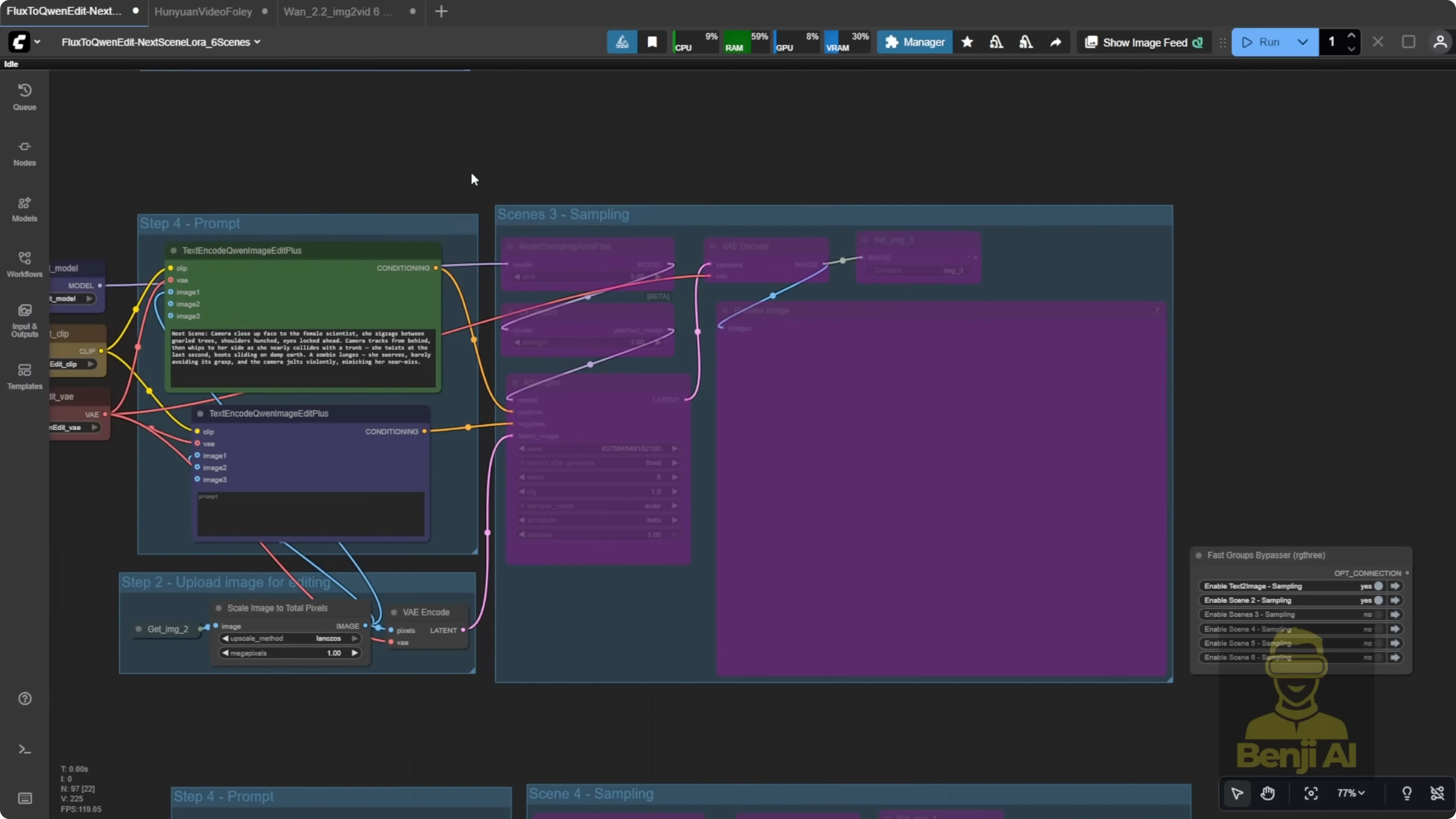
- Use the usual Qwen Image Edit setup: text encoder, positive and negative prompts feeding into the KSampler, then generate the image.
-
Maintain consistency across scenes
- Stack Consistent Edit V2 with the Next Scenes LoRA to lock in character and environmental consistency.
- For each new scene, feed the previous output image as the input reference. You can also jump back to an earlier scene if needed, but I keep it sequential by default.
- Prompt format and LoRA strength
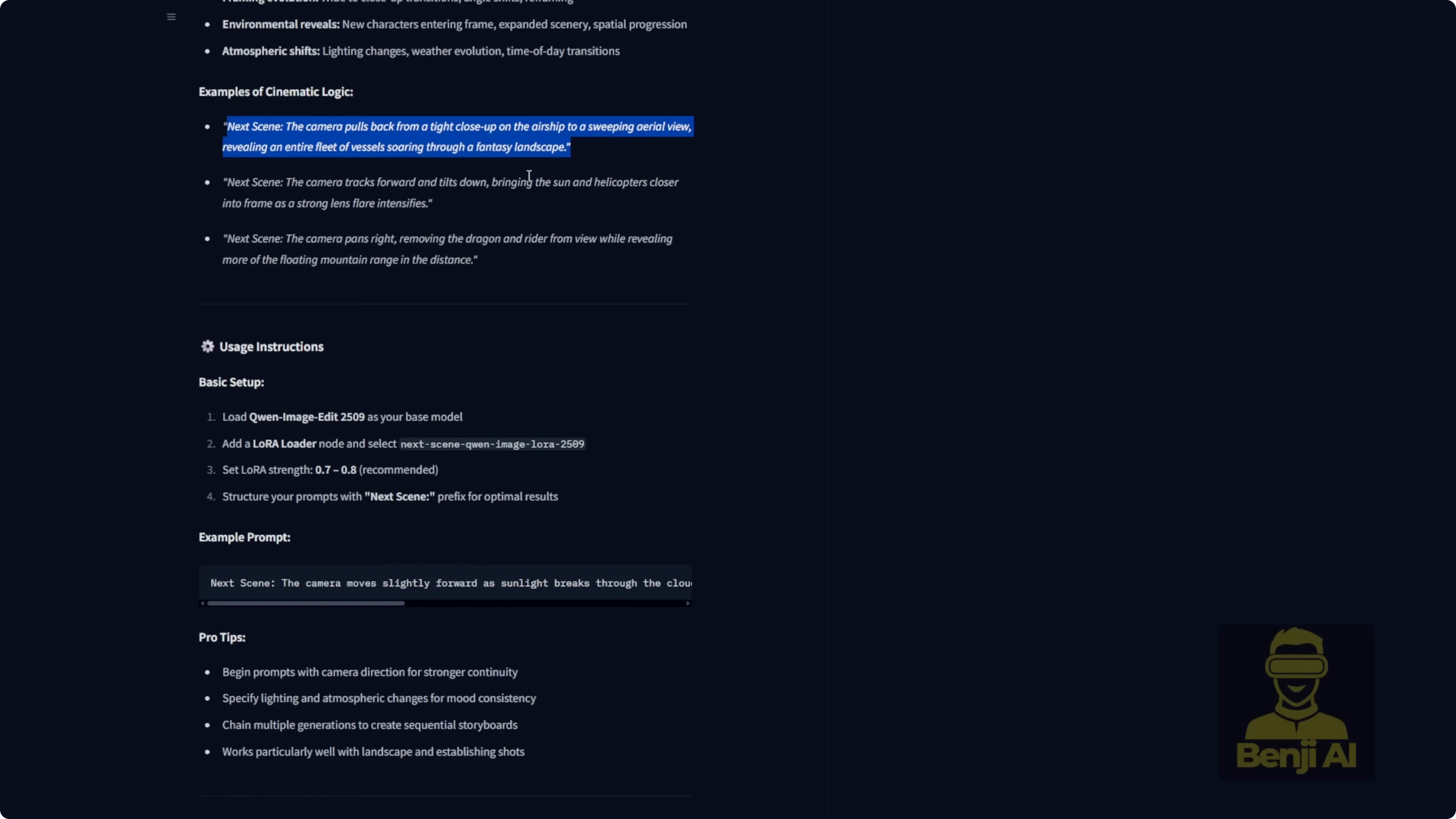
- The Next Scenes LoRA expects your prompt to start with the keyword: next scenes
- Try LoRA strengths between 0.7 and 0.8. I sometimes push it to 1.0, but 0.7 to 0.8 is a good starting point.
- Describe camera direction clearly - where it is, how it moves, and what it focuses on.
Prompting with Qwen 3 Max
I use Qwen 3 Max to generate prompts for six 5-second scenes that total a 30-second sequence. I instruct it to create prompts that include subject, scene, and action for a 30-second video. Earlier, I generated 30-second videos from a single starting frame, but here I rely purely on text prompts to drive the whole sequence.
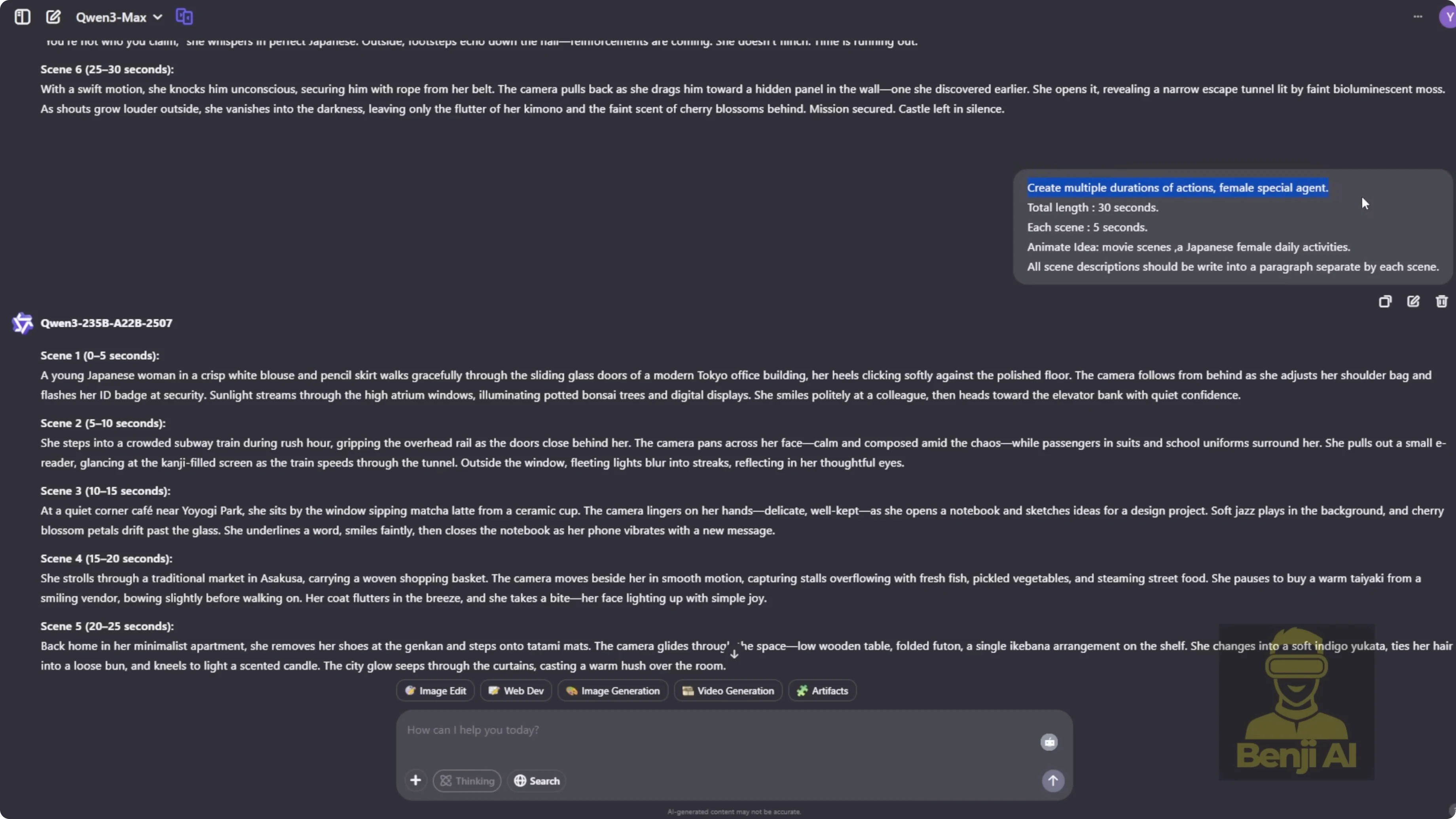
- Example story: a female special agent with a Japanese background.
- I copy scene one’s prompt into Flux for text-to-image and run it as-is to see the raw AI output.
- If the face is not visible because of a behind-the-back camera angle, I tweak the prompt for a clear close-up in the first scene so Qwen Image Edit has a solid facial reference.
For scene two and beyond, I copy the AI-generated prompt, confirm it starts with next scenes, and double-check the camera direction. If the first scene shows the agent outside a building, scene two might say: next scenes. Camera pushes in as the character enters a subway station during rush hour. The setting changes, but her face, outfit, and hairstyle stay consistent.
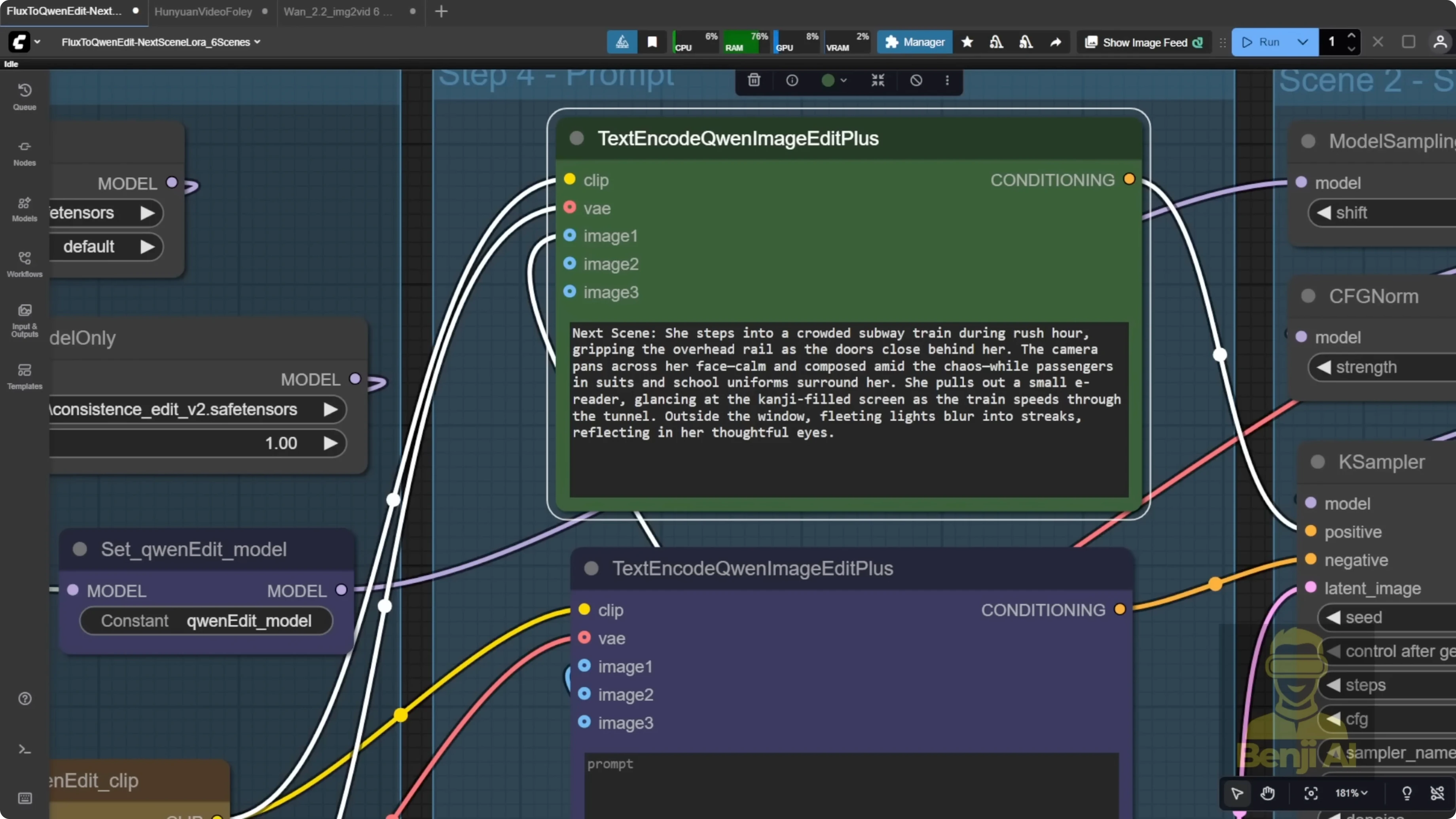
I repeat this for scenes three through six and build the story beat by beat. If I do not like an output, I change the seed and regenerate, then cherry-pick the best version.
Notes on workflow and scope
- This method does not produce smooth, continuous motion in a single clip. It is designed for edited sequences with distinct shots, consistent characters, and cohesive environments.
- It keeps the visual world grounded and coherent. You will not suddenly jump from a realistic Tokyo street to outer space or a cartoon universe.
- I generate all six scene prompts up front, then enable each sampler one by one, render, and refine with seeds as needed.
Example stories
-
Story 1: A Japanese special agent
- Scene prompts include different locations like office exteriors, subways, and night interiors. Even as the environment shifts, the agent’s look stays consistent with the same hairstyle and vibe, and the setting still reads as Tokyo.
-
Story 2: A female scientist being chased by zombies
- Scenes include the scientist running, a chase escalation, a riverbank sprint, a jump into the water, and a safe house discovery. Her appearance stays consistent, and the environment holds together - muddy riverbank, overcast sky, post-apocalyptic tone, and matching color grading across shots.
How Qwen Image Edit & Wan 2.2 Enhance AI Video Scenes? - Converting images to video
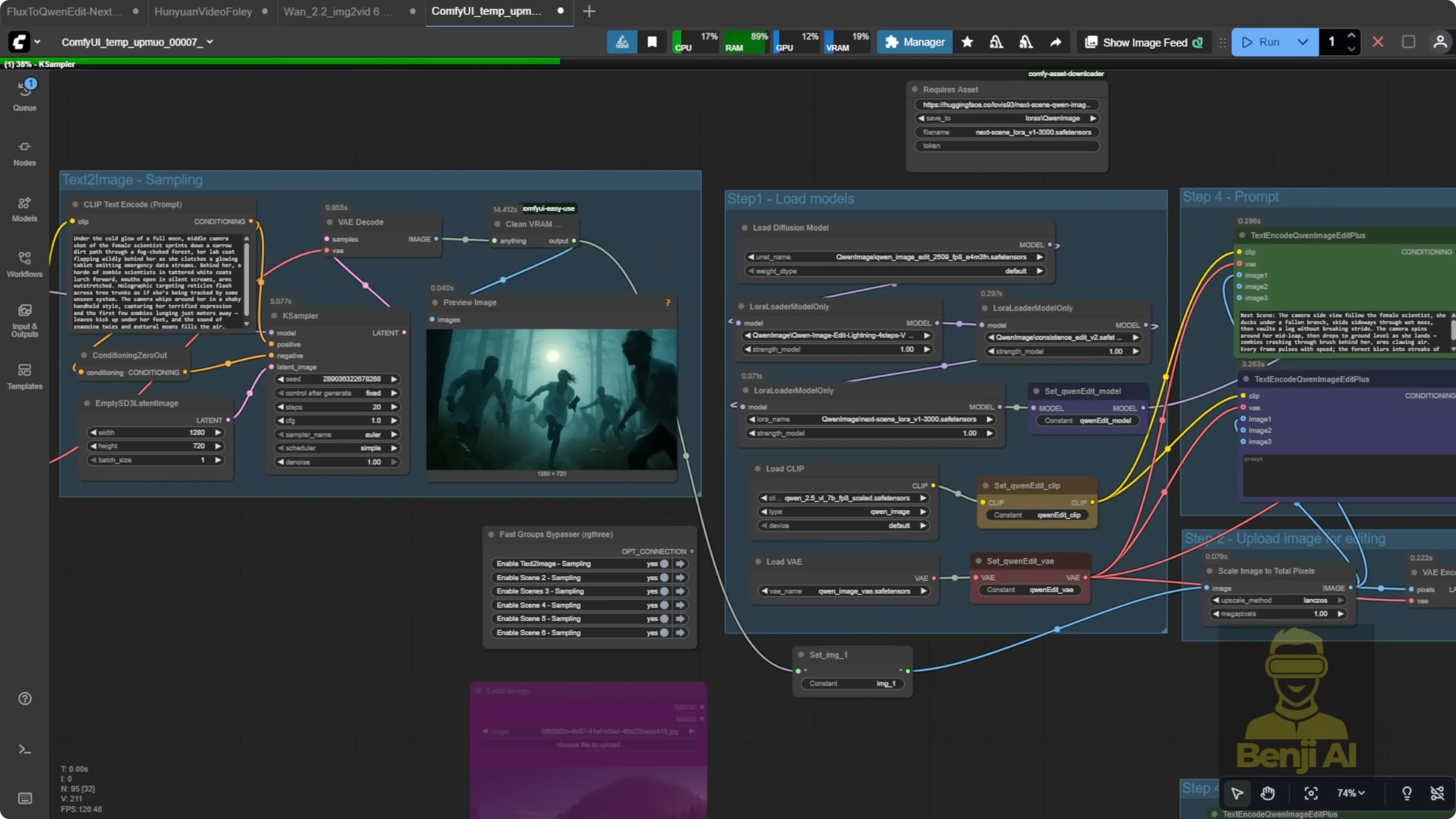
I built a workflow that takes each of the six images and turns them into individual clips using WAN 2.2. Each clip has its own input image and prompt, but they share common settings like model choice, frame count, width, and height.
Step-by-step image-to-video
-
Load LoRA and model
- Use the latest Light X2V LoRA from the official Hugging Face repo with WAN 2.2.
- Under the hood, this taps the MOE Distilled Light X2V models, with both high-noise and low-noise options. Some people have extracted diffusion weights from the high-noise model to make higher rank LoRAs, but I stick with the standard Light X2V release.
-
Prepare the scenes
- Load the six images into the image nodes.
- Reuse the same scene prompts. Even with the same prompts, outputs can vary with new seed numbers, character details, or lighting.
-
Render and combine
- Generate all six clips and save them to the output folder.
- Stitch them into a single 30-second video.
- Run frame interpolation to double the FPS for smoother playback.
Adding sound design to the video
I built a small workflow to add sound effects so the final output is not silent. I use Huan Video Foley for generating audio that matches the action, and MiniCPMV for scene description.
Step-by-step Foley setup
-
Install models
- Download the Huan Video Foley model files in FP16 or FP8.
- Place them in a Foley subfolder inside your ComfyUI models directory.
-
Load components
- Load the model, VAE, and sync reformer in the workflow.
-
Process per scene
- Generate audio per 5-second scene rather than the full 30-second video.
- This lets you fine-tune and pick the best version for each moment, like explosions or footsteps.
- In practice, Huan Video Foley has worked better for me than mm audio.
How Qwen Image Edit & Wan 2.2 Enhance AI Video Scenes? - A practical workflow
- Create six 5-second scene prompts with Qwen 3 Max that include subject, scene, and action.
- Generate the first image with Flux 1 Dev and SRPO LoRA. Make it a clear close-up to lock character identity.
- Set up Qwen Image Edit with Lightning 4 steps, add Next Scenes LoRA, and optionally stack Consistent Edit V2.
- For scenes 2-6, start prompts with next scenes, keep camera directions explicit, and feed the previous image as reference.
- Convert each image to a clip with WAN 2.2 using the Light X2V LoRA.
- Stitch the six clips, run frame interpolation, and add sound per scene with Huan Video Foley.
Final Thoughts
This pipeline moves from text prompts to consistent image scenes, then to image-to-video, and finally to sound design, resulting in a complete AI storytelling workflow. By combining Qwen Image Edit with the Next Scenes LoRA and animating with WAN 2.2 and Light X2V, you can build scene-by-scene narratives with stable characters and coherent environments, then elevate them further with frame interpolation and Foley audio.
Recent Posts
How Wan 2.2 AI Boosts Video with 14B Generation & 5B Upscaling?
How Wan 2.2 AI Boosts Video with 14B Generation & 5B Upscaling?
Can Wan 2.2 Img2Vid Handle Long-Length Video Testing?
Can Wan 2.2 Img2Vid Handle Long-Length Video Testing?
Exploring Wan 2.2’s Final Frame and Local AI Video Highlights
Exploring Wan 2.2’s Final Frame and Local AI Video Highlights